101
Applications
Media Player
You can use the Media player to play music/video stored in the microSD
card or internal storage and use contents from stores in dmarket.
·
For details on how to save music/video files to the microSD card or internal
storage from a PC, see “Connecting to a PC” (P. 89).
·
File formats supported by the terminal are as follows. However, some files
may not be available.
Type File format
Music AAC, AAC+, Enhanced AAC+, MP3, MIDI, WMA
Videos H.263, H.264, MPEG-4, WMV, VC-1, VP8
Playing music/video
1
From the Home screen, → “エンタメ/便利ツール
(Entertainment/Tools)” → “Media Player”
The data list screen appears.
2
Tap an icon at the left of the screen
·
Tap “Songs”/“Ringtones”/“Artists”/“Albums”/“Play list”/“Genre”/“Age”
to play music.
·
Tap “Movie” to play video.
·
Tap “MUSIC Store”/“VIDEO Store” to activate dmarket and you can
use music/video contents in stores.
3
Tap a song or video
Selected song/video is played.
■ Information
·
Contents protected by Digital Rights Management (DRM) technology may
not be able to be played if “Factory data reset” is performed.
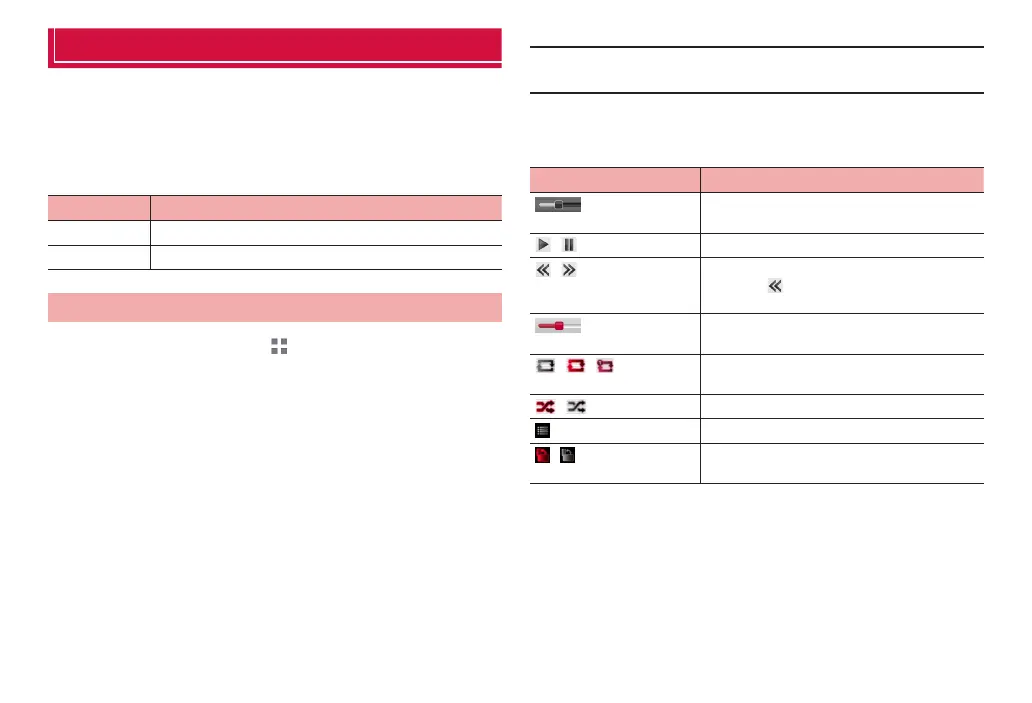
■ Operations on the music/video playing screen
·
When the icon is off, tap the screen to display.
Icon Description
Show current playback position. Drag left and
right to change playback position.
/ Play or pause.
/ Tap to skip the beginning of data/next data.
·
Tapping at the beginning of data skips to
the beginning of the previous data.
Show sound volume. Drag left and right to
change playback volume.
/ / *
1
Set repeat mode (Repeat off/Repeat all/Repeat
song).
/ *
1
Enable/disable shuffle play.
*
2
Display list screen for data.
/ *
2
Set whether to automatically rotate screen
orientation.
*1 Appears only on the music playing screen.
*2 Appears only on the video playing screen.



 To Next Page