41
Before using the terminal
Screen/Icon
Status bar
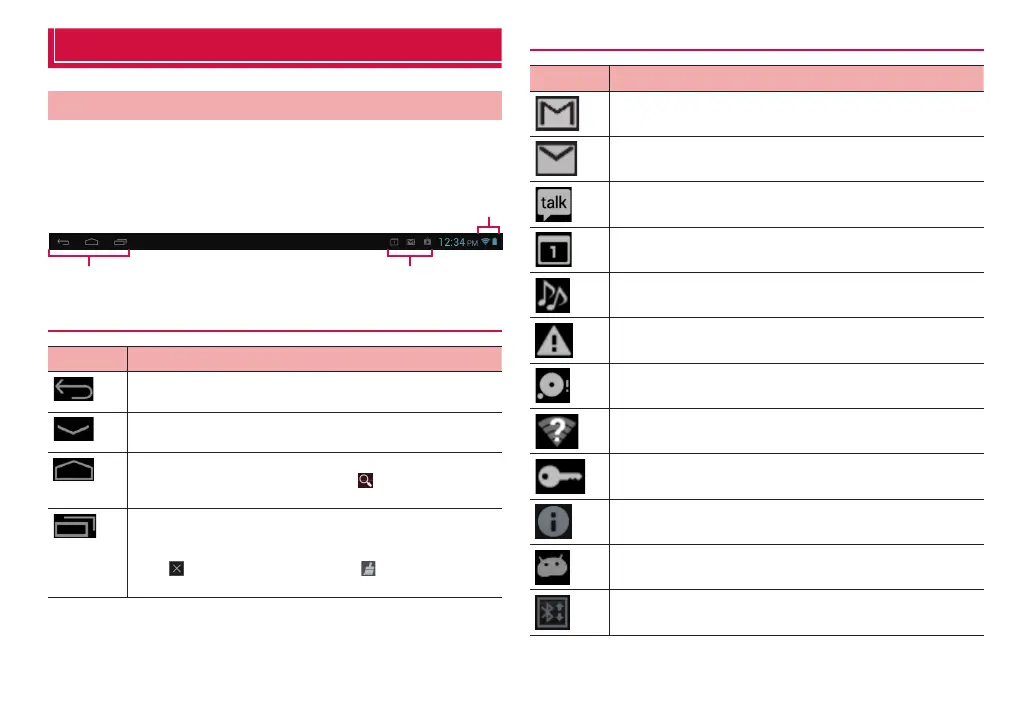
Displayed in the status bar at the bottom of the display are onscreen
keys for operating the terminal, notification icons such as for received
mail and data send/receive results, and terminal status icons.
Onscreen keys Notification icon
Status Icon
Onscreen keys
Onscreen key
Function
Use to return to the preceding displayed screen.
Hide keyboard displayed item. Displayed only when operation
is possible.
Use to return to the Home screen.
·
Touch and hold then slide (swipe) to to start up “
(Shabette concier)” or “Google” (search).
Display list of recently used applications and functions.
·
Tap an application or function in the list to start up that
application or function.
·
Tap to delete from the history. Tap to delete all history
items.
Main notification icons
Icon Status
New Gmail
New email
New instant message (Google Talk)
Notification of event (Calendar)
Playing music with Media Player
Error (synchronizing malfunction etc.)
Available memory space of the terminal is low
Wi-Fi is ON and Wi-Fi open network is available
Connected VPN
Accessory (AC adapter, etc.) connected
Connected in USB debug (debug mode)
Receiving data via Bluetooth



 To Next Page