25
Before using the terminal
Character entry
To enter characters, use keyboard displayed on the screen.
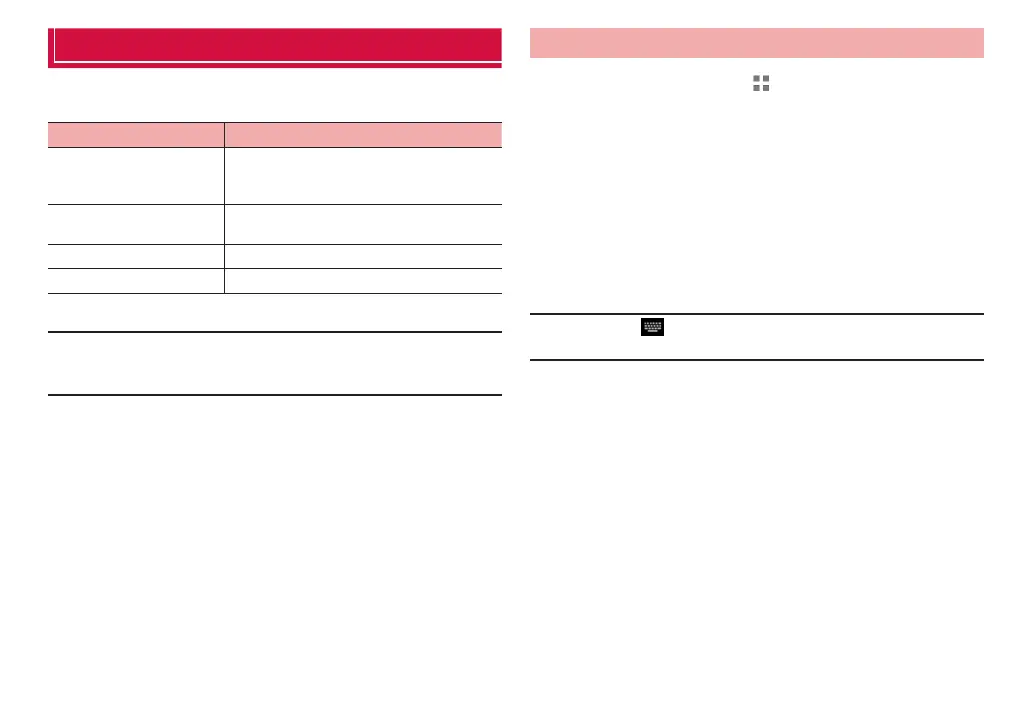
Input methods (keyboards) are following 4 types.
Input method (keyboard) Description
Android keyboard Select for entering only alphanumerics/
symbols.
Japanese cannot be input.
FSKAREN for Huawei Select for entering Japanese. It is default
input method.
Google voice typing Select for entering character by voice.
Japanese IME Select for entering Japanese.
■ Information
·
Display or operation of each keyboard may vary by usage condition. Or
dedicated keyboard may be displayed depending on application or function
you use.
Changing keyboard
1
From the Home screen, → “基本機能/設定 (Basic
Functions/Settings)” → “Settings”
2
“Language & input”
The language and input setting screen is displayed.
3
“Default” → Tap an input method you want to use
·
“Google voice typing” cannot be selected. To use “Google voice
typing”, each time you enter characters, select it in the way of the
following information.
·
Select the input method you want to use beforehand in the language
and input setting screen.
■ Information
·
You can also tap in the status bar (P. 41) while a keyboard is displayed
to change keyboards.



 To Next Page