105
Applications
Using Google Maps
Use Google Maps to check current location or search location.
Also using Google Maps, you can access following applications.
·
Google Latitude (P. 106)
·
Google Maps Navigation (P. 107)
·
Google+Local (P. 107)
■ Information
·
To use Google Maps, a network connection via Wi-Fi is required.
·
Before using all functions, from the Home screen, “/
(Basic Functions/Settings)” “Settings” “Google” “Location settings”
Tap “OFF” in “Let Google apps access your location” to switch “ON”
beforehand.
·
In some areas, part of functions may not be available.
1
From the Home screen, → “Google” → “Maps”
Map screen appears.
·
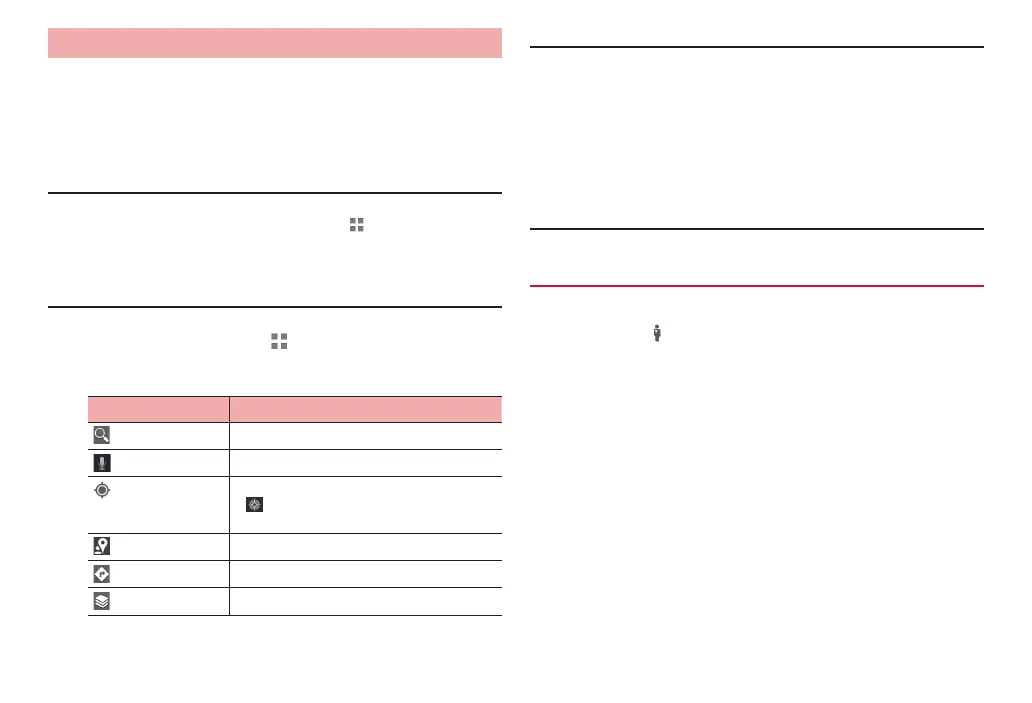
Tap an icon/item to perform following operations.
Icon/Item Description
Enter text to search on the map.
Search on a map by voice.
Show current location.
·
is displayed while current location is
displayed.
Use Google+Local (P. 107).
Show routes to the destination (P. 106).
Use layer function (P. 106).
■ Information
·
On the map screen, use the touch panel to perform the following operations.
Slide (swipe) : Scroll the map to show other area
Touch and hold : Show address in a call-out
Pinch-in/-out : Zoom out/in the map
Double-tap : Zoom in the map
Tap with 2 fingers in the same time : Zoom out the map
Slide (swipe) downward with 2 fingers: Tilt map for 3D display
Slide (swipe) left/right
with 2 fingers: Rotate map
·
Touch and hold the map and tap a call-out to show the information screen
which allows you to check detailed information, save to starred places, etc.
Viewing Street View
1
Touch and hold a location on the map → Tap a
call-out →
·
If a notification screen appears, tap “OK”.
·
Street View does not cover some areas.



 To Next Page