106
Applications
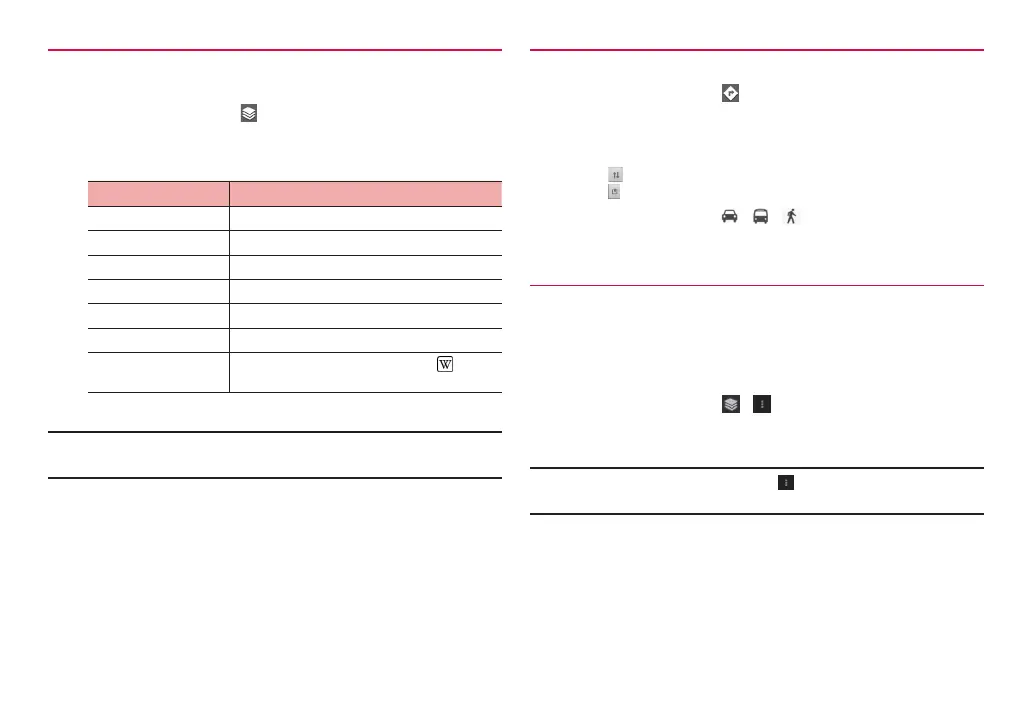
Using layer function
You can add traffic information on the map and switch to aerial
photograph.
1
On the map screen,
2
Tap an item
·
Displayed menu items differ depending on conditions and areas.
Item Description
Traffic Check real-time traffic information.
Satellite Switch to aerial photograph.
Terrain Switch to topography of the land surface.
Transit Lines Show route map on the map screen.
Latitude Use Google Latitude (P. 106).
My Maps Show My map (a map created by yourself).
Wikipedia Show Wikipedia information icons (
) on the
map.
■ Information
·
Provided aerial photographs are not real-time images.
·
In some areas, traffic information, rout map, etc. may not be available.
Searching routes
Set start point and end point to check route.
1
On the map screen,
2
Enter start point in “My Location”
3
Enter end point in “End point:”
·
Tap to switch start point and end point.
·
Tap to set locations from contacts, points on the map, My Places.
4
Tap transportation ( / / ) → “Go”
Routes appear.
Using Google Latitude
Check where friends are on the map and share location information via
Bluetooth communication or mail, etc. Also, routes to places where
friends are can be searched.
·
To share location information, you need to join Latitude and invite friends
who give you their location information, or to receive an invitation from them.
1
On the map screen, / → “Latitude”
The Latitude screen is displayed on a map.
■ Information
·
For details on Latitude, in a map screen, “Help” “How to”
“Additional Maps features” Tap “Latitude” to check Help.



 To Next Page