54
Phonebook
❺ Saved items
Registered information for the selected contact is displayed.
·
Tap a mail address to create mail.
❻ Register new contact
Save contacts.
❼ Edit
Edit information for the selected contact.
❽ Set
Display the menu for the contacts list (P. 54).
❾ Favorites
Tap to add/delete favorites.
Joined contacts
Join phonebook entries (P. 54) or unjoin phonebook entries (P. 54).
Joining contacts
You can combine information from several contacts into one contact.
1
In Contacts list, select a contact → “Manage joined
contacts”
Join another contact with the selected contact.
2
“Add contact” → Tap the contact to join
Unjoining contacts
1
In Contacts list, select a contact → “Manage joined
contacts”
2
Tap “ ” on the right of the contact you want to unjoin
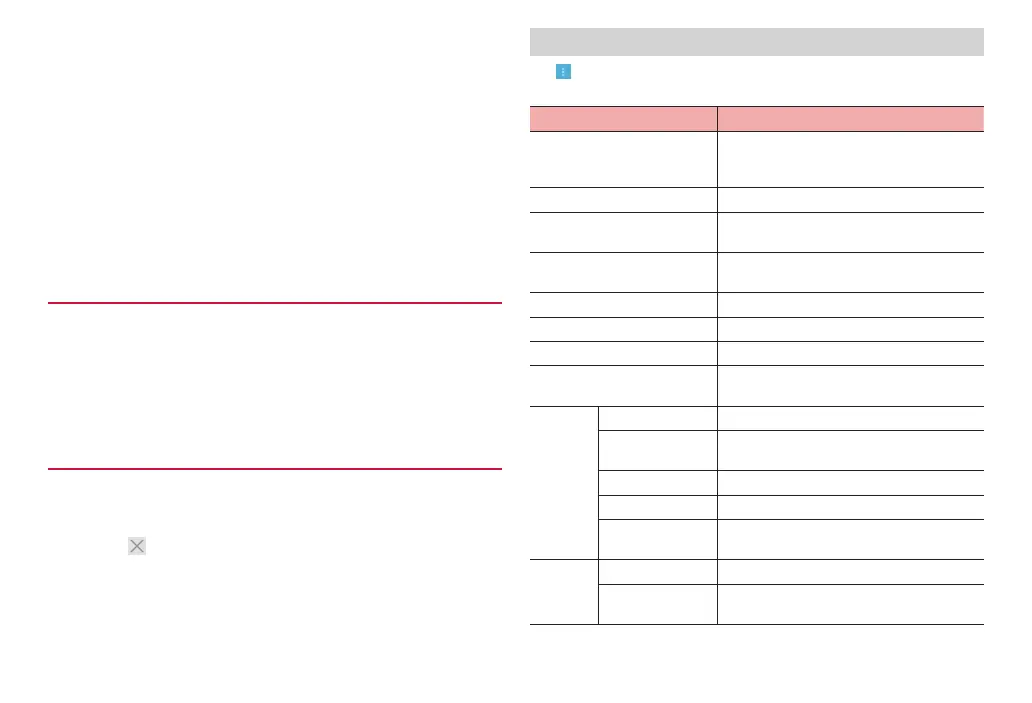
Menu on Contacts list
Tap on Contacts list to show the following items.
·
Available menus vary with displayed information.
Item Description
Share Send contacts for which registered
information is displayed via Bluetooth
communication, email, etc.
Delete Delete contacts.
Copy to XXXXXX / Copy Copy contacts to a Google or other account
or to the terminal’s phonebook.
Place on Home screen Locate contacts for which registered
information is displayed to the Home screen.
Contacts to display Select the type of contacts to display.
Accounts Set account synchr
onization.
Delete contacts Delete selected or all contacts.
Share contacts Send selected or all contacts via Bluetooth
communication, email, etc.
Manage
contacts
Copy contacts Copy contacts.
Import from
storage
Import contacts from an SD card or USB
storage.
Export to storage
Export contacts to an SD card or USB storage.
Memory status Check the registered number of contacts.
Delete duplicate
contacts
Delete duplicates of contacts.
Settings*
Sort list by Select rules for sorting the contacts list.
View contact
names as
Select the displayed information for contact
names.
* Displayed only when “English” is selected in “Language & input”



 To Next Page