107
Applications
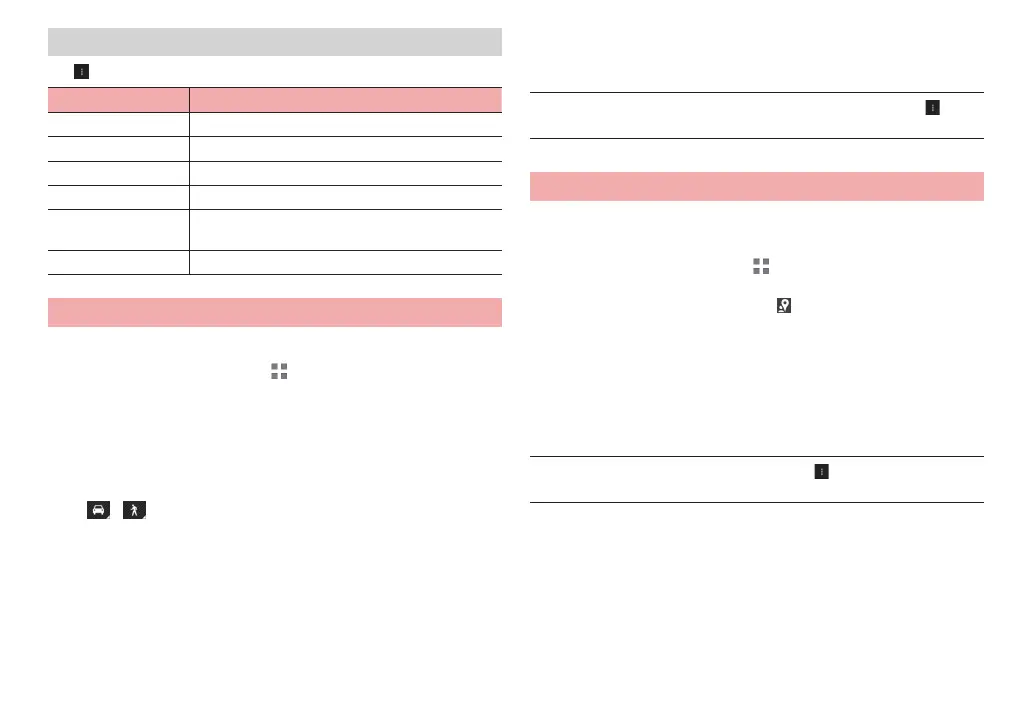
Menu on the map screen
Tap on the map screen to show the following menu items.
Item Description
Clear Map Restore the map data to default.
Make available offline Download specified area map to use.
Latitude Use Google Latitude (P. 106).
My Places Display list of registered starred places, etc.
Settings Sign in or switch to Google account, make cache
settings, check various information, etc.
Help Show Help.
Using Google Maps Navigation
Check routes toward destinations using navigation function.
1
From the Home screen, → “Google” →
“Navigation”
·
For the first activation, a message appears. Check the content
Tap “Accept”.
·
When a confirmation screen for location information settings
appears, tap “OK” and then enable scanning location information
(P. 104).
2
/ → “Driving”/“Walking”
3
“Type destination” → Enter destination → Tap
destination from displayed locations
Routes appear.
·
Alternatively, tap “Speak destination” and speak a destination.
·
You can tap “Contacts”/“Starred places” and search for addresses
saved in contacts or starred places.
■ Information
·
For details on Google Maps Navigation, on the navigation screen, Tap
“Help” to check Help.
Using Google+Local
You can search for restaurants, hotels, etc. in the vicinity of your current
location.
1
From the Home screen, → “Google” → “Local”
A local area screen is displayed on the map.
·
Alternatively, on the map screen, .
2
Tap a category
Information searched by the selected category is listed.
3
Tap information to check
Detailed information appears. You can check, share detailed
information and save to STARRED, etc.
■ Information
·
To add categories, on the category list screen, “Add a search” Tap
category to add. You can also enter a new category name.



 To Next Page