36
Before using the terminal
Adding/editing/resetting phrases/smileys
Add/edit phrase or smiley. You can reset to the default.
·
Use in FSKAREN for Huawei.
1
From the Home screen, → “基本機能/設定 (Basic
Functions/Settings)” → “Settings”
2
“Language & input” → Tap displayed on the right
of “FSKAREN for Huawei”
3
“Menu” → “Common Phrases” for dictionary settings
4
Perform adding/editing
■ Adding
Select a category “Add”
Enter a character “OK” “OK”
■ Changing
Select a category Tap an item to change “Edit”
Change content “OK” “OK”
■ Deleting
Select a category Tap an item to delete “Delete” “OK”
“OK”
■ Moving
Select a category Tap an item to move “”/“”
■ Resetting phrase/smiley to the default state
“Reset” “OK” “OK”
Changing settings of keyboard
1
From the Home screen, → “基本機能/設定 (Basic
Functions/Settings)” → “Settings”
2
“Language & input” → Tap displayed on the right
of “Android keyboard” / “FSKAREN for Huawei” /
“Google voice typing” / “Japanese IME”
·
For FSKAREN for Huawei, continue by tapping “Menu” for the
keyboard.
3
Set each item
■ Android keyboard
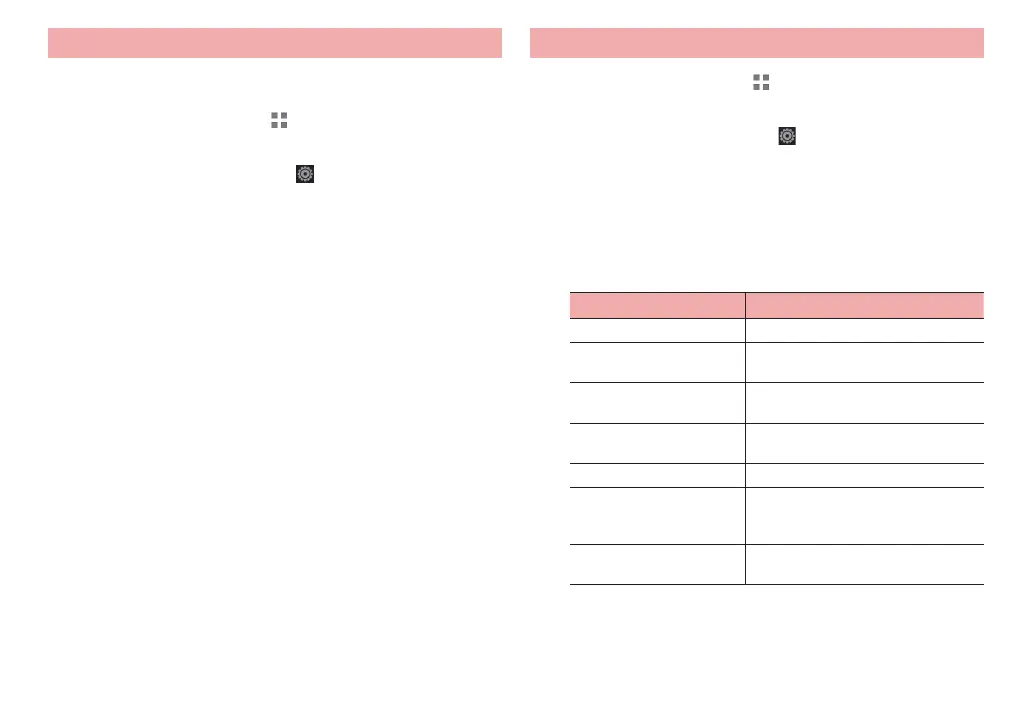
Item Description
Input languages Select language to enter.
Auto-capitalization Set whether to capitalize the first letter
of a sentence when entering English.
Vibrate on keypress Set whether to vibrate when a key is
tapped.
Sound on keypress Set whether to emit operation sound
when a key is tapped.
Add-on dictionaries Set expansion dictionaries.
Auto correction Set whether to indicate a predictive
candidate in bold letter and auto-
corr
ect by space or punctuation key.
Show correction
suggestions
Set whether to display entry candidate
when entering characters.



 To Next Page