69
Settings
Disconnecting VPN
1
Tap a VPN to disconnect on the VPN setting screen →
“Disconnect”
VPN is disconnected.
Menu on the VPN setting screen
Touch and hold a VPN on the VPN setting screen to show the following
menu items.
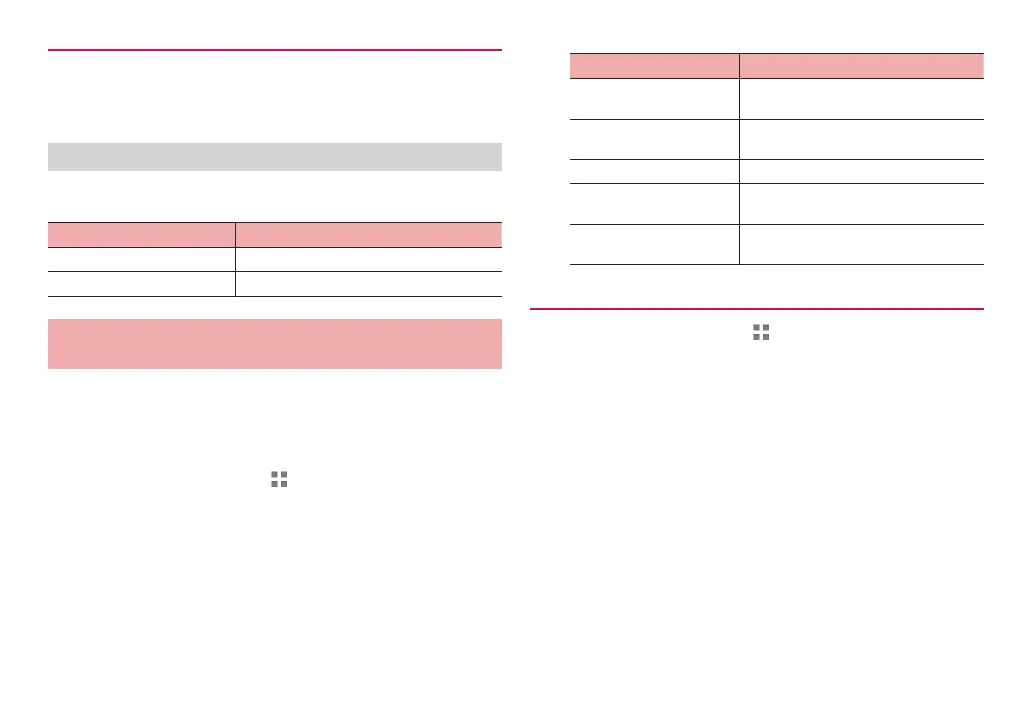
Item Description
Edit network Edit items for VPN settings.
Delete network Delete VPN.
Connecting to a wired LAN with a USB
network adapter
·
The terminal must be connected to a wired LAN via a LAN cable
beforehand using a HUAWEI USB network adapter*. See the instructions for
the USB network adapter for detailed connection procedure.
* A USB network adapter supporting this function is not available
domestically in Japan (as of February, 2013).
1
From the Home screen, → “基本機能/設定 (Basic
Functions/Settings)” → “Settings” → “More...”
2
“USB network adapter”
3
Set each item
Item Description
Preferred connection
mode
Select a network with connection priority
from USB/Wi-Fi.
Obtain IP automatically Obtain an IP address automatically when
connecting by a USB network adapter.
Obtain IP manually P. 69
MAC address Display the MAC address for the USB
network adapter.
IP address/Subnet mask Display the obtained IP address/subnet
mask.
Setting the IP address manually
1
From the Home screen, → “基本機能/設定 (Basic
Functions/Settings)” → “Settings” → “More...”
2
“USB network adapter” → “Obtain IP manually”
3
Enter the IP address, subnet mask, gateway, and DNS
→ “OK”



 To Next Page