73
Settings
Storage
Check amount of memory for the terminal, microSD card installed in the
terminal, etc.
1
From the Home screen, → “基本機能/設定 (Basic
Functions/Settings)” → “Settings”
2
“Storage”
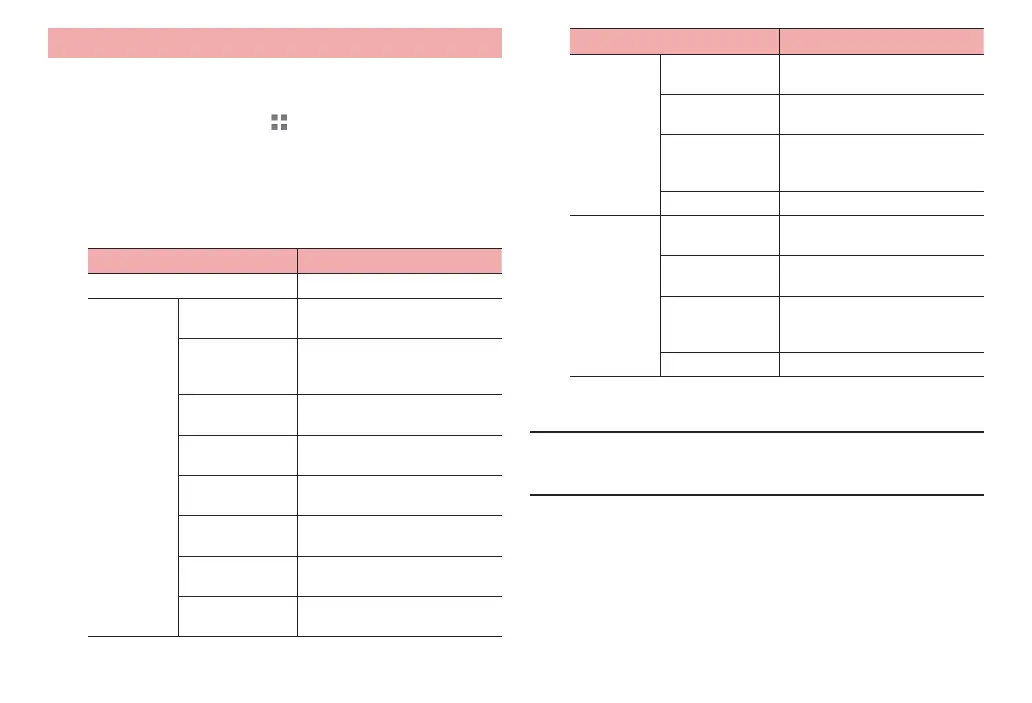
The display order for “Internal storage”, “SD card”, and “USB storage”
differs according to the save destination selected with “Default storage
location”.
Item Description
Default storage location P. 74
Internal
storage
Total space Show total amount of the terminal
memory.
Apps Show data amount of
applications installed in the
terminal.
Pictures, videos* Show data amount of pictures
and videos saved in the terminal.
Music, ringtones,
podcasts, etc.
Show sound data amount saved
in the terminal.
Downloads* Show data amount of images,
etc. downloaded to the terminal.
Misc.* Show amount of other data
saved in the ter
minal.
Available Show available memory space in
the terminal.
Erase internal
storage
Delete data saved in the
terminal.
Item Description
SD card Total space Show total amount of data saved
in microSD card.
Available Show available memory space in
microSD card.
Unmount SD
card/Mount SD
card
P. 74
Erase SD card P. 74
USB storage Total space Show total amount of USB
storage.
Available Show available memory space in
USB storage.
Unmount SD
card/Mount SD
card
P. 74
Erase SD card P. 75
* Appeared only when data is saved in the internal storage.
■ Information
·
If there is only little available memory space left on the terminal, the terminal
operations may become unstable. If the terminal is low on memory, delete
unnecessary data or applications.



 To Next Page