Vigor2120 Series User’s Guide
333
such profile.
Before you click OK, you have to insert a USB storage disk into the USB interface of the
Vigor router. Otherwise, you cannot save the configuration.
4
4
.
.
1
1
4
4
.
.
3
3
F
F
i
i
l
l
e
e
E
E
x
x
p
p
l
l
o
o
r
r
e
e
r
r
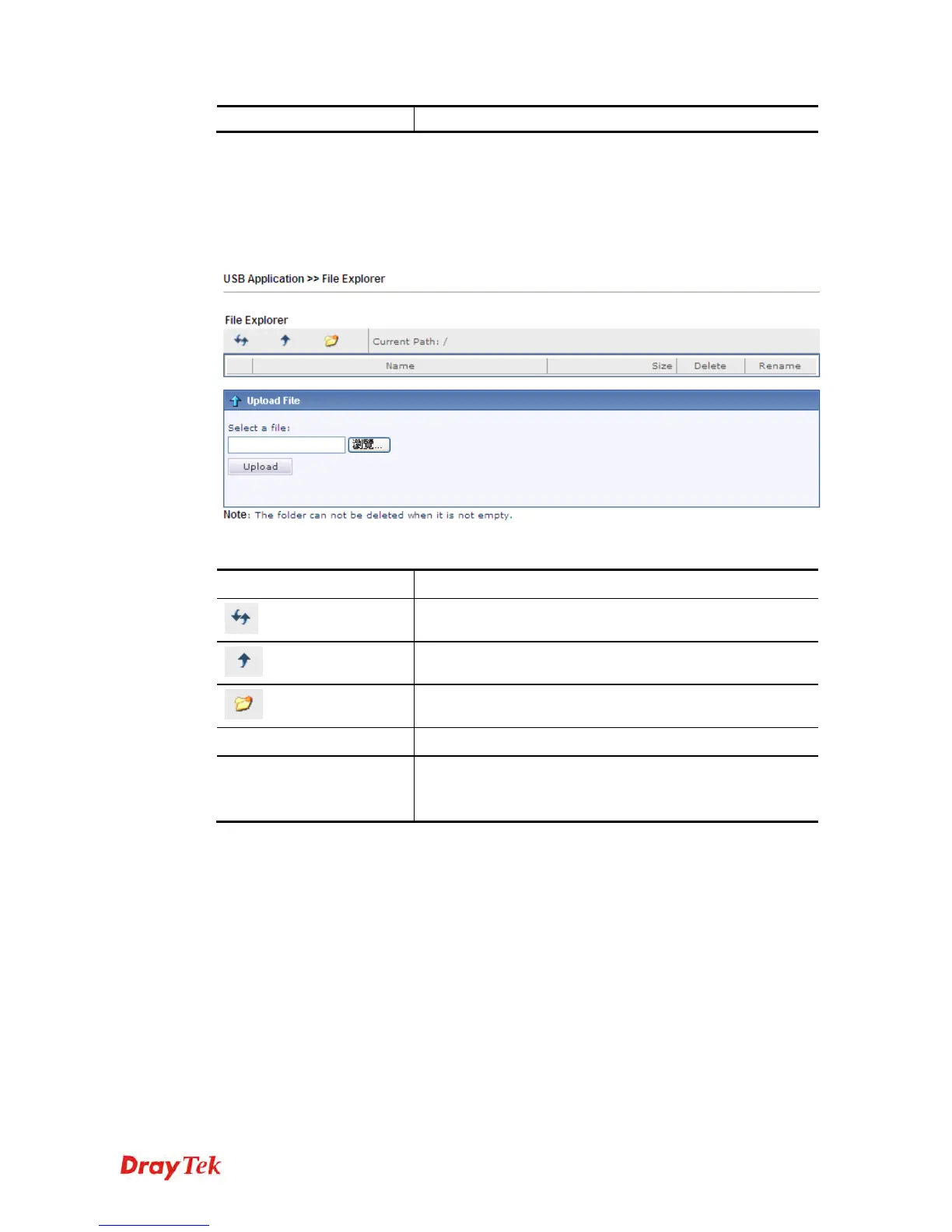
File Explorer offers an easy way for users to view and manage the content of USB storage disk
connected on Vigor router.
Available settings are explained as follows:
Item Description
Refresh
Click this icon to refresh files list.
Back
Click this icon to return to the upper directory.
Create
Click this icon to add a new folder.
Current Path
Display current folder.
Upload
Click this button to upload the selected file to the USB
storage disk. The uploaded file in the USB diskette can be
shared for other user through FTP.
4
4
.
.
1
1
4
4
.
.
4
4
U
U
S
S
B
B
D
D
e
e
v
v
i
i
c
c
e
e
S
S
t
t
a
a
t
t
u
u
s
s
This page is to monitor the status for the users who accessing into FTP or Samba server (USB
storage disk) via the Vigor router. In addition, the status of the USB modem or USB printer
connecting to Vigor router can be checked from such page. If you want to remove the storage
disk from USB port in router, please click Disconnect USB Disk first. And then, remove the
USB storage disk later.








 To Next Page