22
VAPOR-LOGIC
®
VERSION 6 INSTALLATION AND OPERATION MANUAL
INSTALLATION
Step 1 – Field wiring: Communication connections
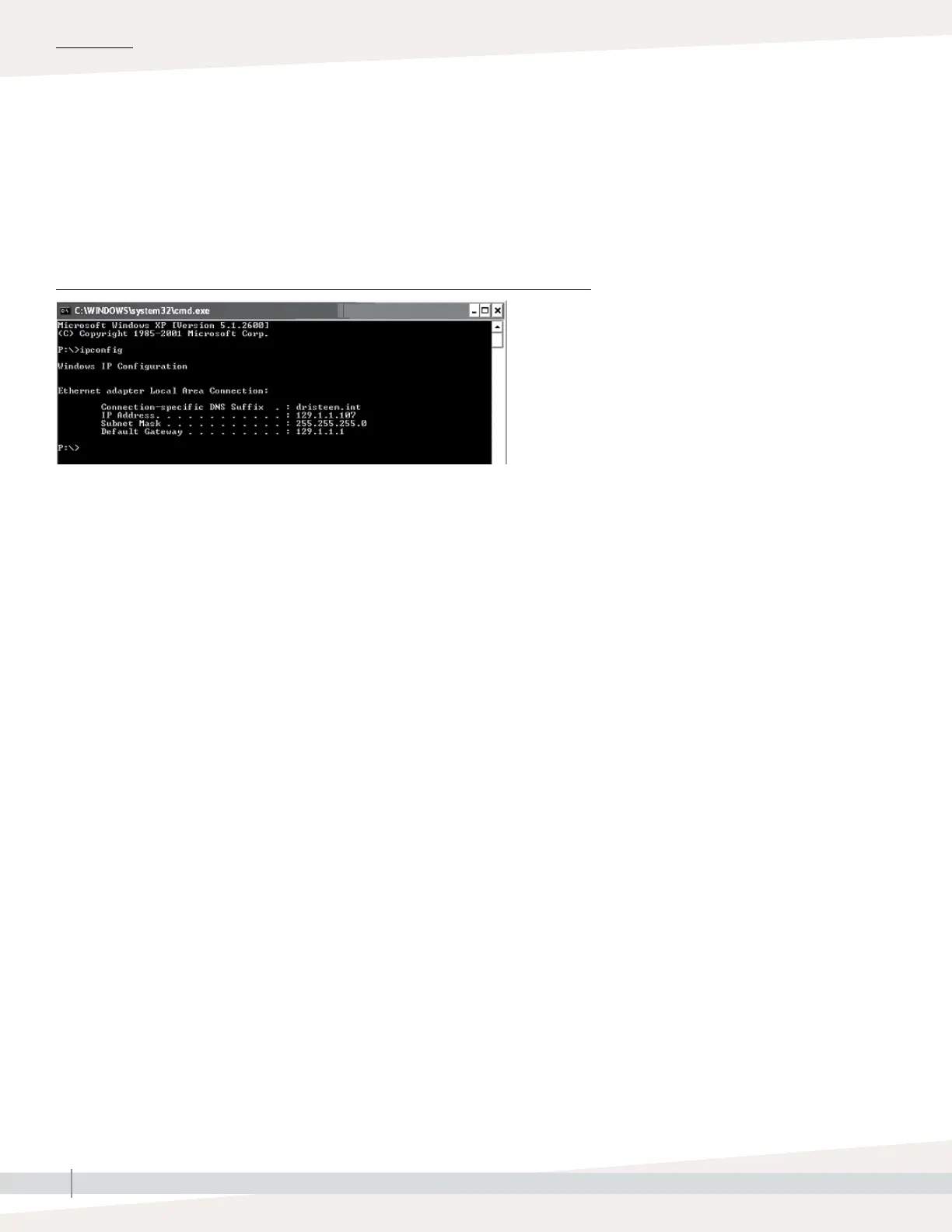
FIGURE 22-1: CHECKING YOUR IP ADDRESS
After a system prompt appears, type in ipconfig and then hit Enter. The current
IP address for the Ethernet adapter Local Area Connection should appear. If the
first three segments of that IP address are different than the first three segments
of the humidifier’s default IP (192.168.1.xxx), you must change either your
computer or Vapor-logic’s IP address such that they match each other.
3. Change the IP address of your humidifier or computer if necessary.
a. Change the IP address of the humidifier to work with your computer.
The most straightforward way to change the IP address of the humidifier
using Vapor-logic is to use the touchscreen display. Go to Settings/
Communications/IP Addressing on the touchscreen display and change
the IP address such that the first three segments of the first three segments
of the humidifiers address match. Make sure the last digit of the IP
address is different between the humidifier and the computer. Cycle
power of Vapor-logic board for address change to take effect.
b. Change the IP address of your computer to match the humidifier.
Changing the IP address of the computer being used will likely require
administrative privileges for your company’s network. Please consult your
IT department for this task.



 To Next Page