DuraLabel.com | 800.788.5572
3.2 Using a USB Cable | 19
CONNECTING THE PRINTER
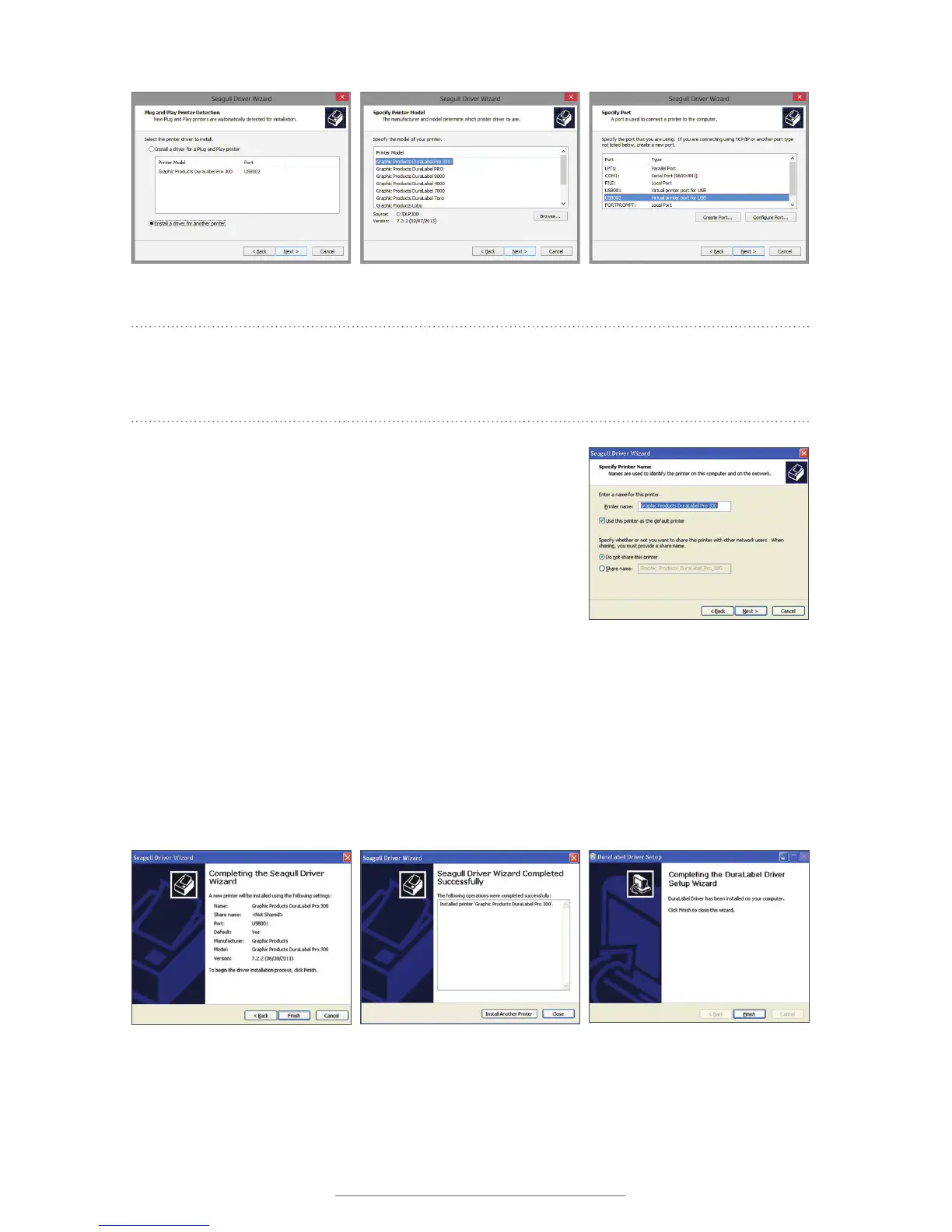
NOTE: Windows 8 users, do not select the listed printer. Instead, check Install a
driver for another printer and click next. Select Graphic Products DuraLabel Pro or
DuraLabel Pro 300 and click next. Select the appropriate port and click next.
H. Enter Printer Name and set it as the default
printer, if you choose, by checking the adjoining box
in the Specify Printer Name window that opens.
Choose a sharing option, then click Next.
I. Review information on the Completing the Seagull
Driver Wizard window that appears. Click Finish
if the information is correct. If it isn’t, correct
previous selections and click Finish when the
information is correct.
J. A Driver Wizard Completed Successfully window appears, confirming the printer
driver installation was completed successfully. Now click Close.
K. The previous window closes and a Completing the DuraLabel Driver Setup Wizard
window appears. Click Finish to complete the new driver installation.
Select printer model
Select the appropriate port
For Windows 8 systems, select Install a
driver for another printer
FIGURE 10 Completing the Seagull Driver
Wizard
FIGURE 11 Driver Wizard Completed
Successfully Window
FIGURE 12 Click Finish on the Completing
the DuraLabel Driver Setup Wizard
window. The driver installation is now
complete.
FIGURE 9 Specify Printer Name, Default
and Sharing Status



 To Next Page