DuraLabel.com | 800.788.5572
7.3 Merging Information, Sequencing Labels | 37
LABEL DESIGN
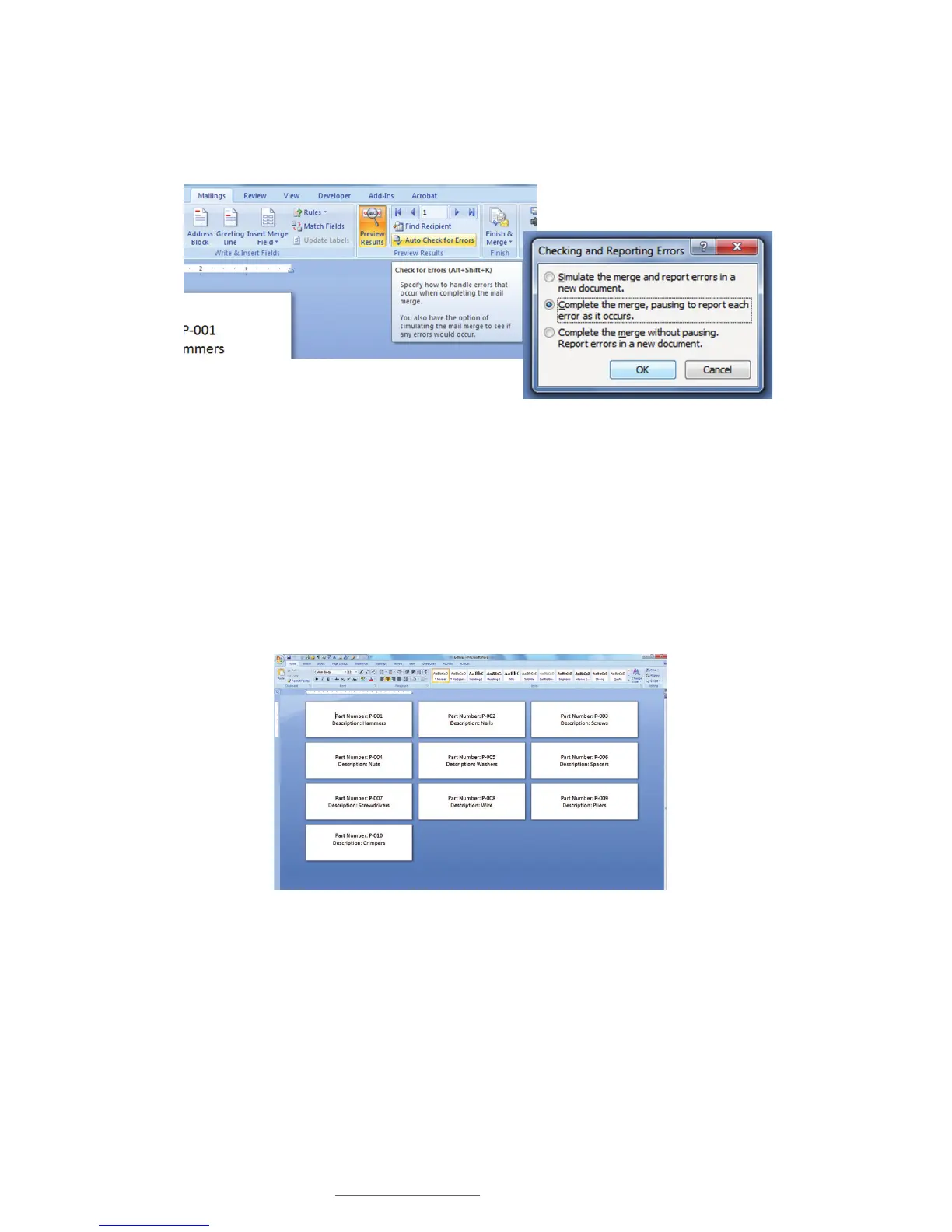
FIGURE 20 Check for errors before printing your labels using
the Auto Check for Errors tool.
FIGURE 21 The Checking and Reporting Errors
window lets you decide how and when you want
to receive error messages.
FIGURE 22 Your labels are displayed in sequence prior to printing.
R. If you want to save a separate completed merged document containing every page
in a single file, select the Auto Check for Errors button under the “Mailings” tab
(Fig. 20).
S. A Checking and Reporting Errors window now appears. Leave the second
option selected and click OK (Fig. 21). Your labels are then displayed on a single
document for your review (Fig. 22).
T. View your labels in sequence on the Word display that appears. If they are ready to
print, go to File, then click Print. Your labels print as they appeared.



 To Next Page