104
PC-80 driver settings
The Settings dialog box of the EDIROL PC-80 Driver lets you change the buffer size of the driver, and
uninstall the driver if necessary.
■
Accessing the Settings dialog box of the EDIROL PC-80 Driver
1
With the PC-80 connected, start up Windows.
Leave all USB cables disconnected, except those for a USB keyboard and USB mouse (if used).
2
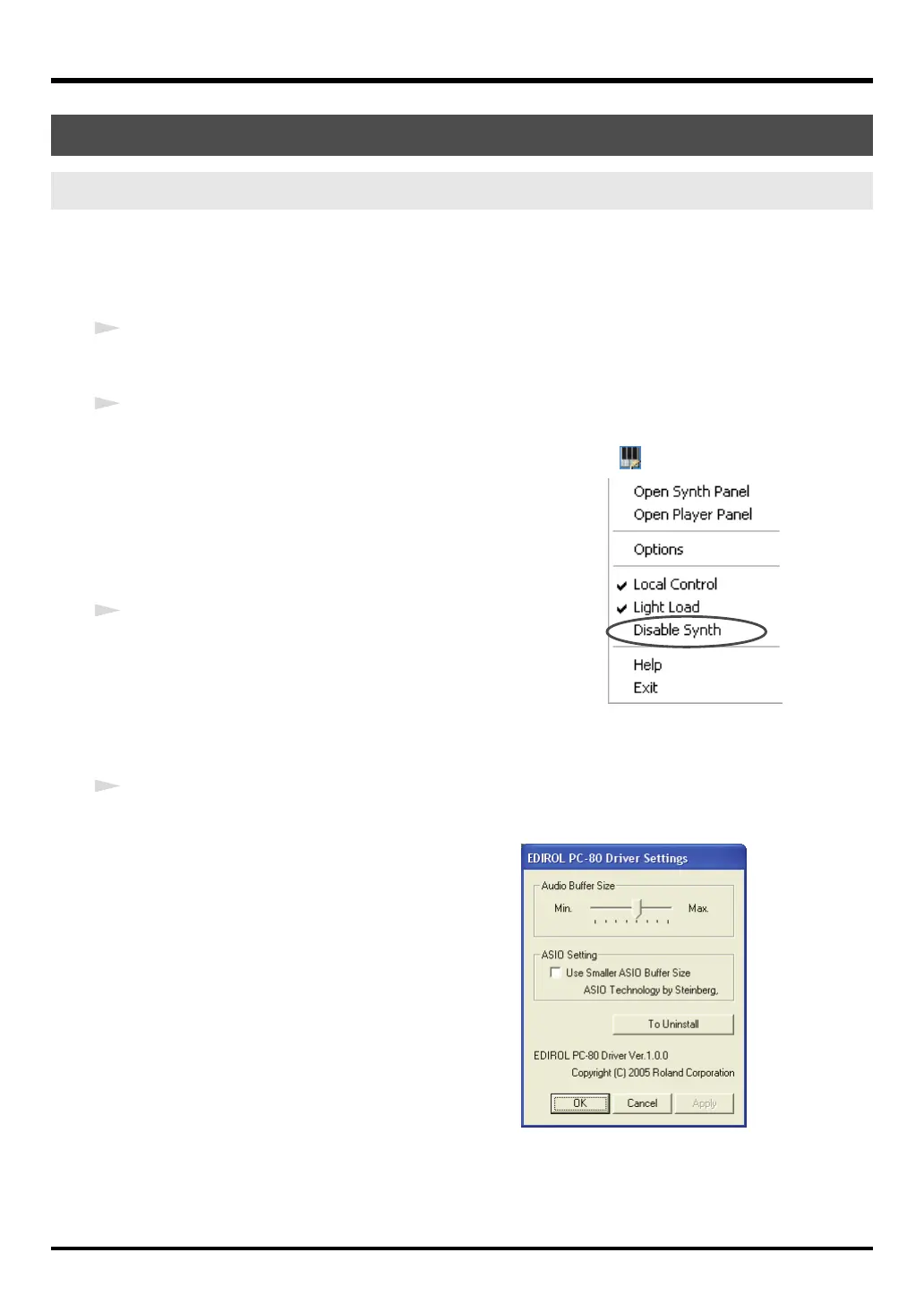
Disable the PC-80 software synthesizer.
1.
In the taskbar, right-click the
PC-80 Software Synthesizer
icon .
2.
From the menu that appears, choose
Disable Synth
.
3.
A dialog box indicating
“Disable the PC-80 Software
Synthesizer”
will appear.
Click
[OK]
.
3
Open the
Control Panel
.
If you’re using Windows XP, open the
Control Panel
from the
start
menu. If you’re using Windows 2000, choose
Settings |
Control Panel
from the Windows
Start
menu.
* If you’re using Windows XP, click “Switch to Classic View” to select the Classic view. If the Classic view is
already selected, proceed to the next step.
4
In the
Control Panel
, double-click the
EDIROL PC-80
icon.
The Settings dialog box for
EDIROL PC-80 Driver
Settings
will appear.
Changing the driver settings
Windows users
PC-80_e.book 104 ページ 2005年11月10日 木曜日 午前11時34分


 To Next Page