16
Installation and settings (Windows)
In order to use the PC-80, you’ll need to install both the driver and the PC-80
software synthesizer.
1
Start up Windows with the PC-80 disconnected.
Log on to Windows using a user name that has administrative privileges
(such as Administrator).
2
Open the
System Properties
dialog box.
1.
From the Windows
start
menu, choose
Control Panel
.
2.
In
“Pick a category,”
click
Performance and Maintenance
.
3.
In
“or pick a Control Panel icon,”
click the
System
icon.
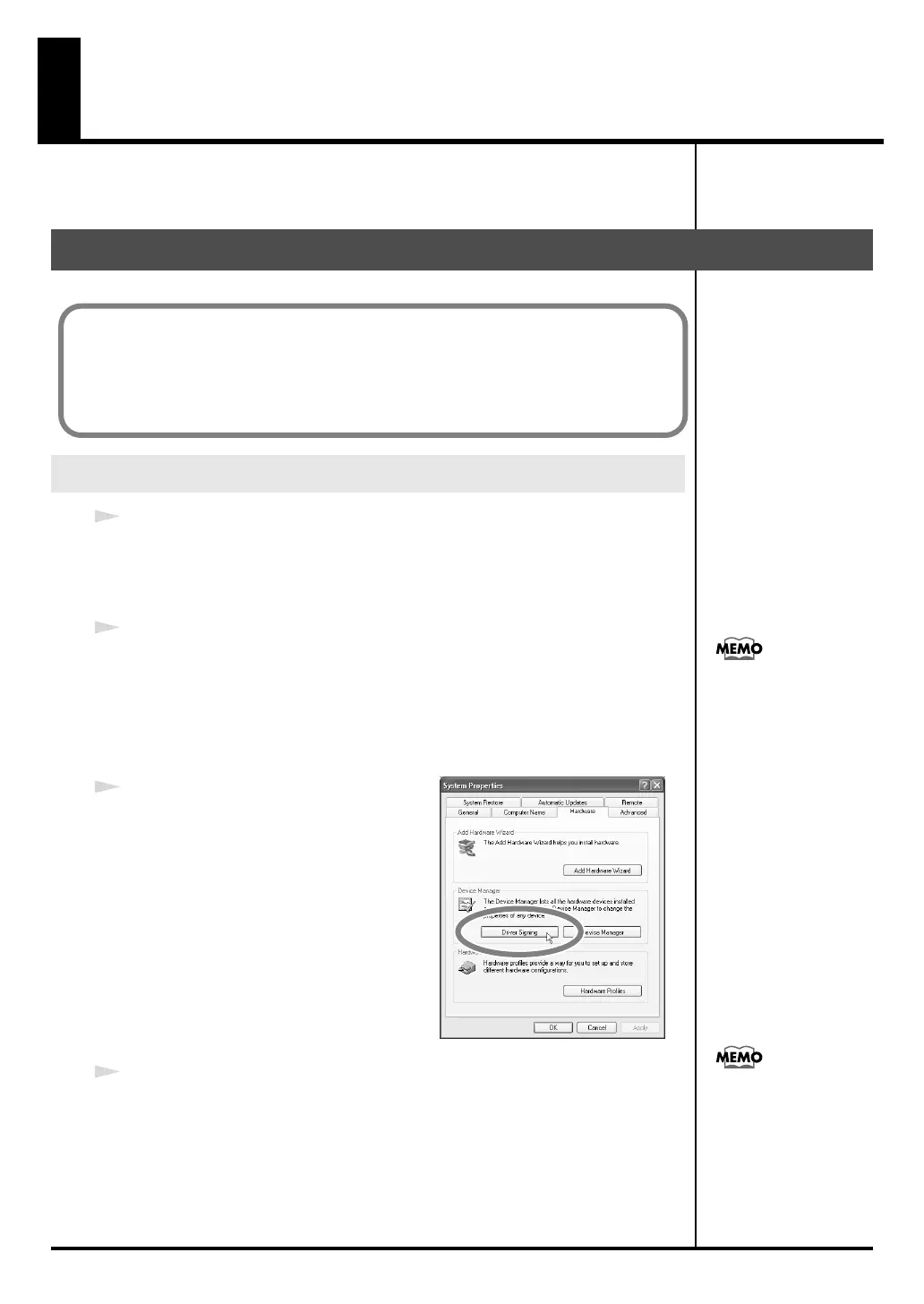
fig.signature
3
Click the
Hardware
tab, then click
[Driver
Signing]
.
The
Driver Signing Options
dialog box
will open.
4
In the
Driver Signing Options
dialog box, make sure that
“Ignore”
is
selected.
If
“Ignore”
is selected, simply click
[OK]
. If this is not set to
“Ignore,”
make
a note of the current setting (“Warn” or “Block”), change the setting to
“Ignore
,
”
then click
[OK]
Installing the driver
Windows XP users
The procedure for installation and settings will differ depending on your system.
Proceed to the appropriate section for your system.
• Windows XP users ................................................................... (p. 16)
• Windows 2000 users ................................................................ (p. 21)
Depending on your setup,
the System icon may
appear directly in the
Control Panel (Classic
view). If so, double-click
the System icon.
If you’ve changed the
“Driver Signing
Options,” return the
setting to its original state
after you’ve finished
installing the driver.
PC-80_e.book 16 ページ 2005年11月10日 木曜日 午前11時34分


 To Next Page