User’s Manual
12
Alarm Button
Pressing the
ALARM button resets the DVR’s outputs including the internal buzzer during an alarm.
PTZ Control Buttons
While in the PTZ mode, the
PRESET buttons are used to save Presets and load a Preset View, the ZOOM buttons are used
to Zoom In and Zoom Out, and the FOCUS buttons are used for Near Focus and Far Focus.
Back Up Button
Pressing the
BACK UP button allows you to copy video clips.
Calendar Button
In the search mode, pressing the
CALENDAR button displays the Calendar Search screen.
Turning on the Power
Connecting the power cord to the DVR turns on the unit. The unit takes approximately 60 seconds to initialize.
Initial Unit Setup
Before using your DVR for the first time, you will want to establish the initial settings. This includes items such as
time and date, display language, camera, remote control, record mode, network and password. Your DVR can be set
up using various screens and dialog boxes.
Throughout the screens you will see
. Highlighting the and pressing the (Play/Pause) button gives you the
opportunity to reset that screen to its default settings. After you are finished with any setup screen, you can highlight
Save and press the
button to save the changes and exit the screen. If you do not wish to save the changes, highlight
Cancel and press the
button to exit the screen.
Press the
MENU button or move the mouse pointer to the top of the screen and then select (Login) in the Live
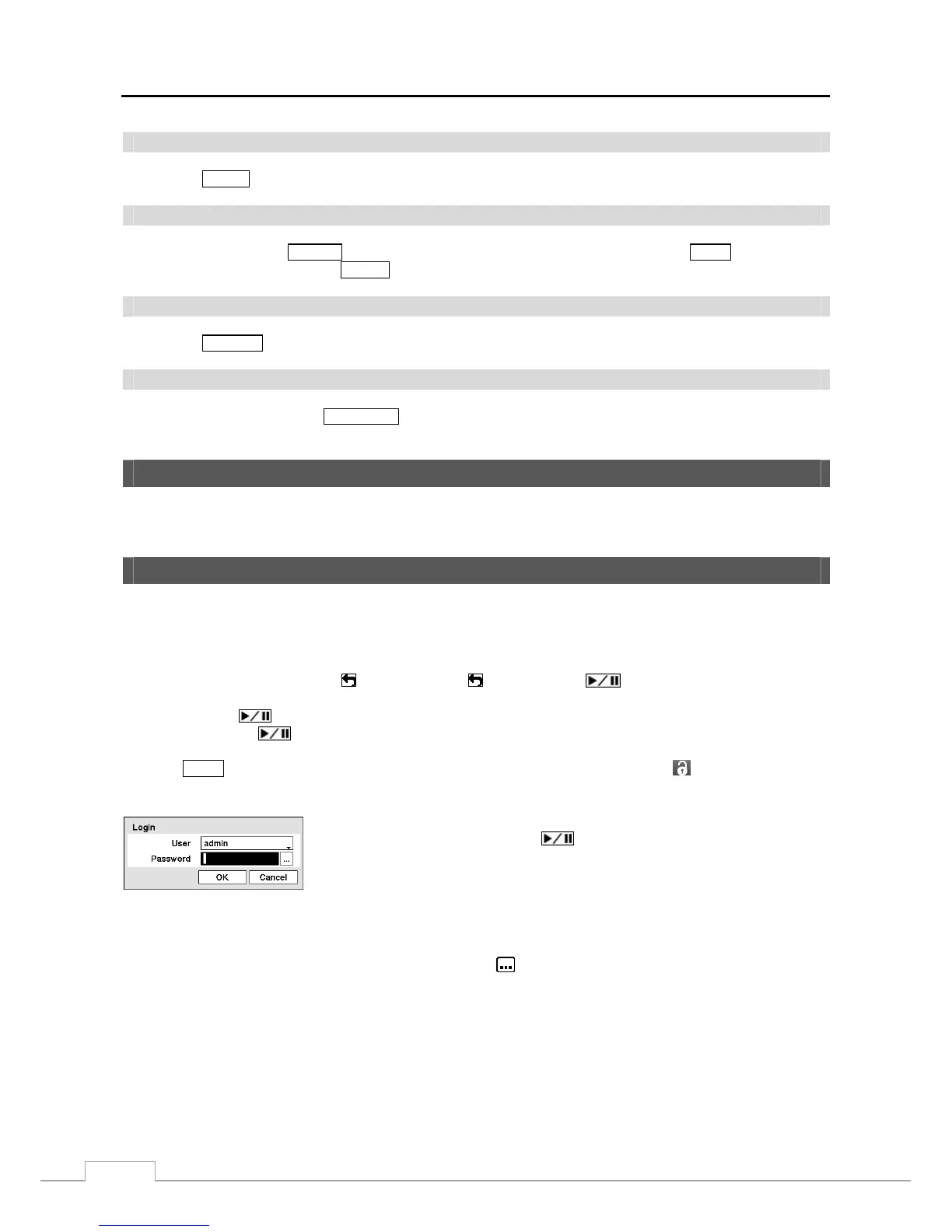
Monitoring menu to enter the setup screens. The Login screen appears.
Select a User and enter the password by pressing the appropriate combination of
Camera number buttons and then the
button. There is no default password when
logging in the admin user for the first time.
Figure 5 — Login screen.
NOTE: To assure the secure management of the system, setting up a password is strongly recommended.
If you cannot use the front panel buttons, click the
button using the mouse to enter a password, and
the virtual keyboard displays. See instructions below for using the virtual keyboard.


 To Next Page