16-Channel Digital Video Recorder
53
Go to the previous image Play/Pause Go to the next image
Fast backward play Fast forward play
Searching Video
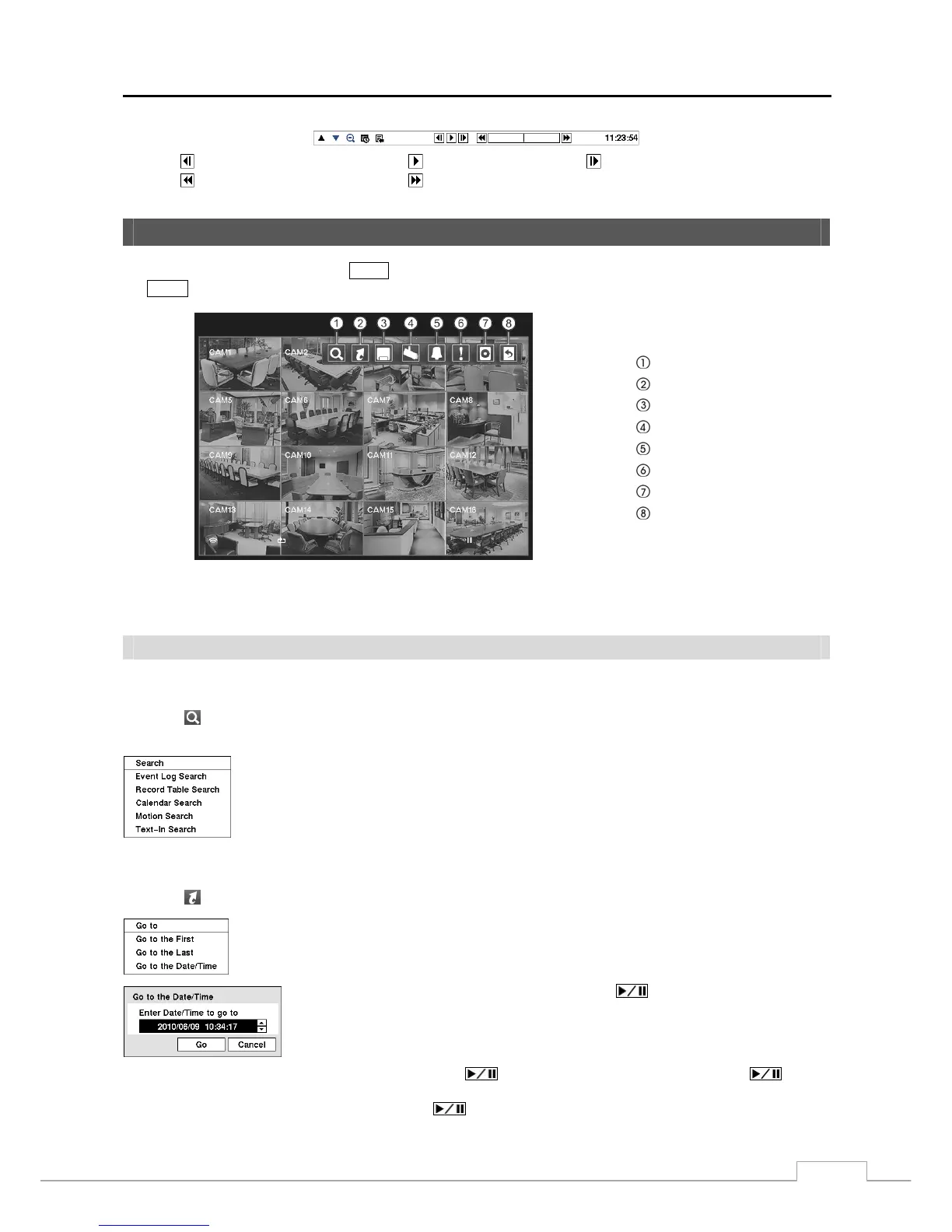
While in the search mode, pressing the MENU button displays the following Search menu at the top of the screen. Pressing
the MENU button again hides the menu. You can navigate through menus and items by pressing the arrow buttons.
Search
Go To
Export
Camera Menu
Alarm
Panic
Data Source
Exit
Figure 64 — Search menu.
NOTE: The Search menu also can be displayed by moving the mouse pointer to the top of the screen.
Search Menu
Search
Selecting (Search) in the Search menu displays the following Search menu. See the following Event Log Search,
Record Table Search, Calendar Search, Motion Search and Text-In Search sections for details.
y Event Log Search: Selecting Event Log Search selects video from the event log.
y Record Table Search: Selecting Record Table Search selects using a recording table.
y Calendar Search: Selecting Calendar Search selects using a calendar.
y Motion Search: Selecting Motion Search selects motion events.
y Text-In Search: Selecting Text-In Search selects text input strings.
Go To
Selecting (Go To) in the Search menu displays the following Go to menu.
y Go to the First: Selecting Go to the First displays the first recorded image.
y Go to the Last: Selecting Go to the Last displays the last recorded image.
y Go to the Date/Time: Selecting Go to the Date/Time displays the Go to the Date/Time screen.
Move the cursor over the date and time and press the
(Play/Pause) button. You can
use the Left and Right arrow buttons to highlight the year, month, day, hours, minutes
and seconds. Use the Up and Down arrow buttons to change to the date and time you
want to search for video.
Once you have set the date and time you want, press the button. Then highlight Go and press the button.
The selected date and time will display. (If no video was recorded during the selected time, a message appears alerting
you that no image was recorded at that time.) The
button and arrow buttons can now be used to review the
surrounding video.



 To Next Page