User’s Manual
28
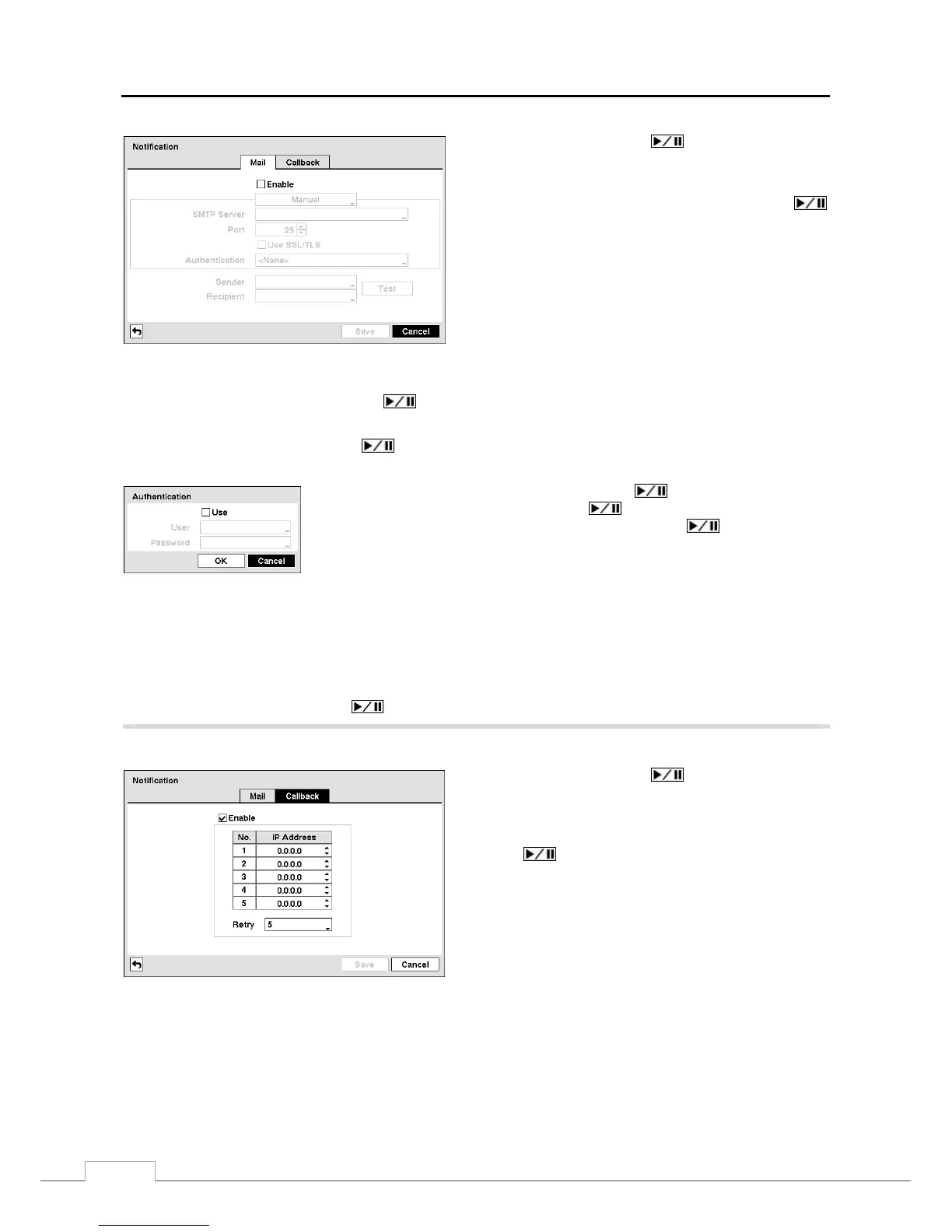
Figure 26 — Notification Mail setup screen.
Highlight Enable and press the button to toggle between
On and Off. You will only be able to change the settings if
Mail is enabled.
Highlight the box beside SMTP Server and press the
button. A virtual keyboard appears that you can use to enter
the IP address or domain name of the SMTP server.
NOTE: You will need to get the IP Address or domain
name of the SMTP Server from your network
administrator.
NOTE: You can use the domain name instead of IP address
if you already set up the DNS Server when
setting up the LAN.
Highlight the box beside Port and press the
button. Use the arrow buttons to enter the SMTP Server port number
obtained from your system administrator. The default port number is 25.
Highlight Use SSL/TLS and press the button to toggle between On and Off. When it is On, the DVR can send
an email via an SMTP server requiring SSL (Secure Sockets Layer) authentication.
Highlight the box beside Authentication and press the button. An Authentication
screen appears. Highlight Use and press the
button to toggle between On and
Off. Highlight the box beside User/Password and press the
button. A virtual
keyboard appears allowing you to enter the user ID and password.
Highlight the box beside Sender and enter the sender’s e-mail address. Use the virtual keyboard to enter the e-mail
address.
NOTE: The e-mail address must include the “@” character to be a valid address.
Highlight the box beside Recipient and enter the recipient’s e-mail address. Use the virtual keyboard to enter the e-mail
address.
Highlight the Test box and press the button to test emailing with the current settings you made.
Highlight the Callback tab, and the Callback screen displays.
Highlight Enable and press the button to toggle between
On and Off. You will only be able to change the IP addresses
if Callback is enabled.
Highlight the IP Address box that you want to change and
press the
button. Use the arrow buttons to enter the IP
address of the computer you want contacted during an event.
You can enter up to five IP addresses.
Highlight the box beside Retry and enter the number of times
you would like the DVR to try contacting the computer. You
can select from 1 to 10 retries.
Figure 27 — Notification Callback setup screen.


 To Next Page