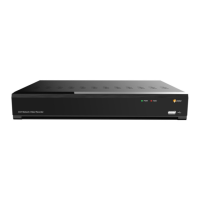
16-Channel Digital Video Recorder
35
Highlight the box under the Range heading and press the
button to change the time range that the scheduled
recording will take place. The smallest time segment you can use is 15 minutes.
Highlight the box under the Mode heading and press the
button to change the recording mode that will be used.
Choose from: No Record, Time, Event and Time & Event. (Simple Mode Only)
When the DVR is in the No Record mode, it will not record during the preset day and time range as long as the
PANIC
button is not pressed. Use the No Record mode when you do NOT want the DVR to record during certain times.
When the DVR is in the Time
mode
, the icon displays at the top-left corner of the screen. The DVR will record
and displays the
icon at the top-left corner of the screen during the scheduled times.
When the DVR is in the Event mode, the red icon displays at the top-left corner of the screen. The DVR will record
and displays the
icon at the top-left corner of the screen when any event occurs. When the DVR is in the Pre-Event
recoding mode, the yellow
icon displays when there is no event, and the DVR is not recording. When the DVR is
in the Pre-Event mode, the red
and display when any event occurs and the DVR starts recoding.
When the DVR is in the Time & Event mode, the DVR will follow the Time settings and the icon displays at the
top-left corner of the screen. The DVR follows the Event settings and the
icon displays.
Highlight the box under the Channels heading and press the
button to select which cameras will be recorded.
(Simple Mode Only)
Highlight the box under the Settings heading and press the
button to define the recording settings.
You can set the ips, Quality and Resolution (ips, Quality,
Resolution and Dwell for Advanced Mode setup) of the
recording for any modes you set up in the Mode column. If
you do not set the ips, Quality, Resolution and Dwell in the
Settings column, the DVR will follow the default settings.
See below for details.
NOTE: Descriptions of the Record icons in the Type
column are as follows:
Time-lapse (Time) Alarm-In
Motion Video Loss
Video Blind Text-In
Figure 41 — Schedule – Settings (Advanced Mode) setup screen.
NOTE: Day, Range and Channels that are not defined will use the setting values of the previous schedule item.
When more than two schedule items are registered in the same day and time range, the DVR will follow the
latest registered schedule item.
When multiple events are detected at the same time from a specific channel, the DVR will record event
video with the high setting values if the ips, Quality, Resolution and Dwell values of events are different
from each other. However, the ips will be reset to the supported maximum value when the ips, Quality,
Resolution and Dwell are all set to the highest value. (Advanced Mode Only)
Highlight the box under the heading and press the
button to delete the recording settings. You will be asked
to confirm that you want to delete the settings.
Highlight Default… and press the
button. The Default screen appears.
Highlighting boxes under ips and pressing the
button
allows you to set the images per second for Time and Event
recording. You can select from 1.00 to 30.00 ips (25.00 ips
PAL).
Highlighting boxes under Quality and pressing the button allows you to set the recorded image quality for Time
and Event recording. You can select from: Very High, High, Standard and Basic.


 To Next Page