16-Channel Digital Video Recorder
25
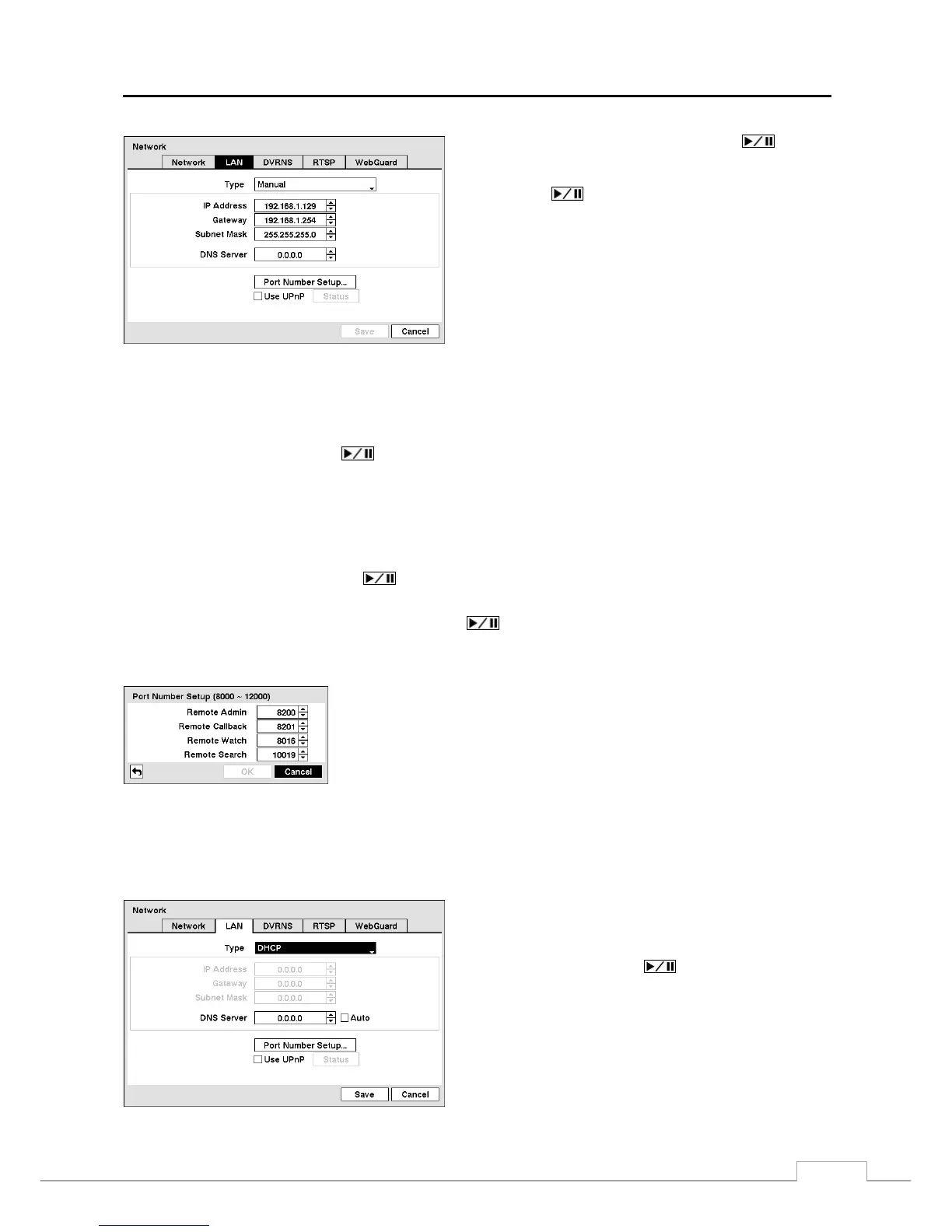
Figure 22 — LAN (Manual) setup screen.
Highlight the box beside Type and press the
button.
You can select the type of network configuration from: Manual,
DHCP and ADSL (with PPPoE). Select the desired type
and press the
button.
Selecting Manual from the Type allows you to set up LAN
parameters manually.
Change the numbers by highlighting them and using the Up
and Down arrow buttons to increase or decrease the number.
The factory default LAN settings are:
IP Address: 192.168.1.129
Gateway: 192.168.1.254
Subnet Mask: 255.255.255.0
NOTE: You will need to get the appropriate IP Address, Gateway and Subnet Mask from your network administrator.
Highlight the box beside DNS Server. Press the Up and Down arrow buttons to set the IP address of the DNS server.
Highlight Use UPnP and press the button to toggle between On and Off. When it is On, port forwarding from
the NAT (Network Address Translation) device to the DVR will be enabled automatically via UPnP (Universal Plug
and Play) service. This function will be especially useful when accessing a port on a private IP address.
NOTE: For the UPnP service to work, the NAT device should support the UPnP Port Forwarding function and
the function should be set to enabled.
You cannot change the port settings when Use UPnP is On.
Highlight the Status box and press the button to display the port numbers forwarded from the NAT device via
UPnP service.
Highlight the Port Number Setup… box and press the button. The Port Number Setup screen appears.
NOTE: You will need to get the appropriate Port Numbers for each RAS and WebGuard related program (Admin,
Callback, Watch and Search) from your network administrator.
Change the numbers by highlighting them and using the Up and Down arrow
buttons to increase or decrease the number. The factory default Port settings are:
Remote Admin: 8200
Remote Callback: 8201
Remote Watch: 8016
Remote Search: 10019
NOTE: Do NOT use the same port number for two different programs, otherwise, the DVR cannot be connected
with the PC running RAS or WebGuard.
CAUTION: When changing the port settings, you must change the port settings on the PC running
RAS as well. Refer to the RAS manual for details.
Selecting DHCP from the Type and highlighting Save button
reads the current IP address of the DVR configured by DHCP
(Dynamic Host Configuration Protocol) network.
Highlight Auto and press the button to toggle between
On and Off. When it is On, the DVR will obtain the IP address
of the DNS server automatically.
NOTE: Selecting Auto will only be enabled when the DVR
is configured for DHCP network.


 To Next Page