User’s Manual
36
Highlighting boxes under Resolution and pressing the
button allows you to set the recorded image resolution
for Time and Event recording. You can select from: Very High (D1), High (Half D1) and Standard (CIF).
Highlighting boxes under Dwell and pressing the button allows you to set the length of time you would like to
record for the associated event. (Advanced Mode Only)
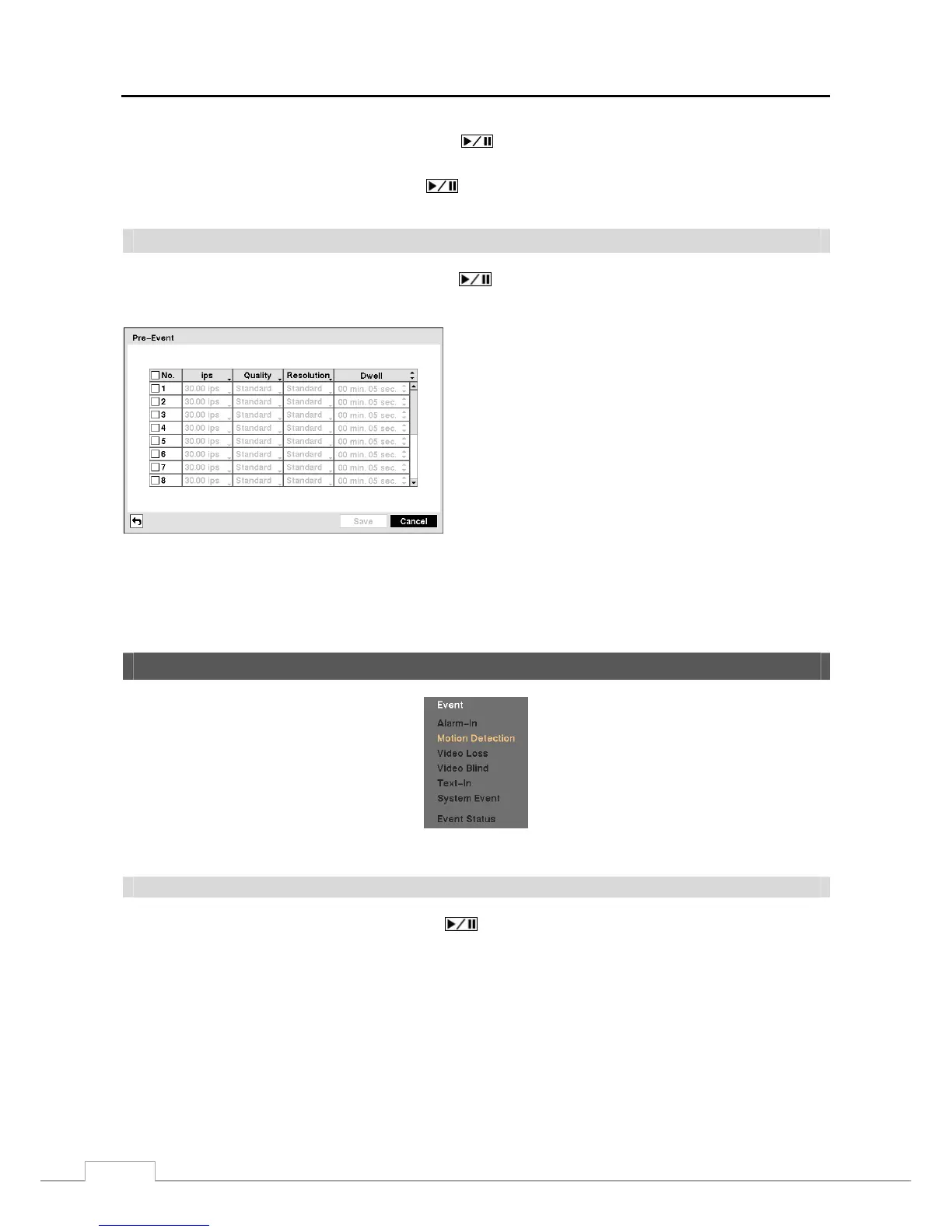
Pre-Event
Highlight Pre-Event in the Record menu and press the
button, and the Pre-Event setup screen appears. If you
do not have Event set up in the Record Schedule, a message will display alerting you to this fact.
Figure 42 — Pre-Event setup screen.
When the DVR is in the Event Record mode it is possible to
have it record images before the event occurs. The Pre-Event
screen allows you to define how to handle pre-event recording.
You can turn individual cameras On or Off for pre-event
recording. The image speed can be set from 1.00 to 30.00 ips
(25.00 ips PAL), image quality can be selectable from Very
High, High, Standard and Basic, and image resolution can
be selectable from Very High (D1), High (Half D1) and
Standard (CIF).
You can set the amount of time to record prior to the event
by adjusting the Dwell. You can set the Dwell from 5 seconds
to 30 minutes. The longer the dwell set, the fewer maximum
ips can be set.
NOTE: When the DVR is in the Time or Time & Event mode, it ignores the pre-event settings and follows the
time settings.
Event Setup
Figure 43 — Event menu.
Alarm-In
Highlight Alarm-In in the Event menu and press the
button. The Alarm-In setup screen appears.


 To Next Page