POWERED BY
35
SERIESSERIES
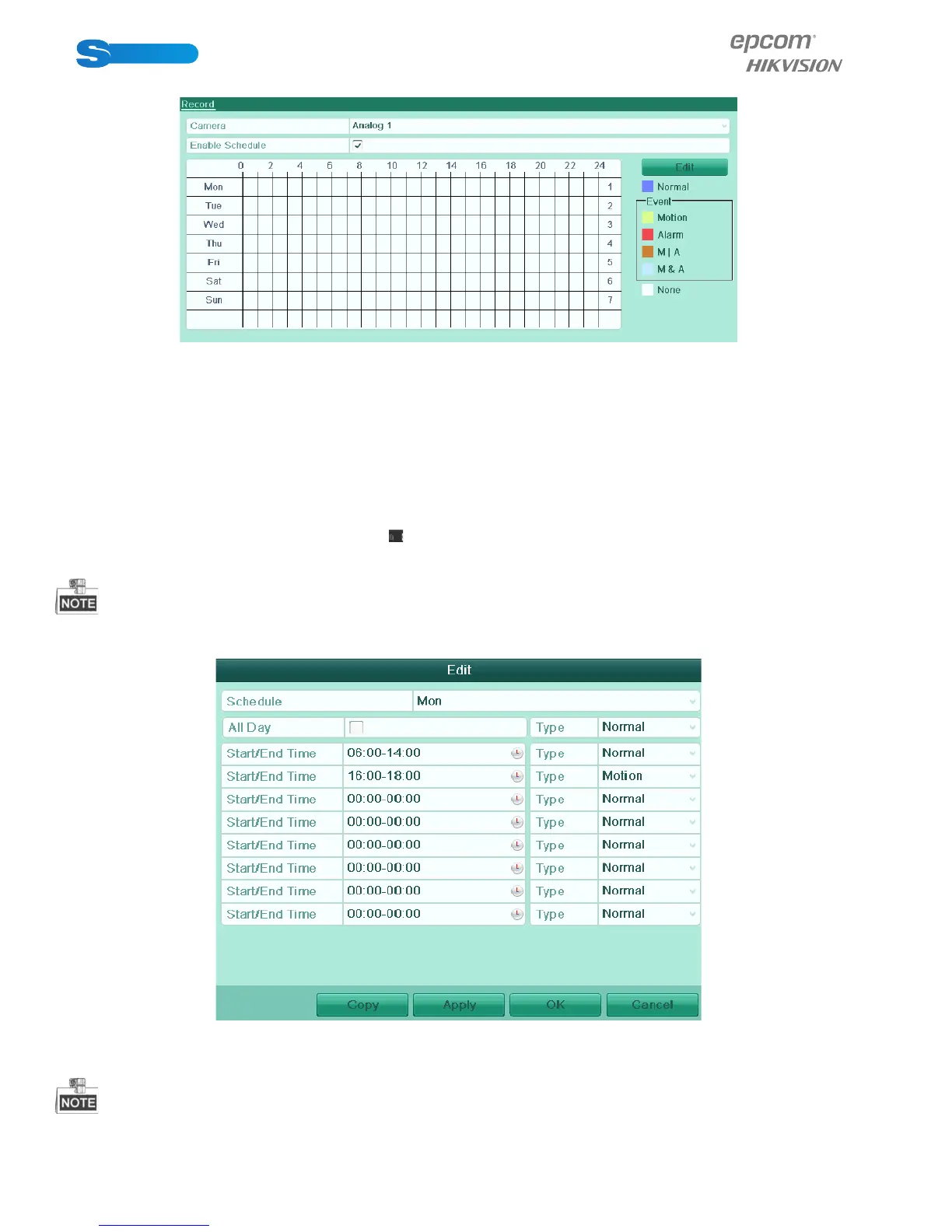
1) Click Schedule to enter the record schedule settings interface.
Figure 5.6 Record Schedule
2) Choose the camera you want to configure.
3) Check the check box after the Enable Schedule item.
There are two ways to configure the record schedule.
Task 1: Edit the Schedule
Steps:
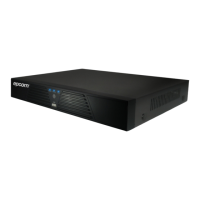
1) Click Edit.
2) In the message box, you can choose the day which you want to set schedule.
3) To schedule an all-day recording, check checkbox to enable all-day recording.
4) Set the Type in the dropdown list. Different recording types are available for different models.
S Series: Normal and Motion.
To enable Motion triggered recording, you must configure the motion detection settings as well. For detailed information,
refer to Chapter 8.1 and Chapter 8.2.
Figure 5.7 Edit Schedule
5) To arrange other schedule, leave the All Day checkbox blank and set the Start/End time and Type.
Up to 8 periods can be configured for each day. And the time periods can’t be overlapped each other.
Repeat the above steps 2)-5) to schedule recording for other days in the week. If the schedule can also be set to other days,



 To Next Page