EasyManua.ls Logo

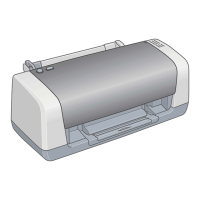
Epson Stylus C110 - User Manual

Epson Stylus C110
127 pages
Print Icon
To Next Page IconTo Next Page
Loading...
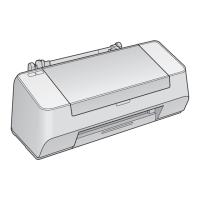
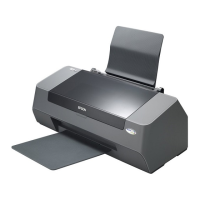
EPSON Stylus C110/C120/D120
Color Inkjet Printer
SEIJ07-001
SERVICE MANUAL

Table of Contents

Other manuals for Epson Stylus C110

Questions and Answers

  • T
    Tracy GrantJul 31, 2025
    What to do if my Epson Stylus C110 fails to feed paper but performs a paper ejection?
    • M
      Michelle CarterJul 31, 2025
      If your Epson Printer attempts to eject paper but fails to feed it, try these steps: * First, ensure the PE Sensor Connector Cable is securely connected to CN3 on the Main Board. * If the issue continues, replace the ASF Unit with a new one. You may need to try this more than once.
  • G
    gregoryfrankAug 5, 2025
    What to do if I get a communication error STM3 on my Epson Stylus C110 Printer?
    • J
      Jerry RodriguezAug 6, 2025
      If you're seeing a communication error indicated by STM3 on your Epson Printer, try these steps: * First, ensure the USB cable is securely connected to both the printer and your PC. * Next, connect the Panel FFC to CN11 on the Main Board. * Additionally, use the Adjustment Program to write the correct value to the EEPROM address.
  • L
    laurie67Aug 10, 2025
    What to do if the Carriage Unit collides with the Change Lever on my Epson Stylus C110?
    • J
      julia10Aug 10, 2025
      If, when turning on your Epson Printer, the Carriage Unit collides with the Change Lever, consider the following actions: 1. Check that the PF Motor Connector Cable is connected to CN9 on the Main Board. 2. If the problem persists, replace the PF Motor with a new one. Check if the PF Motor operates. 3. If the issue still occurs, replace the ASF Unit with a new one.
  • K
    Kelsey DavisAug 15, 2025
    Why are the eject rollers rotating at high speed on my Epson Printer when I turn it on?
    • C
      csantosAug 15, 2025
      If the eject rollers on your Epson Printer are rotating at high speed when you turn it on, it may be necessary to: * Replace the PF Scale with a new one. * Replace the PF Encoder Sensor with a new one.
  • D
    David CrossAug 20, 2025
    What to do if the PF Motor does not operate at all on my Epson Stylus C110 Printer?
    • S
      Sherri HeathAug 20, 2025
      If the PF Motor on your Epson Printer isn't operating when you turn it on, try these steps: 1. Ensure the PF Motor Connector Cable is connected to CN9 on the Main Board. 2. If it still doesn't work, replace the PF Motor with a new one. Check if the PF Motor operates. You may need to try this more than once.
  • S
    Susan IngramAug 25, 2025
    What to do if the CR Motor does not operate at all on my Epson Printer?
    • T
      Tyler MitchellAug 26, 2025
      If the CR Motor on your Epson Printer isn't operating when you turn it on, try these steps: 1. Connect the CR Motor Connector Cable to CN8 on the Main Board. 2. If it still doesn't work, replace the CR Motor with a new one. Check if the CR Motor operates. You may need to try this more than once.

Summary

PRECAUTIONS

DANGER Precautions

Signals precautions for serious or fatal personal injury, requiring great caution.

WARNING Precautions

Signals precautions for damage to equipment, requiring careful observation of measures.

About This Manual

Manual Configuration

Describes the manual's structure, consisting of six chapters and an appendix.

Symbols Used in this Manual

Explains the various symbols used throughout the manual for information and warnings.

PRODUCT DESCRIPTION

Printer Features

Details the main features and specifications of the EPSON Stylus C110/C120/D120 printer.

Printing Specifications

Lists various print modes, resolutions, dot sizes, and media compatibility for optimal print quality.

Interface and General Specifications

Details printer interface, electrical, environmental, durability, noise, and safety specifications.

Operation Buttons and Indicators

Explains printer buttons, LEDs, and their functions for status indication and operation.

OPERATING PRINCIPLE

System Overview

Describes the printer mechanism, motors, and sensors, outlining the basic printer operation.

Printer Mechanism Details

Explains printhead, carriage, paper feed, and ink system mechanisms in detail.

Ink Sequence

Details the printer's ink charging, cleaning, and flushing sequences.

Electrical Circuit Principles

Explains the operating principles of the main board, power supply, and driver circuits.

TROUBLESHOOTING

Overview and Preliminary Checks

Provides an overview of troubleshooting, initial checks, and required tools.

Motor and Sensor Troubleshooting

Details troubleshooting steps for motors and sensors, including specifications and check points.

Error Indications and Fault Causes

Explains error indications, status monitor messages, and fault occurrence causes for various printer errors.

Phenomenon-Based Troubleshooting

Addresses superficial issues like abnormal noise and poor print quality not indicated by LEDs or STM3.

DISASSEMBLY;ASSEMBLY

General Procedures and Precautions

Covers overview, precautions, tools, work completion check, disassembly procedures, and housing removal.

Printer Mechanism Disassembly

Detailed steps for disassembling printer mechanism components like printhead, motors, and rollers.

ADJUSTMENT

Adjustment Items Overview

Lists and describes all required adjustment items and their purpose.

Using the Adjustment Program

Guides on judging and performing various print adjustments using the software.

MAINTENANCE

Overview and Cleaning

Provides an overview of maintenance, including cleaning procedures and service maintenance for errors.

Lubrication Procedures

Details the types, amounts, and points for lubrication of printer components.

APPENDIX

Exploded Diagram; Parts List

Information on obtaining exploded diagrams and parts lists, not provided in this manual.

Electrical Circuits

References pages where electrical circuit diagrams for the main, panel, and power boards are shown.

Epson Stylus C110 Specifications

Print Quality IconPrint Quality
maximum resolution5760 X 1440 dpi
minimum ink droplet volume3 pl
Print Speed IconPrint Speed
black text memo (A4)Approx. 37 ppm (Draft) / 25 ppm (Default)
colour text memo (A4)Approx. 20 ppm (Draft) / 11 ppm (Default)
photo (4R/4x6”)Approx. 35 sec per photo (Draft W/Border)
Ink Cartridges IconInk Cartridges
black ink cartridge (T0731H)2 cartridges 740 pages
black ink cartridge (T0731)2 cartridges 470 pages
magenta ink cartridge (T0733)350 pages (Composite Yield)
Paper Handling IconPaper Handling
paper feed methodFriction Feed
paper hold capacity120 sheets, A4 Plain paper
maximum paper thickness0.33 mm
Electrical Specifications IconElectrical Specifications
rated voltageAC 220-240V
rated frequency50~60 Hz
power consumptionApprox. 15W (per ISO10561 Letter Pattern)
Weight and Dimensions IconWeight and Dimensions
weight3.9 kg
height161 mm
width240 mm
depth435 mm

Related product manuals