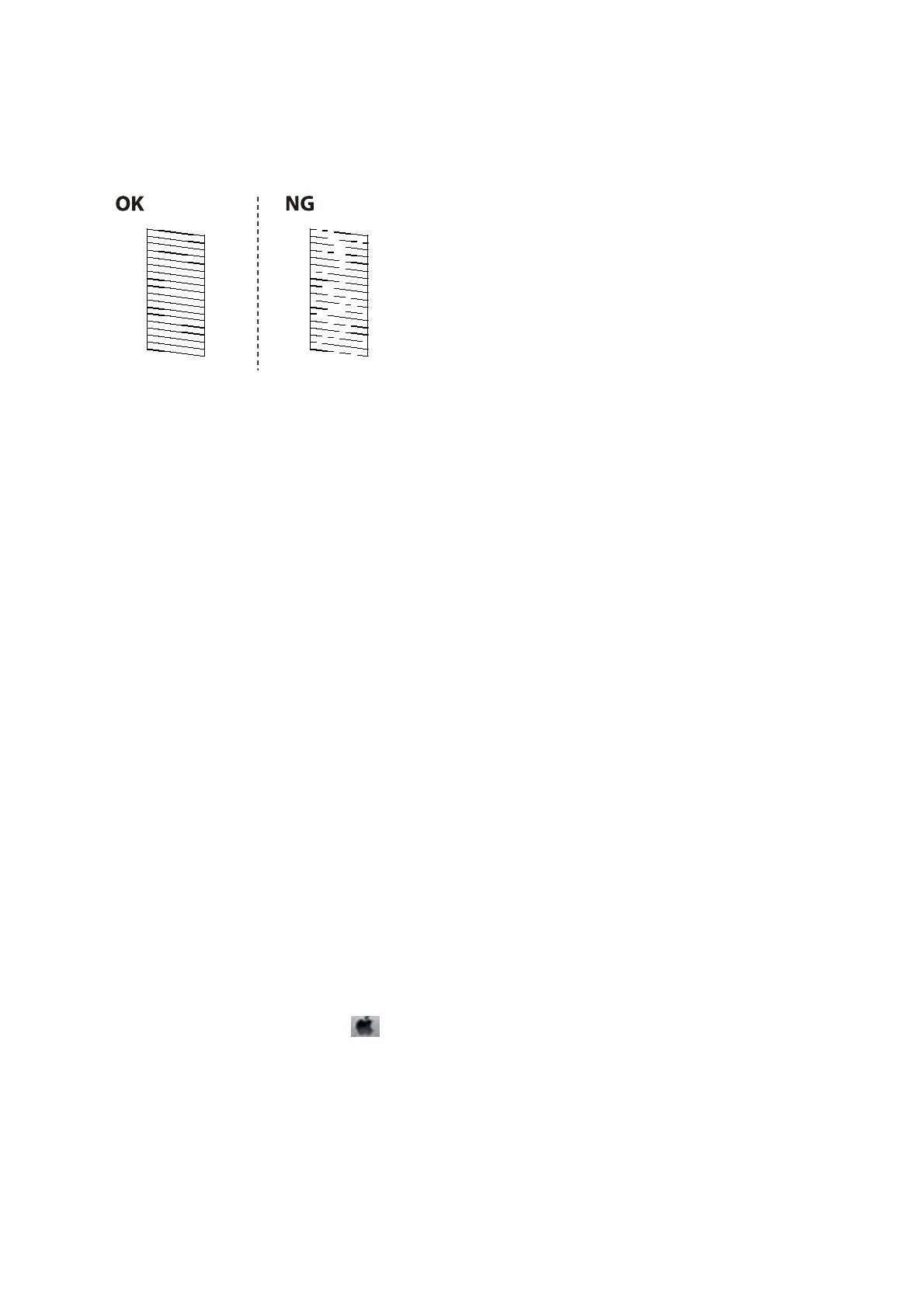
❏ If there are broken lines or missing segments as shown in the "NG" pattern, the print head nozzles may be
clogged. Go to the next step.
6. Select Ye s , and then follow the on-screen instructions to clean the print head.
7. When cleaning is nished, print the nozzle check pattern again. Repeat cleaning and printing the pattern until
all lines are printed completely.
Related Information
& “Loading Paper in the Rear Paper Feed” on page 47
Checking and Cleaning the Print Head - Windows
1.
Load A4-size plain paper in the printer.
2. Access the printer driver window.
3. Click Nozzle Check on the Maintenance tab.
4. Follow the on-screen instructions.
Related Information
& “Loading Paper in the Rear Paper Feed” on page 47
& “Accessing the Printer Driver” on page 79
Checking and Cleaning the Print Head - Mac OS
1. Load A4-size plain paper in the printer.
2. Select System Preferences from the
menu > Printers & Scanners (or Print & Scan, Print & Fax), and
then select the printer.
3. Click Options & Supplies > Utility > Open Printer Utility.
4.
Click Nozzle Check.
5. Follow the on-screen instructions.
User's Guide
Maintaining the Printer
154



 To Next Page