7
77
Eversense E3 CGM User Guide
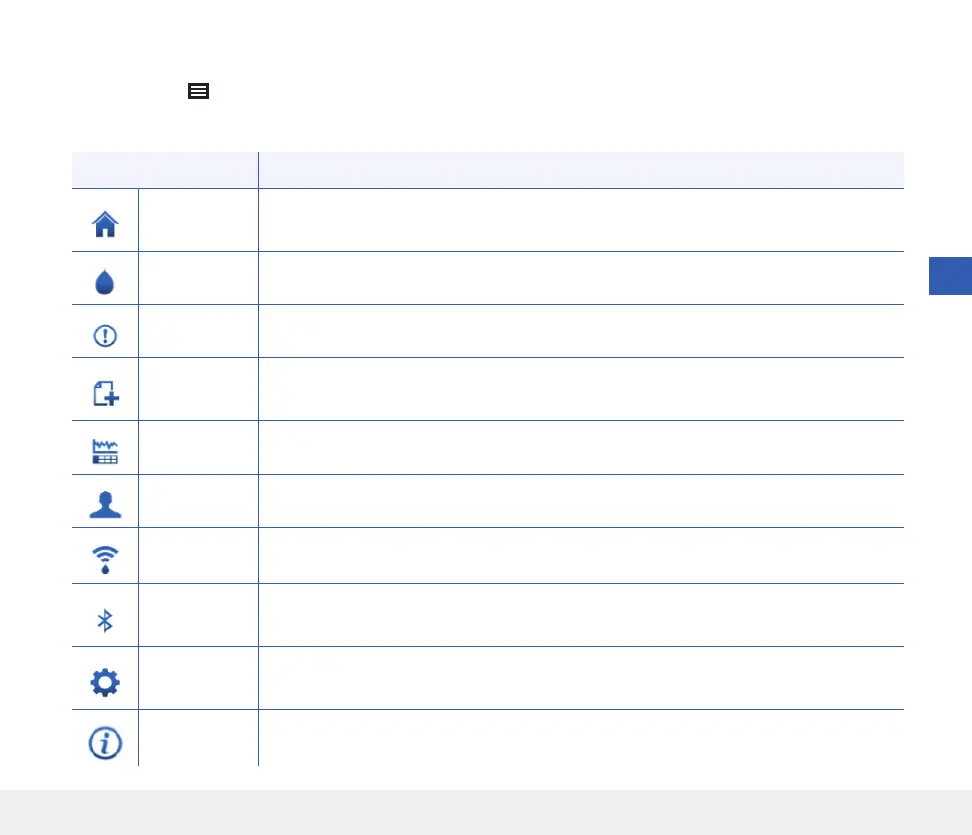
Menu Options Description
My Glucose
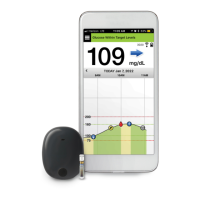
Main app screen that displays current CGM reading, direction and rate of change, trend
graph, events and alerts.
Calibrate Enter fingerstick blood glucose calibration values.
Alert History Review past alerts and notifications. See Alert Descriptions for more information.
Event Log
Enter information about activities such as blood glucose values, meals, insulin, health and
exercise. See Event Log for more information.
Reports Review a variety of reports about your CGM data. See Reports for more information.
Share My Data Allow others to view your glucose data through the Eversense NOW Mobile App.
Placement
Guide
Check the communication between the smart transmitter and sensor. Use this screen
whenever you are attaching the smart transmitter to be sure communication is established.
Connect
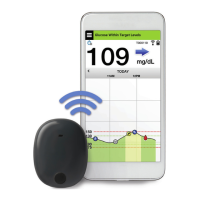
Establish or check the connection between the smart transmitter and mobile device.
A Bluetooth connection is required to send data to the app.
Settings
Customise settings such as glucose target levels, alert levels, sounds, and temporary
profile. See Customising your Settings for more information.
About
View information about your CGM System, including sensor and smart transmitter ID
numbers. Change or delete your profile picture and log out of the app.
Menu Options
The Menu icon (
) appears at the top left corner of all app screens and provides easy navigation to other app
features. The following menu items are available:



 To Next Page