14
156
Eversense E3 CGM User Guide
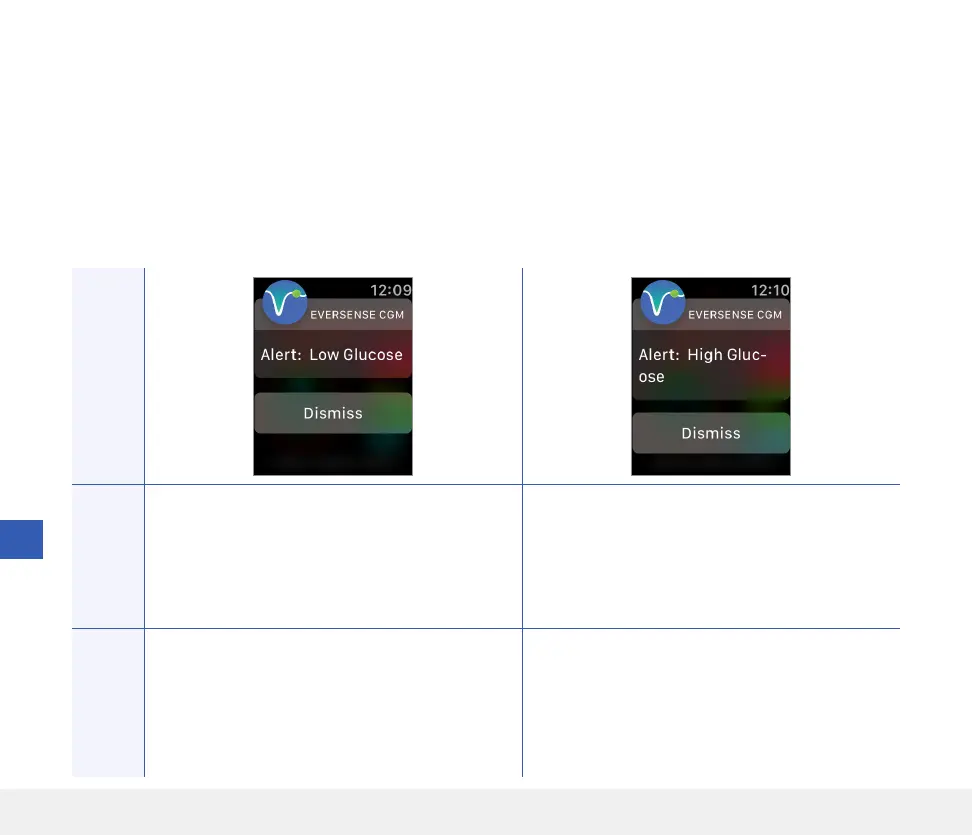
Alerts and Notifications Displayed on the Apple Watch
The Apple Watch is a secondary display to the Eversense CGM Mobile App. Any alerts or notifications received on the
Apple Watch should be confirmed on the Eversense CGM Mobile App before any action is taken.
If you dismiss an alert on the watch, the alert display will disappear from the phone lock screen. Once the mobile app
is opened, the alert will be displayed with all of its information.
The following table lists the alerts and notifications you may receive on the Apple Watch from the Eversense App.
Some alerts and notifications are aected by the sound settings in the mobile app, and the Do Not Disturb function
in the mobile app. See Setting Sounds and Alert Descriptions and Actions for more information.
Apple Watch
Display
Description
Low Glucose
Appears at the interval you enter in sound settings
when your sensor glucose reading is at or below
the low glucose alert level you set.
High Glucose
Appears at the interval you enter in sound settings
when your sensor glucose reading is at or above
the high glucose alert level you set.
Actions
Confirm the alert on your Eversense CGM Mobile
App. Pay close attention to your glucose values,
symptoms, and trends. If your symptoms do not
match the sensor glucose value, confirm your
glucose value with a blood glucose meter before
making a treatment decision.
Confirm the alert on your Eversense CGM Mobile
App. Pay close attention to your glucose values,
symptoms, and trends. If your symptoms do not
match the sensor glucose value, confirm your
glucose value with a blood glucose meter before
making a treatment decision.



 To Next Page