25
Eversense E3 CGM User Guide
Step 1. Download and Install the App
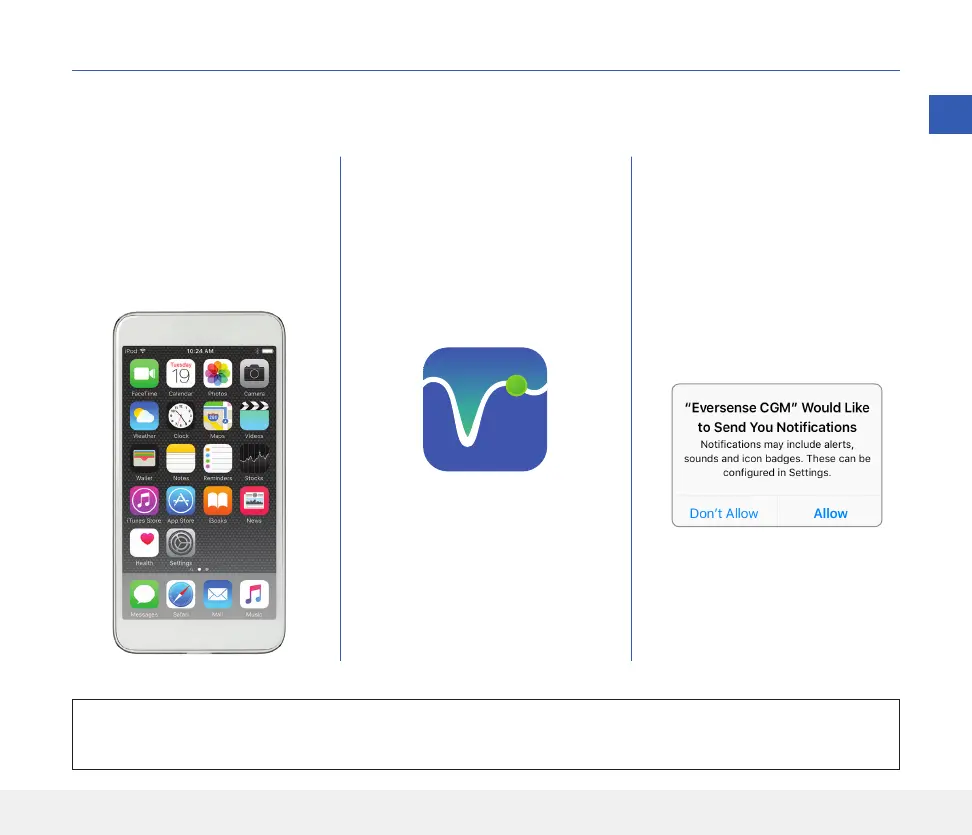
2. Download the free Eversense
App from the Apple App Store
or on Google Play.
The prompts to install the app
will vary between iOS and
Android operating systems.
3. On the install screen, tap
Install application
and follow the installation
instructions.
After 1 - 2 minutes, check your
mobile device display for the
Eversense App icon (as shown
to the left).
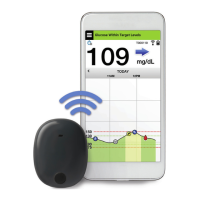
The app is designed to work with the smart transmitter to automatically receive and display sensor glucose data.
Eversense App Icon
Note: Make sure your
mobile device is using the
latest Eversense-compatible
operating system.
Note: Make sure to Allow
Notifications from the
Eversense App to receive
alerts and notifications to
your mobile device.
1. Select the mobile device you
would like to use to display
your glucose readings. In
most cases, this would be
a smartphone.
IMPORTANT: Make sure that you have a wireless internet connection, the date and time are correct on your
mobile device, and that Bluetooth is turned ON before continuing.
3



 To Next Page