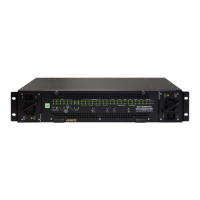
Model 5601ACO2 Automatic Changeover Unit
TECHNICAL DESCRIPTION Revision 1.2 Page 4-7
4.5.3. Initiating Firmware Upgrade Mode from the Terminal Program
The following is a list of possible reasons for failed communications:
• Defective Serial Upgrade cable.
• Wrong communications port selected in the terminal program.
• Improper port settings in the terminal program. (Refer to step 4 for settings). Note that
HyperTerminal will not change port settings while connected. Click on HyperTerminal’s
“Disconnect” Button then click the “Reconnect” button to activate changes to the port settings.
1. Apply power to the unit. After the unit powers up, a banner with the boot code version information
should appear in the terminal window, followed by “UPLOAD FILE NOW, CONTROL-X TO
CANCEL”
For example:
EVERTZ MCF5272 MONITOR 2.3 BUILD 3 (66 MHZ)
COPYRIGHT 1997, 1998, 1999, 2000, 2001, 2002 EVERTZ MICROSYSTEMS LTD.
28F160C3B FLASH DETECTED
BRD=5601ACO2
MODEL=BA5601ACO2
PROD=5601ACO2
FRAME=7700FR
UPGRADE JUMPER INSTALLED
UPLOAD FILE NOW, CONTROL-X TO CANCEL
4.5.4. Uploading the New Firmware
1. You should now see a prompt asking you to upload the file.
2. Upload the “*.bin” file supplied using the X-Modem transfer protocol of your terminal program. If
you do not start the upload within 10 minutes the unit’s Boot code will time out. You can restart the
upgrade process by power cycling the unit.
The 5601ACO2 application firmware in the bin file will have a name similar to:
5601ACO2.bin
3. The boot code will indicate whether the operation was successful upon completion of the upload.
For Example:
MFC5407 WARM BOOT> |


 To Next Page