EQX Server Manual
Page 8 Revision 2.2
4.2.1. Defining Your Routing Devices
1. On the SERVER tab, click the Devices menu.
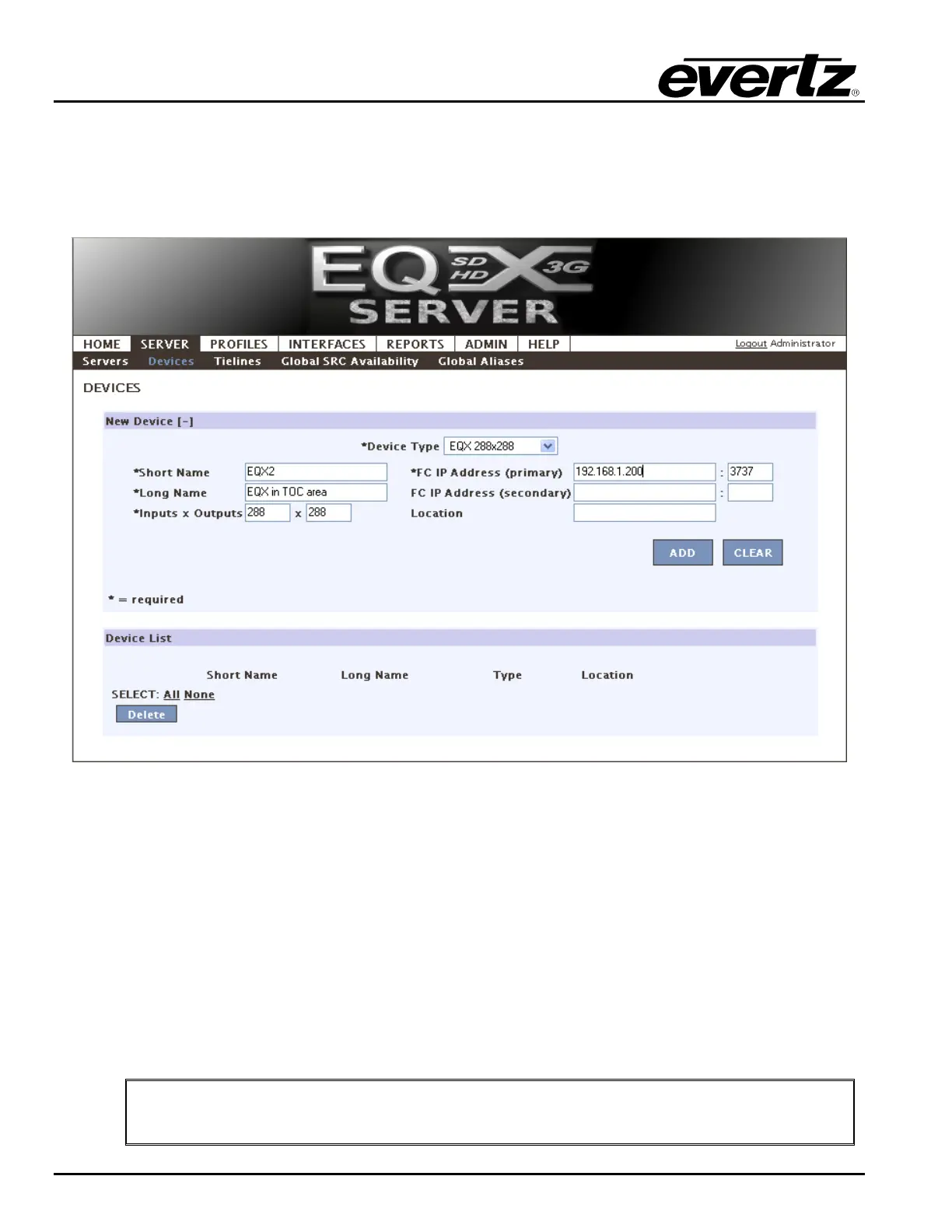
2. The screen shown in Figure 4-6 will enable the user to define which router is to be controlled. Use
the Device Type drop down menu to define the type of router. Once the device type is selected,
device fields will appear which enable the user to enter the EQX parameters.
Figure 4-6: Server: Devices Tab
3. Define the routers by entering information in the Required and Optional information fields. These
details can be edited at any time by returning to this page.
a. Short Name: The name used to build default names for source destinations and tielines.
b. Long Name: The name used to refer to the router in the WCT.
c. Device Type: The router type to be controlled.
d. Inputs/Outputs: The size of I/O available on the router to be controlled.
e. FC IP address (primary)/Port: The network information of the primary FC is required for
the router to be controlled.
f. FC IP address (secondary)/Port: The network information of the secondary FC is optional.
g. Location: Information pertaining to the physical location (Los Angeles or ER-227) can be
optionally entered here.
4. Once complete, click the Add button. You will need to return to the server page to upload these
changes. You may upload these changes now or move onto further configuration.
"
Tip: Remember your changes will not be lost, even if the web browser is closed. They
will be stored in the web host portion of the EQX server, but will not be applied to the
system until you return to the Servers menu on the SERVER tab.



 To Next Page