EQX Server Manual
Page 4 Revision 2.2
4. OPERATING THE EQX SERVER
4.1. Requirements for using the Web Config tool
1. Ensure the EQX Server is installed and operational, and the IP Address is set correctly.
2. Ensure the computer is attached to the same network as the EQX Server.
a. Since the EQX Web Config Tool (WCT) uses standard HTML, XHTML, CSS, etc any
web browser on any platform that complies with these formats can be used.
i. Currently the most adopted browser that is completely compliant is Mozilla
Foundations Firefox. We recommend that you use this browser, if available to you,
for the best performance of the WCT. For a free download of the current Mozilla
Firefox browser and more information navigate to the following website:
http://www.mozilla.com/en-US/firefox/
3. It is not required, but it is an asset to have a solid general understanding of routing systems.
Knowing how your system is wired in terms of inputs, outputs, tielines to terminal equipment
and other routers and names for resources makes moving through the process of configuring
your router control system far easier.
4.2. Getting Started: Setting Up Your Router System
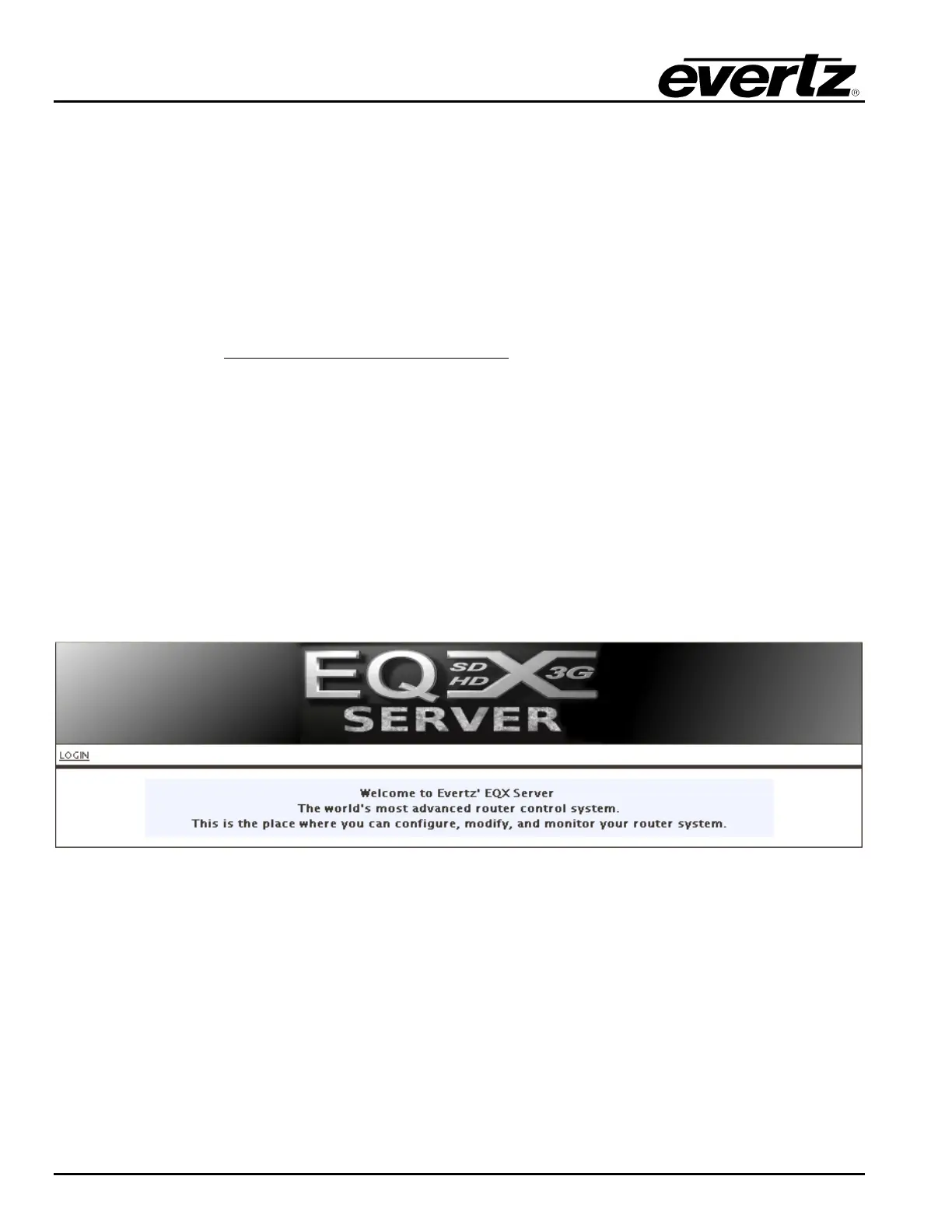
1. Launch the firefox web browser and enter the IP address chosen as the system IP address (which
was entered into the heartbeat configuration page) into the address bar. The page should load with
a message stating “IT WORKS!!!”. This message notifies the user that one of the EQX servers is
primary and that the system IP address is now in use. Now enter the IP address again followed by
“/eqx” (for example: 192.168.1.4/eqx) and press enter; you should see the login page for EQX
server web configuration tool.
Figure 4-1: Welcome Screen
2. Click the Login link button in the top left hand corner, as shown in Figure 4-2:



 To Next Page