SSP200 • Product Configuration Software 54
To assign or change the hostname:
1. Enter a name for the device in the name field (see figure48,
1
, on the previous page).
This name can be up to 63 characters in length with no spaces between characters.
Only alphanumeric characters and the hyphen are valid. The first character must be
alphabetical, and the last one cannot be a hyphen (–). If an invalid name is entered, a
red symbol appears to the right of the name field.
2. Click the Apply button (
2
) to change the name or click the Cancel button (
3
) to keep
the previous name.
To reset the device name to the default: Click the Reset to Default button (
4
).
The default device name consists of the model name, followed by the last three
hexadecimal character pairs of the product MAC (hardware) address. All parts of the
name are separated by hyphens (for example: SSP-200-FF-FF-FF).
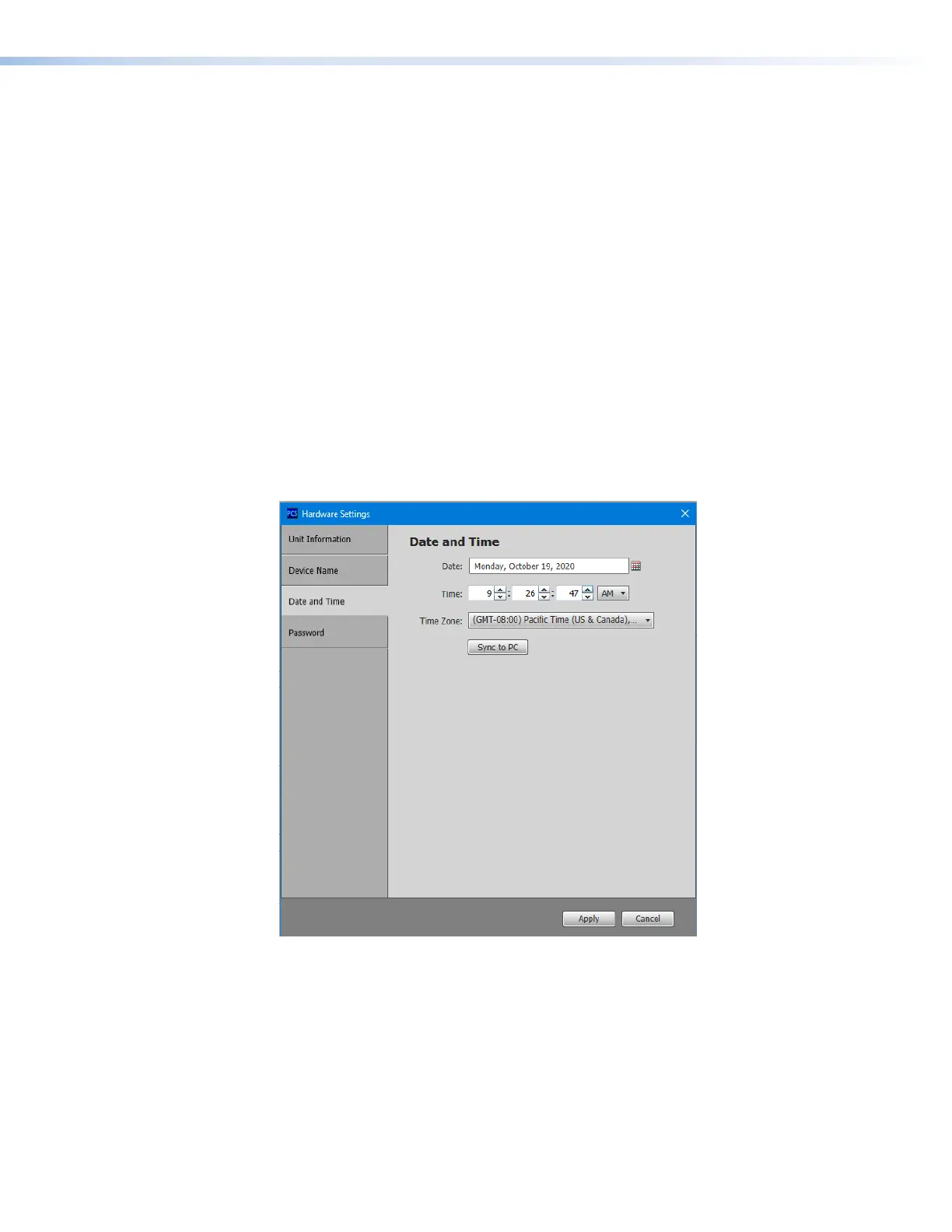
Date and Time
1. Click the Date and Time button to access a menu to change the date, time, and
time zone of the device (see figure49). You can also click the Sync to PC button to
synchronize the device with a connected computer to align the current date and time.
2. Click the Apply button when done. Or click Cancel to return to the previous menu with
no changes.
Figure 49. Hardware Settings: Date and Time
49



 To Next Page