48
In this phase the keypad and keys have the following
functions:
Alphanumeric keypad
Use the alphanumeric keypad to select the USB activities:
Table 51: Alphanumeric keypad function in USB
Load the two languages present in the
USB key flash memory while the panel is
running. Download the two languages
from the CD supplied with the panel or
from the FireClass website.
Load the audio file containing the voice
messages from the USB pen drive to the
panel
Save the current audio messages
from the panel to the USB pen drive.
Load the programming data from the
USB pen drive to the panel (*).
Save the current panel programming
data from the panel to the USB pen
drive.
Upgrade the panel Firmware from the
USB pen drive (**) (***).
Save the current LOG data in the
panel from the panel to the USB pen
drive.
Notes:
(*) The loaded data will overwrite the current data
in the panel.
(**) The file containing the expected FW version to
upgrade the panel has to be present in the FW
directory in the pen drive.
(***)To do the firmware upgrade of the FC500
repeater and the MFI module is not possible using
the USB pen drive.
Cursor keys
No functions are related to the Up, Down, Right, or Left
keys.
ESC and ENTER keys
Table 52: ESC and ENTER key function in USB
Use to exit from the USB activity
result screen
Note
:
The default first language is Italian and cannot be
overwritten. The default second language is English and
can be overwritten at the first panel power-up or at the end
of the FW upgrade process of the control panel. The
available second language files are contained in a folder
on a USB stick connected to the control panel before the
first power up. The loaded languages are the languages of
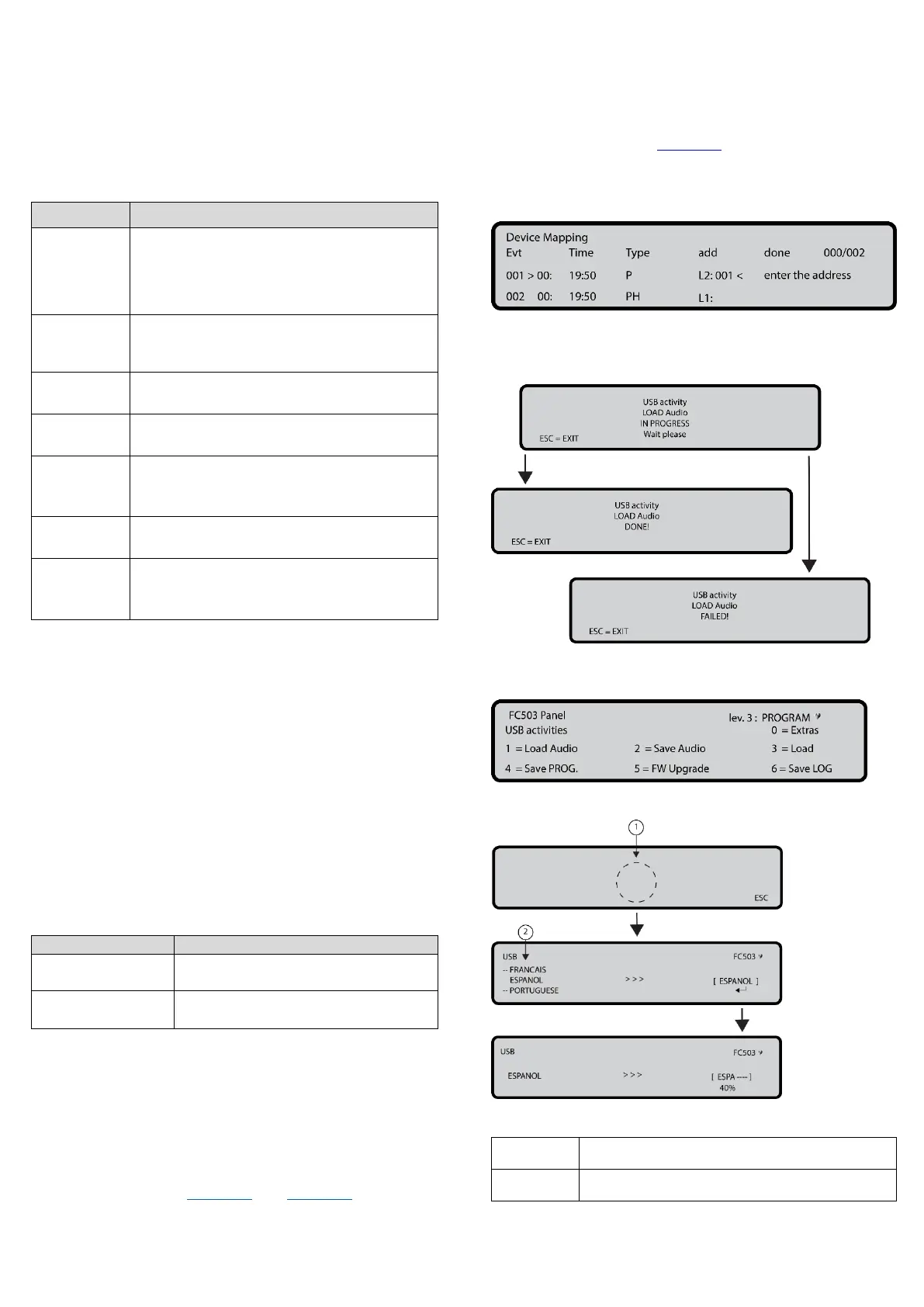
the control panel. See Figure 33 and Figure 34. At the end
of the FW upgrade process, the panel will start the
procedure Language strings download from USB key at
the first panel power-up to load the correct version of the
required language. See Figure 35.
Figure 31: Display On Demand Device Mapping
Figure 32: Example USB activity
Figure 33: USB activities
Figure 34: LCD screen sequence
Language list waiting page
List of languages in the USB memory stick



 To Next Page