FlipAlbum
®
6 113
Burn CD:
22. Launch your CD writing software, eg Easy CD Creator, or Nero.
23. Using your CD writing software, navigate to the folder that you have exported your
album to (eg C:\AlbumCD) and copy the 2 folders and 2 files (FlipAlbumCD,
MacCDViewer.app, Autorun.inf, start.exe) onto the CDR.
Note: You may not want to copy the folder MacCDViewer.app onto the CDR if your
recipients of the album CDs are using PCs and not Macs.
Burn to CD:
You will see the Burn to CD button only if FlipAlbum
®
6 Suite/Pro detects that your PC has
Nero Burning ROM 5.5 or higher installed (Fig 7.7.6). By clicking the button, you will be able
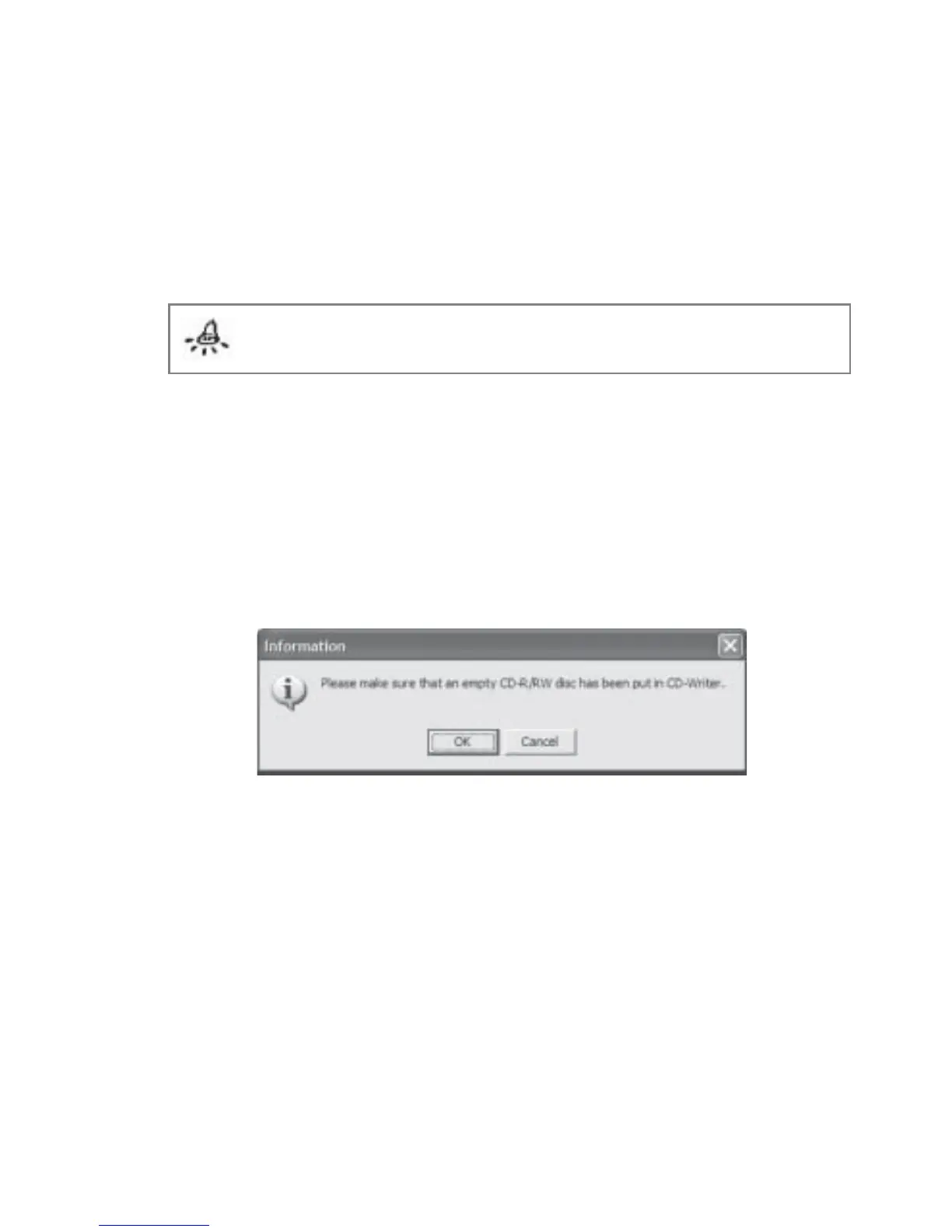
to directly create an album CD. You will be prompted with Fig 7.7.7 to remind you to put an
empty CD-R/RW disc into the CD Writer.
Fig 7.7.7 Insert CD-R/RW Disc Prompt
AlbumCD for Mac:
With FlipAlbum
®
6, the album CDs you create can now run on the Mac as well. The Mac user
simply needs to pop the album CD into the CD ROM drive, double click the CD icon, and
launch the MacCDViewer to view the album(s).



 To Next Page