FlipAlbum
®
6 17
4. Click OK. A dialog box will appear to let you know the actual Product ID of the product.
You should use the PID for registration or future correspondence with E-Book Systems.
5. If you have installed the box version, you would be prompted to register your product so
as to enjoy free software updates and special upgrade prices for major software version
upgrades.
6. Click the Close button. A sample album will be opened to let you see what you might be
able to do with FlipAlbum
®
.
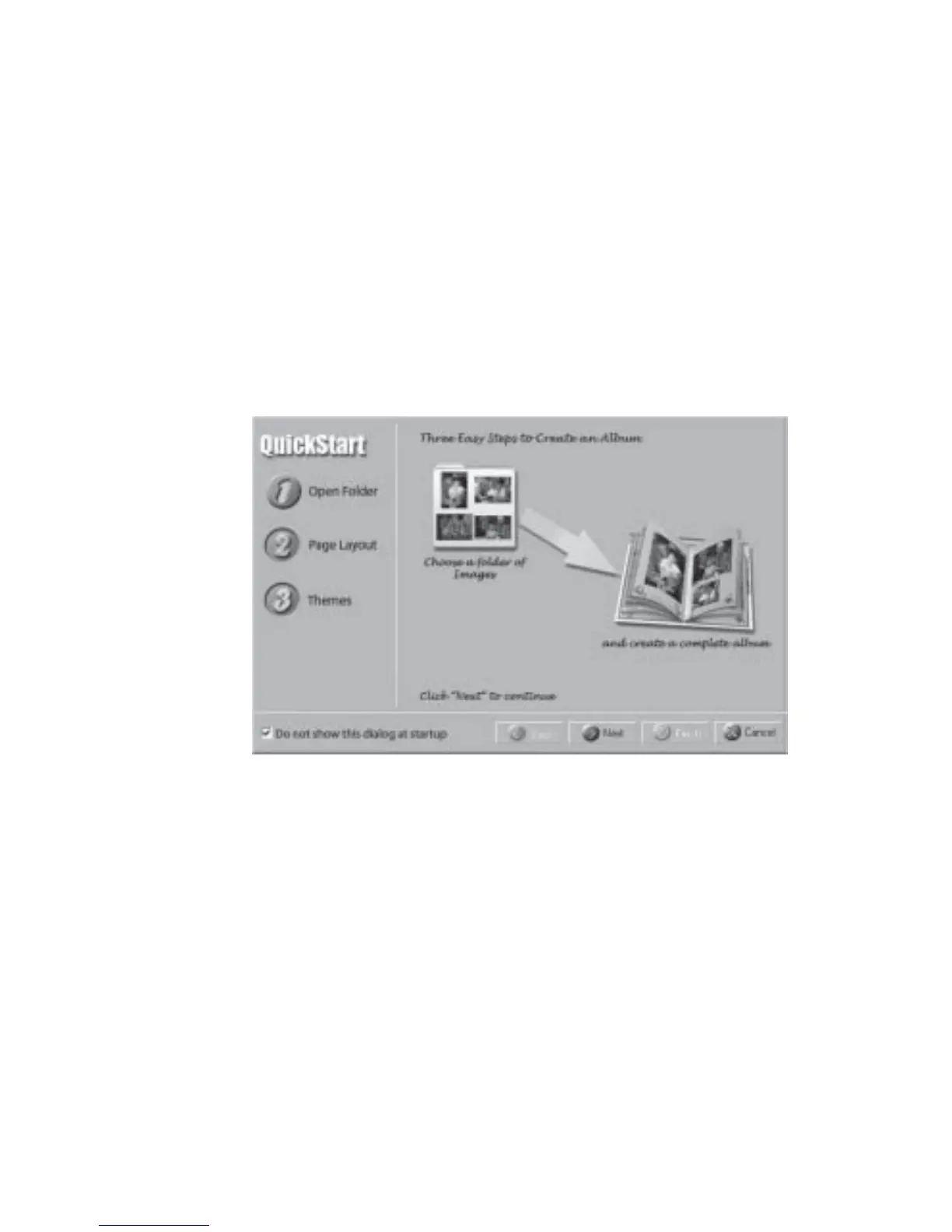
On subsequent launches, the Start Wizard will be displayed (Fig 2.4.2) to guide new users
to quickly create an album by simply opening a folder of images.
Fig 2.4.2 Start Wizard
You can use the Start Wizard to create your quick and nice looking album or follow other
steps in Section 2.5 to create your album.
2.5 Create an Album
With FlipAlbum
®
, there are many ways of creating an album. You can use the Start Wizard,
or start off with a new blank album and insert the objects you want, or you can simply open
a folder containing the objects.



 To Next Page