FlipAlbum
®
6 27
Note: You can also create a new album by clicking on the New icon instead of using
the menu bar.
Note: Remember to save your new album using the File, Save As command.
See Section 3.6 Inserting and Deleting Pages for more details.
3.2 Starting from an Empty Folder-book
Use FlipAlbum
®
to create a new folder where you can store your image files.
To start from an empty folder-book and add image files into the new folder:
1. Click Folder on the menu bar.
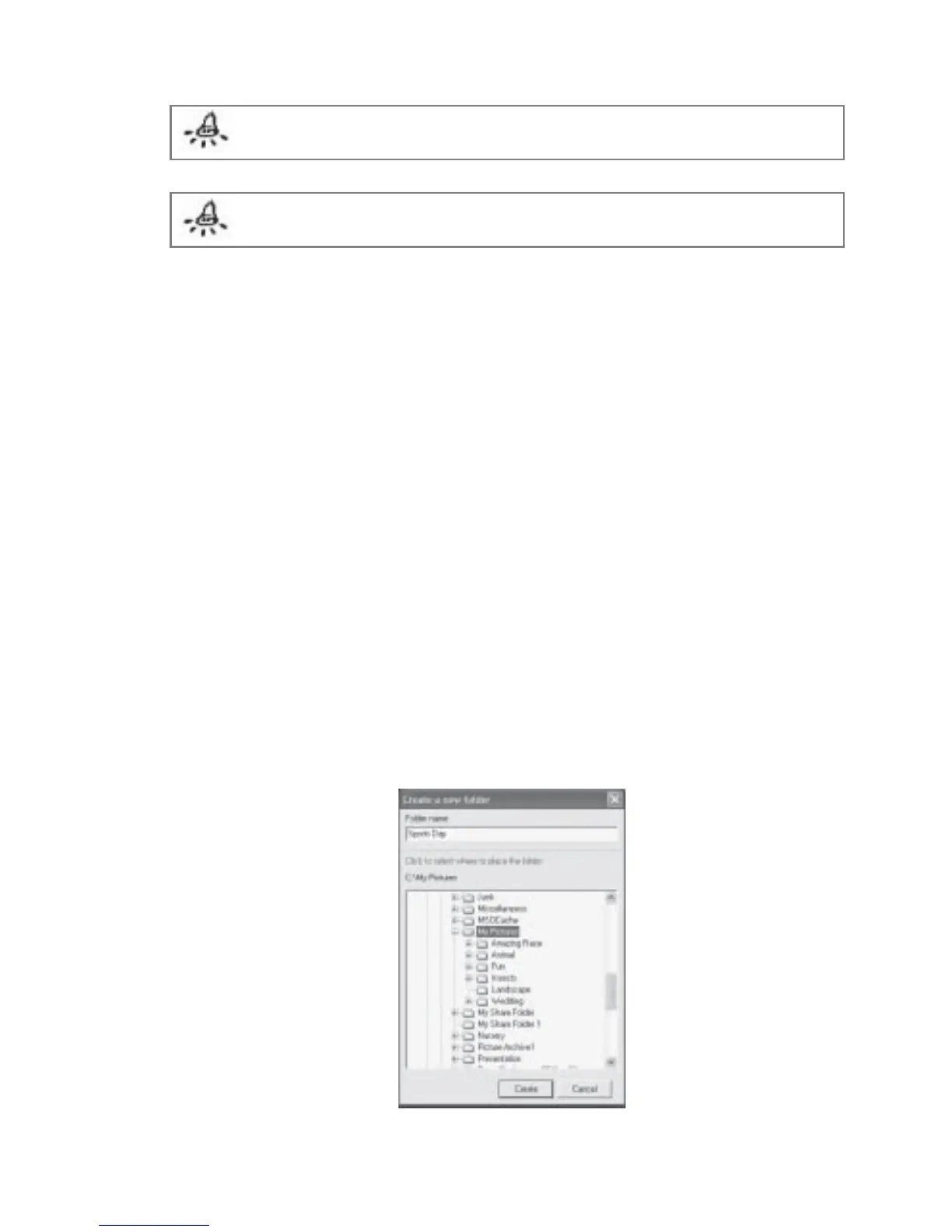
2. Click New Folder. The Create a new folder dialog box will be displayed (Fig 3.2.1).
3. Select the directory you want to create the new folder.
4. Enter the new folder name.
5. Click New to confirm, or Cancel to discard.
6. To add images to the new folder, click Folder on the menu bar.
7. Click Copy from or click the Copy From icon.
8. Navigate to the folder you want to copy the file from.
9. Click Open.
Fig 3.2.1 Create a New Folder Dialog Box



 To Next Page