60
4.9 Previewing Images
To view a picture in full screen mode:
1. Click FlipTo on the menu bar.
2. Click Overview.
3. Click the thumbnail of the picture you want to preview.
4. Click the left mouse button, or press the space bar or Esc key to go back to the book.
You may either preview your pictures by clicking on the thumbnails at the overview.
1. Right click the picture you want to preview.
2. Select Preview/Play from the context menu.
3. Click the left mouse button, or press the space bar or Esc key to go back to the book.
Note: Pressing the space bar when the mouse pointer is above the picture will also
allow you to preview your picture.
4.10 Playing Music
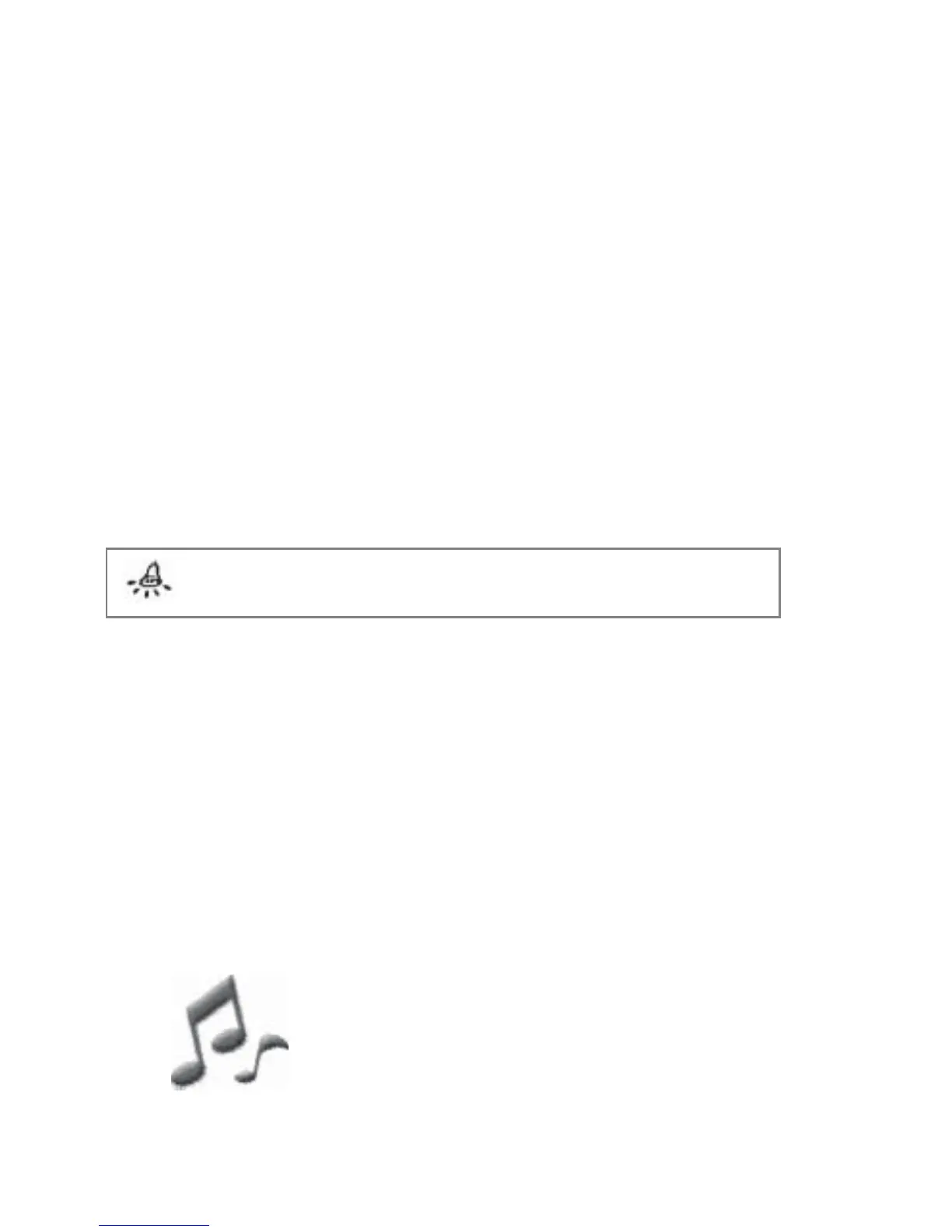
When a music file is inserted, the music object image (Fig 4.10.1) will appear on the page.
To preview:
1. On the album page, move your mouse cursor over the music object you want to preview.
2. The mouse cursor will change into a black music note. Click on the music object and the
music will play in the background.
3. Click the left mouse button or press any key to stop the music.
Fig 4.10.1 Music Object



 To Next Page