20
Step 2 Page Layout - This is where you choose the layout of your album by selecting
single image per page (default) or centerfold page (a single image occupying two pages).
1. Select the layout by clicking Single image per page or Centerfold page. A white glow
behind the image will indicate your current layout selection.
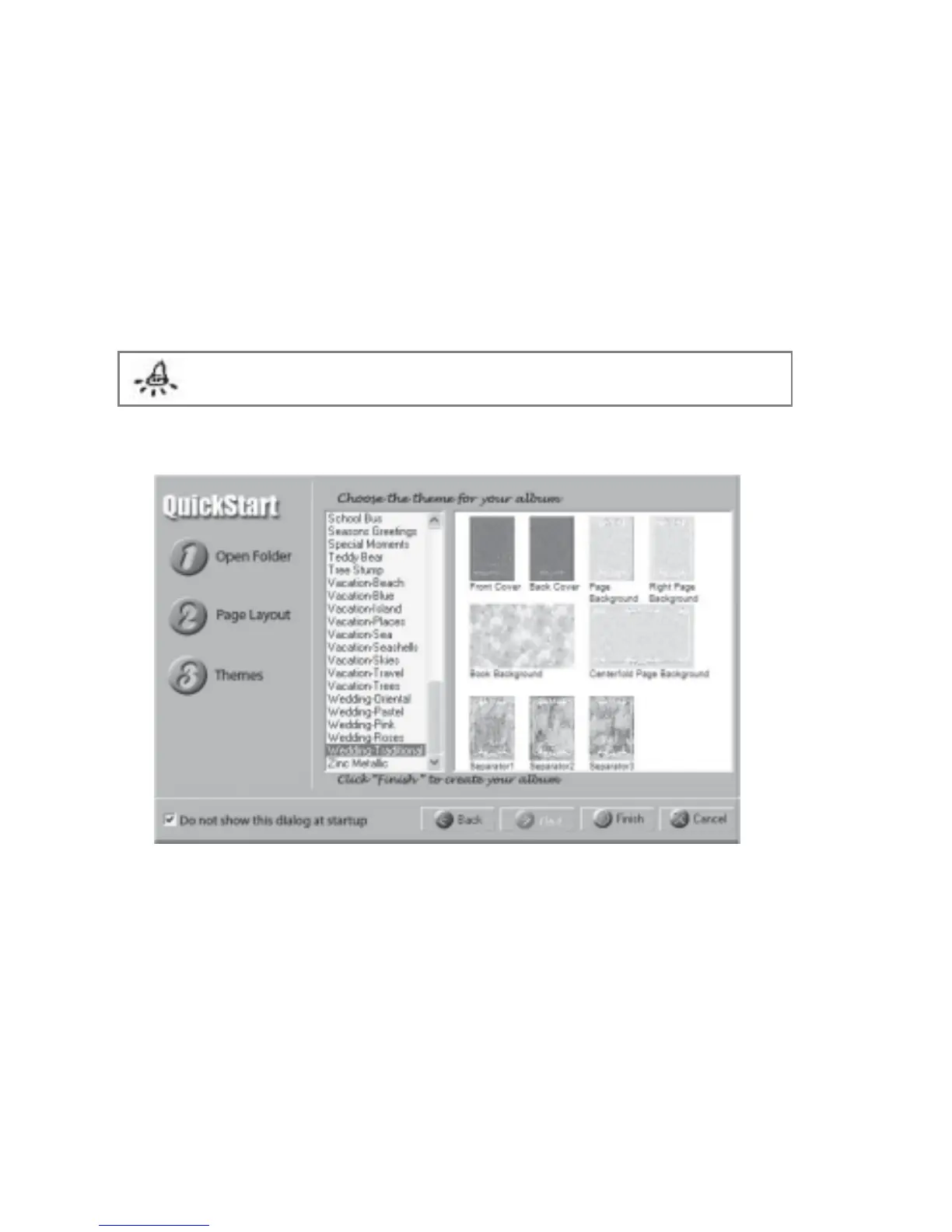
2. Click Themes on the left panel or the Next button to continue. Fig 2.5.3 will be
displayed. Alternatively click the Back button to go back to the previous step or Cancel
button to quit the Start Wizard.
Note: If you click the Finish button instead of the Next button at this point, the
album will be created without the themes.
Fig 2.5.3 Start Wizard “Themes”
Step 3 Themes - This is where you select a theme for your album. A theme includes front
and back covers, left, right and centerfold page backgrounds, book background and
separators (if available).
1. Select the desired theme.
2. Click the Finish button to start creating your album. The Start Wizard will close and
your album containing the images in your folder will be created. Alternatively click the



 To Next Page