24
5 : CREATING PRESETS
WORKING WITH BLOCKS
Here’s what you’ve wanted to know since page 1: how to add EFFECT BLOCKS to a preset.
TO INSERT OR CHANGE A BLOCK…
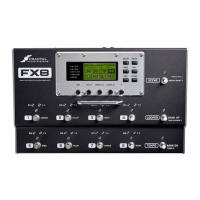
From the Stompbox Mode screen, turn the NAV knob to select the desired slot.
Remember, the selected slot is shown in INVERSE .
You can also just tap a slot’s footswitch, but this also toggles its eect ON or OFF.
Turn the VALUE knob until the desired eect block is shown, then press the ENTER button.
TO REMOVE A BLOCK…
From the Stompbox Mode screen, turn the NAV knob to select the desired slot.
Turn the VALUE knob until “EMPTY” is shown, then press ENTER to conrm.
“EMPTY” is the only entry NOT listed alphabetically; it is at the beginning of the list.
OR, just use this shortcut: NAV to the slot, press EXIT, then press ENTER.
TO MOVE A BLOCK…
Use the NAV knob to select the slot of the eect you want to move.
Press ENTER. The “MOVE MODE” pop-up appears.
Turn the NAV knob to select the desired destination slot.
Press ENTER to move the eect or press EXIT to cancel.
Please be aware that moving an eect leaves an empty slot behind.
TO SWAP TWO BLOCKS…
Swapping blocks requires you to use our optional FX8-Edit software. In FX8-Edit, simply drag and drop one
block onto another to swap them. You can also copy/paste blocks within a preset or between presets, save
favorite blocks to a library, and much more.
TO RESET ANY BLOCK…
To reset an entire block to default settings, open its EDIT menu and then double-tap the ENTER button. A
conrmation screen will appear. Press the "SCENE" footswitch to reset or EXIT to cancel.
WHY AM I GETTING A CPU LOAD WARNING? The FX8 has a
very powerful processor, which is needed to run its high-quality eects. As you add
more blocks, or blocks that require more power, you may ultimately reach the limit of the CPU. When
this happens, a warning message prevents you from adding more blocks until you reduce the load by
removing blocks or otherwise reducing the load. You may also nd that edits which increase the CPU
load will cause some blocks to become disabled. For more on CPU limits, see page 29.


 To Next Page