2
Press the WPS button on the router within 2 minutes.
If the blue LED on the Ohmpilot lights up permanently, the connection to the
network was successful.
The inverter automatically searches for the Ohmpilot, and the search process
can take up to 5 minutes. If the red LED is not lit and the green LED is flash-
ing, the Ohmpilot is working correctly.
Set Up Navigation, symbolic representation
Connecting via access point and manual configuration of the WLAN settings
1
Press the button on the Ohmpilot 2x.
The blue LED flashes (twice) as long as the WLAN access point is active (30
minutes). Before the access point is opened, it searches for available WLAN
networks.
2
Activate the "Ohmpilot" WLAN network on your smart device or PC.
3
In the browser, enter the address http://192.168.250.181 or http://ohmpi-
lotW.local. Alternatively, the Ohmpilot can also be searched on the network
using the Fronius Solar.start App.
4
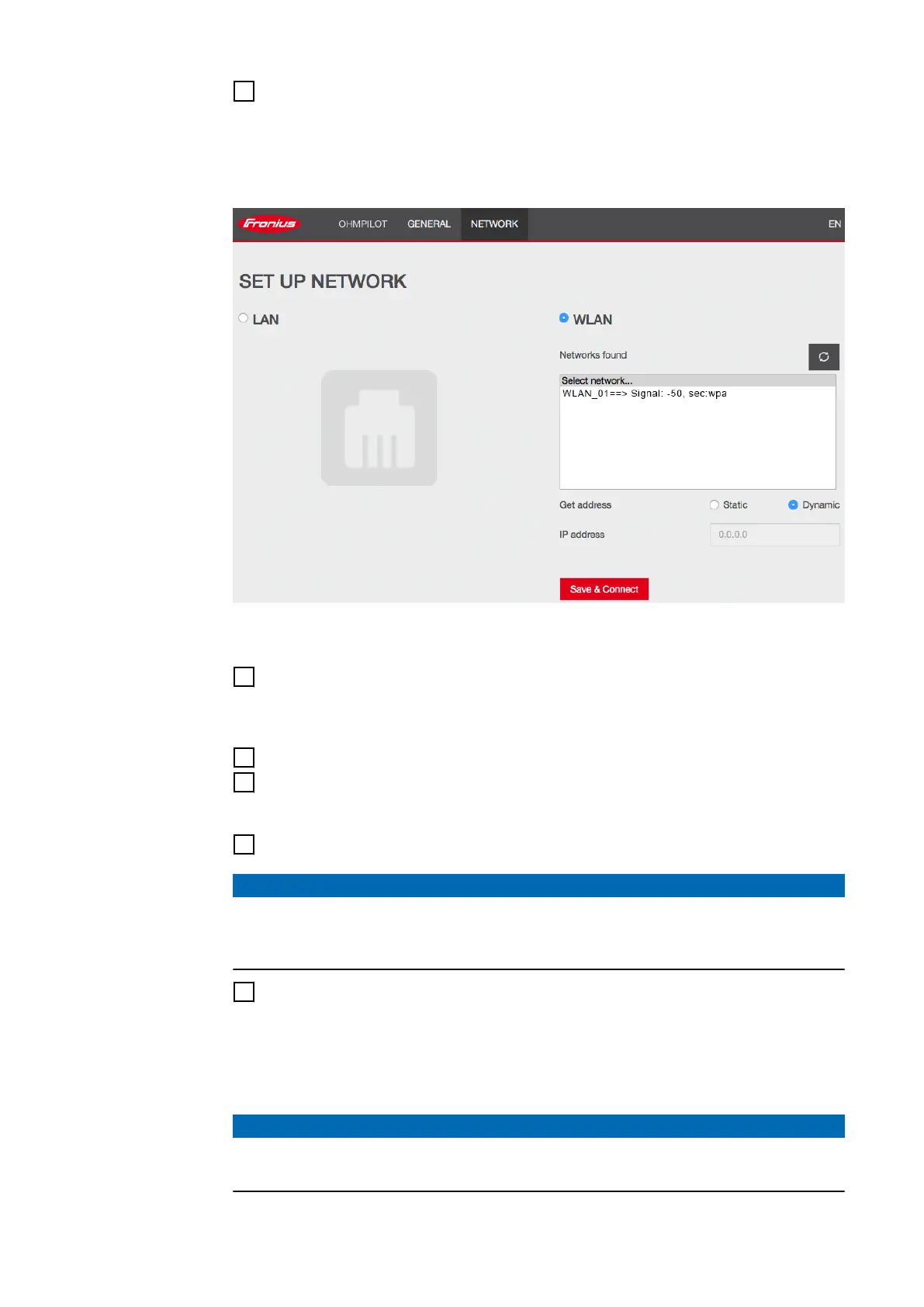
Select the desired network in the WLAN network tab.
NOTE!
Desired network not listed.
If the desired WLAN network is not listed, end access point mode by pressing
the button again and repeat the process.
5
Click on "Save & Connect", enter WLAN password.
If the blue LED on the Ohmpilot lights up permanently, the connection to the
network was successful.
The inverter automatically searches for the Ohmpilot, and the search process
can take up to 5 minutes. If the red LED is not lit and the green LED is flash-
ing, the Ohmpilot is working correctly.
NOTE!
WLAN network scan not possible.
When the access point is opened, it is not possible to scan the WLAN networks.
41




 To Next Page