18
2 Setup
3. Confirm that the settings updated and then tap on [Confirm].
The machine restarts and then the settings are enabled.
WPS (Push Button)
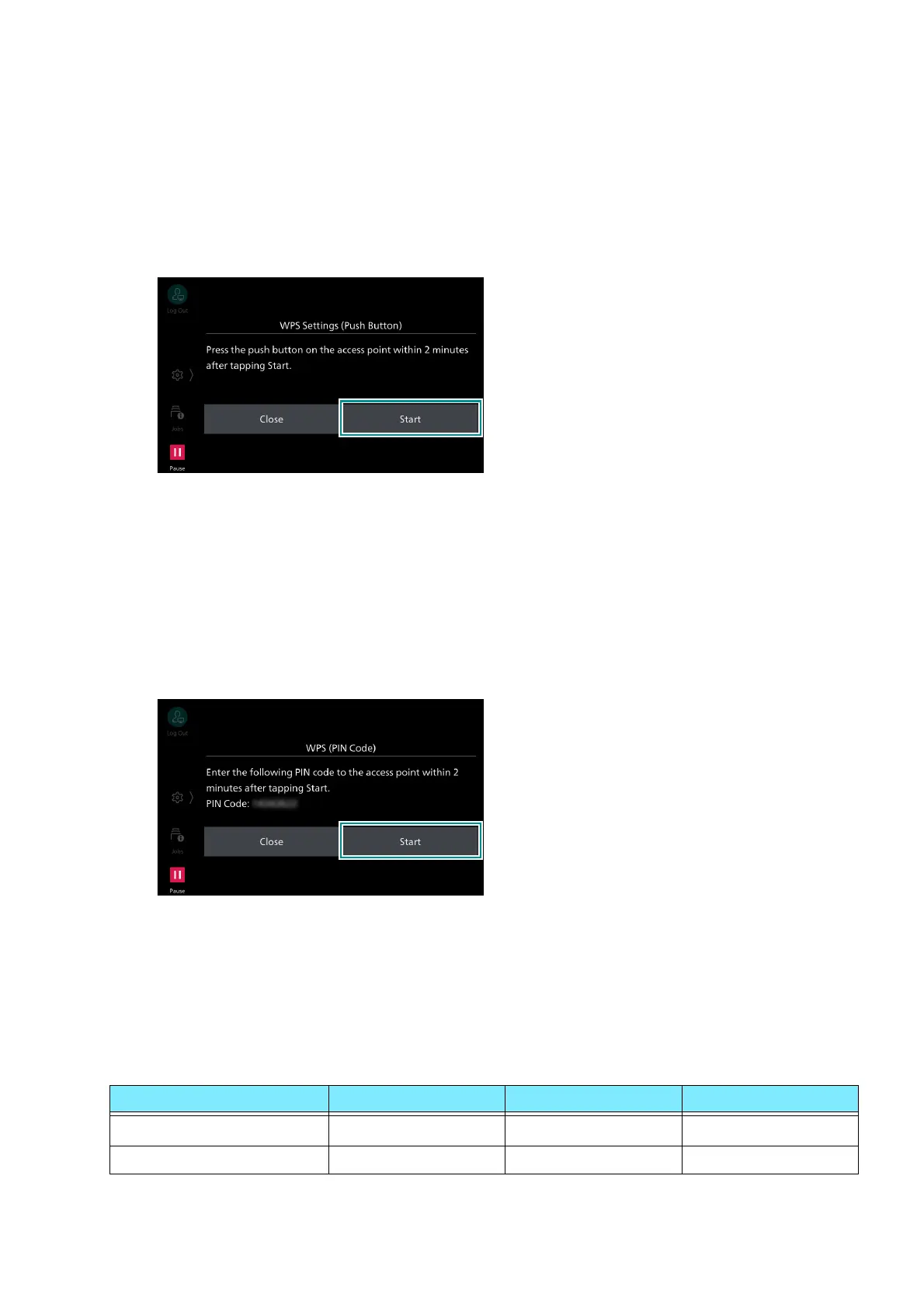
1. Tap on [WPS (Push Button)].
2. Tap on [Start] and then press the WPS button on the wireless LAN access point within 2 minutes.
3. Confirm that the settings updated at the screen on the machine and then tap on [Confirm].
The machine restarts and then the settings are enabled.
WPS (PIN Code)
1. Tap on [WPS (PIN Code)].
2. Tap on [Start] and then enter the displayed PIN code at the wireless LAN access point within 2
minutes.
3. Confirm that the settings updated at the screen on the machine and then tap on [Confirm].
The machine restarts and then the settings are enabled.
Connecting using Internet Services
IEEE802.1X authentication can be used for the machine’s Wi-Fi connection. When using the
IEEE802.1X authentication method, request the certification authority to issue a certificate and then
import the issued certificate to the machine using Internet Services.
*1 :Required when verifying a server certificate.
Certificate EAP-TLS EAP-TTLS PEAP
CA Certificate
Required Required
Optional
*1
Client Certificate Required - -


 To Next Page
 Loading...