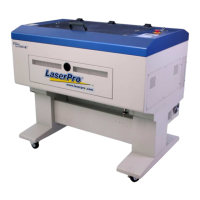
4.2.5 Installation of the LaserPro Print Driver
1) Insert the LaserPro CD.
2) From the auto run menu, select X380 LaserPro Driver to start the LaserPro
Print Driver installation.
3) When the Add Printer Wizard menu comes up, click Next to continue.
4) At the Local or Network Printer page, select <Local printer attached to this
computer>, then click Next to continue.
5) At the Select a Printer Port page, select <Use the following port> and select the
port that the LaserPro X380 will be attached to, then click Next to continue.
6) The next screen will prompt you with a list to select the manufacturer and model
of your printer. From this menu, click Have Disk. Another menu will now pop up
for you to indicate the location of the print driver. With the LaserPro CD still in
your drive, click Browse and point to the file located at: D:\X380\LaserPro
driver\WIN XP\Dv3.45\GL345.inf (where D is the driver letter assigned to your
CD-Rom drive) and click OPEN to have X380 displayed as a valid printer.
7) Now select X380 from the list of printers (X380 should be the only printer
displayed on the list) and click Next to continue.
8) If a screen comes up informing you of the detection of a previous driver and asks
to keep the existing driver or use the new one, select Replace Existing Driver
and click Next to continue.
9) This screen will prompt you to provide a printer name. Simply type in <X380>
and select Yes or No if you want to use this printer as the default printer and click
Next to continue.
NOTE
When working with the LaserPro X380 Print Driver within your graphics software, you
will need to have the X380 set as the default printer to get proper output. If you select to
not have the X380 be the default printer, please remember to manually change this on
your own from within the graphic software printer selection area or from the Windows
Control Panel Printers and Faxes section.
10) At the Printer Sharing screen, select <Do not share this printer> and click Next
to continue.
11) Select <No> when asked if you want to print a test page and click Next to
continue.
12) Now simply click Finish to complete the Add Printer Wizard.
13) Now the installation will proceed, if you get a Hardware Warning about the
software you are installing for this hardware has not passed Windows Logo
testing… simply click Continue Anyway to ignore this warning.
14) Congratulations, your printer driver has been successfully installed!


 To Next Page