29
Phonebook
Add a phonebook record
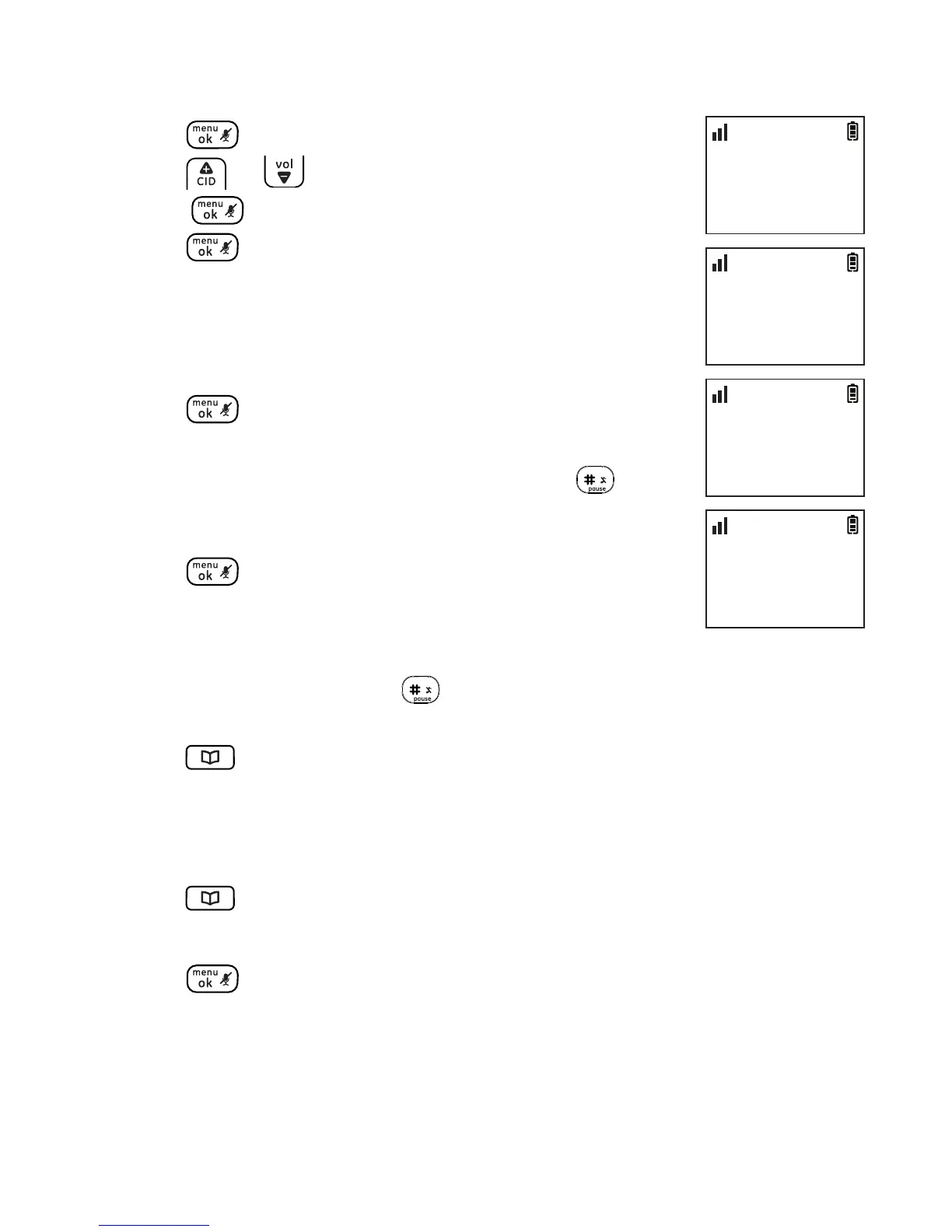
1. Press .
2. Press or to select PHONEBOOK and then
press .
3. Press again to select ADD NEW.
4. Enter the name (max. 14 character). Press the key to
the corresponding character to display the correct
letter. See the character table on page 30 for more
information.
5. Press .
6. Enter the number (max. 20 digits). If you need a
pause between digits, press and hold the until a
P appears in the display. This will insert a 3-second
pause in the dialing sequence.
7. Press to save the new entry.
-OR-
1. Enter the number (max. 20 digits). If you need a pause between
digits, press and hold the until a P appears in the display. This
will insert a 3-second pause in the dialing sequence.
2. Press .
3. Enter the name (max. 14 character). Press the key to the
corresponding character to display the correct letter. See the
character table on page 30 for more information.
4. Press .
5. Edit the number if necessary.
6. Press to conrm.
NOTES:
1. The phonebook is shared by all handsets. Changes made to the phonebook on any one
handset apply to all.
2. The directory can store up to 100 entries with up to 20 digits for each telephone number
and 14 characters for each name.
MAIN MENU
>PHONEBOOK
10:30
PM
11/20
PHONEBOOK
>ADD NEW
10:30
PM
11/20
ENTER NAME
_
10:30
PM
11/20
ENTER NUMBER
_
10:30
PM
11/20


 To Next Page