161
The default Raritan user is „admin“, password is „nimda“.
Attention! This does not work with MS Internet Explorer! Use any other web-browser,
e. g. Mozilla Firefox.
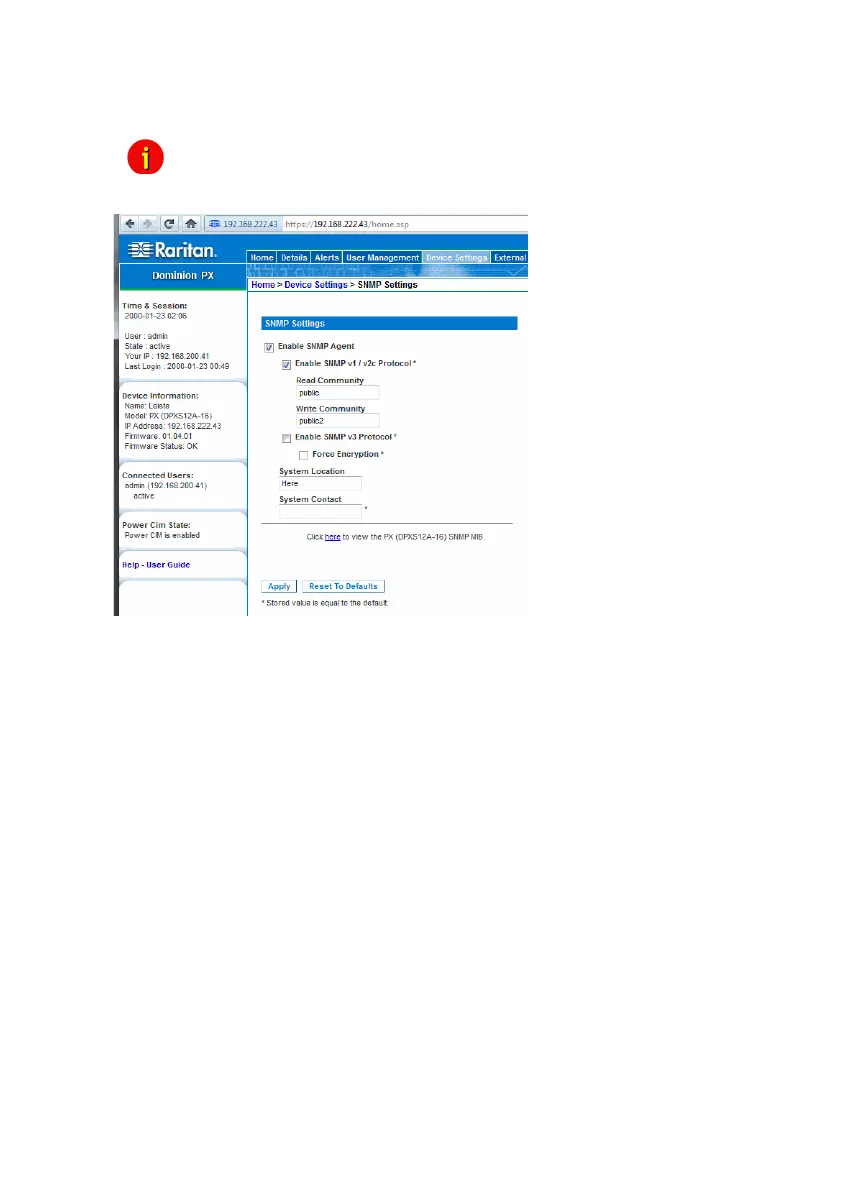
Figure 169: Raritan SNMP Settings
Click on „Stop“, change the configuration on „Write Community“, e. g. to „public2“ and restart.
Table of figures
Figure 1: CS121 into a Network Environment .................................................................. 11
Figure 2: Connections of the CS121 ................................................................................ 12
Figure 3: CS121L (left) in configuration mode (IP 10.10.10.10) and CS121SC (right) in
normal mode .................................................................................................... 13
Figure 4: Connection PC-Switch/Hub and CS121 (2) Connection PC-Cross Cable/Network
Cable and CS121 ............................................................................................. 16
Figure 5: HTTP - Administrator login ................................................................................ 17
Figure 6: HTTP - UPS Model & System Settings ............................................................. 18
Figure 7: HTTP - Network & Security Settings ................................................................. 18
Figure 8: Telnet - Main Menu ........................................................................................... 19
Figure 9: Telnet - IP Settings ........................................................................................... 19
Figure 10: Telnet - UPS Settings ....................................................................................... 20
Figure 11: HTTP – Adapter reboot dialog .......................................................................... 21
Figure 12: HTTP – System & Network Status .................................................................... 22
Figure 13: HTTP – UPS Status .......................................................................................... 22
Figure 14: HTTP - UPS Functions for AEG UPS ................................................................ 23
Figure 15: HTTP - AUX & SensorMan Status .................................................................... 23
Figure 16: HTTP - UPS Model & System ........................................................................... 24
Figure 17: HTTP - Network & Security Settings ................................................................. 25
Figure 18: HTTP - Network & Security DHCP Settings ...................................................... 27


 To Next Page