First contact
L-SOLUTION 700 / 800 / 900 machines . 83
Running the machine step by step
In this section we will cover how to use the LASER system to create a product from start to finish. From powering on
everything to removing the finished product from the system, we will cover the entire process step by step. As an example,
let’s engrave and cut out a key chain from a 2 by 4 inches, 1/8 inch thick piece of hardwood.
Before continuing, please ensure that you have completely read and understood the
entire manual up to this point. It is essential that you know how to safely operate the
LASER system before you actually engrave or cut any material.
Powering on
We recommend that you turn on your computer first and let it boot up completely before powering up the LASER system.
This will prevent any garbage information that might have traveled out the printer port from entering the LASER system
during power up.
Creating the graphic
In your graphics program set your page size to the maximum size of the engraving area (L-SOLUTION 700 : 305 x 305 mm
- 12 x 12 in / L-SOLUTION 800 : 610 x 305 mm - 24 x 12 in / L-SOLUTION 900 : 610 x 610 mm - 24 x 24 in). Create some
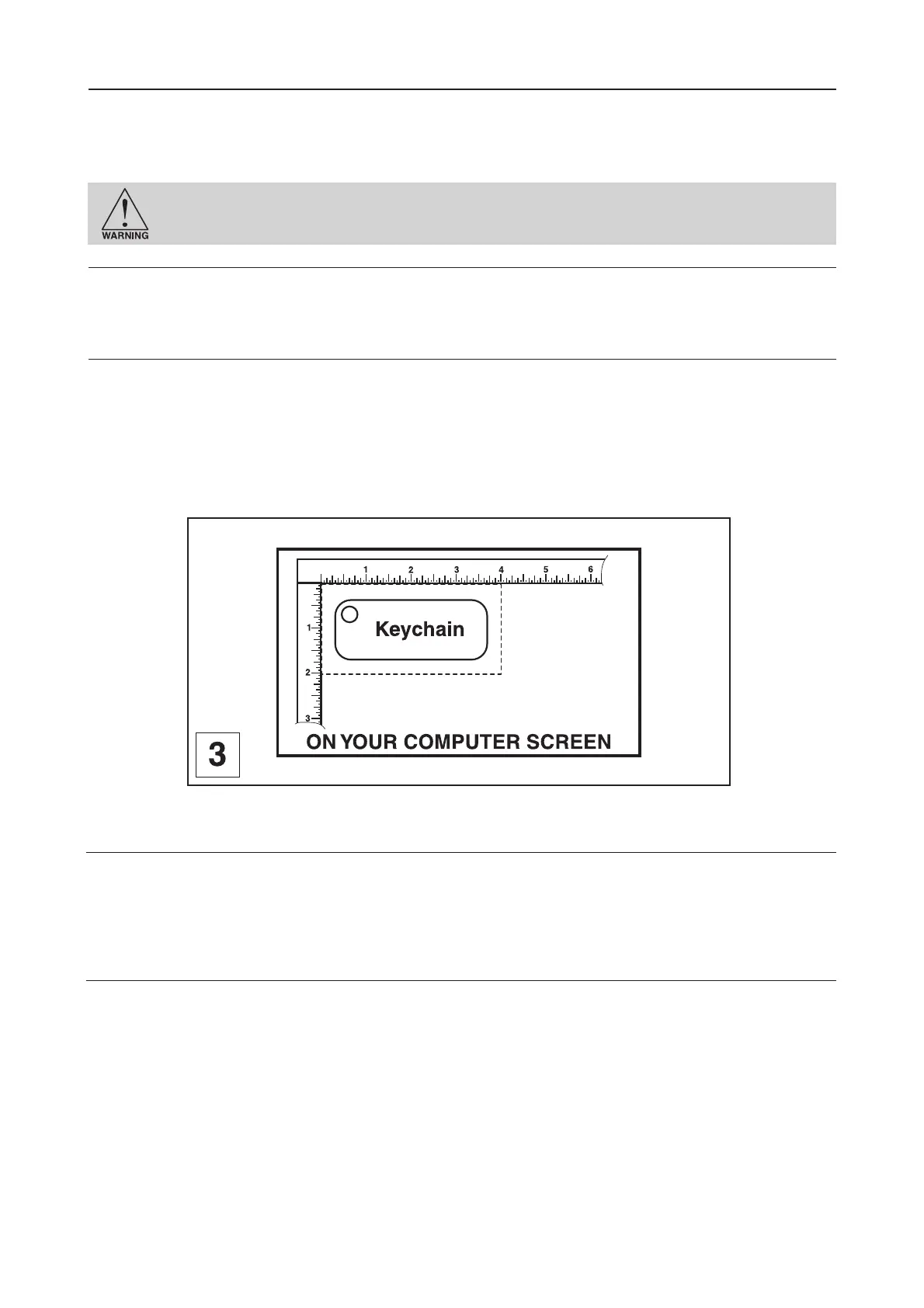
text with a BLACK colored fill and NO outline. For example, type in the word «Keychain». Draw an outline box around the
text, color the outline RED, give the outline a thickness of .00005 inches (or the smallest possible line width), remove the
fill color (if any), and round the edges if desired. Now add a circle with the same RED outline .00005 inches (or the smallest
possible line width) and NO fill, for the key ring. Place the graphic into the upper left corner of the page, on screen, depending
on how the piece of wood is positioned in the engraving area as the diagram 3 illustrates.
Setting the drivers' properties
The next step consists of setting the driver properties. From within your graphics program, get to where you can see the
driver parameter screen. Usually, there is a menu item called «Print Setup» or «Print Options» that allows access to the
printer driver screen from your graphics software. For specific instructions on how to access the printer driver from your
graphics software, please refer to your graphics software instruction manual or online help screens.
Once the printer driver is visible, click the appropriate tabs and set the drivers parameters to the appropriate settings.
Downloading the file
You are now ready to print to the LASER system. Make sure the LASER system is powered on and the display reads « READY
TO RECEIVE».
Find the «PRINT» command within your graphics program and click it. Depending on which graphics program you are using,
the menu command «PRINT» may be in various locations within your program. Usually after clicking «PRINT», you will then
need to click «OK».
A status screen may now appear showing a percentage of completion. Once this status screen disappears, it does not mean
that the file is totally in the LASER systems memory. If you have the Windows 2000® print spooler turned on, it can take
several seconds to even minutes, depending on your file size and the speed of your computer, before the entire file loads
into the LASER systems memory. Once the entire file is completely loaded, the display on the LASER system will
automatically update and will display the file’s name and the power settings that you assigned to the first color. One this
appears, file download is now complete.
Running the machine



 To Next Page