Model 672/675 Technical Reference Manual
9-5
E
DITING
M
ACROS
Characters may be added to or deleted from any point in a macro table.
N
AVIGATING A MACRO TABLE
A macro table begins at P10001 and ends at the end-of-table character. Each character in the macro table,
including the end-of-table character, represents one unique parameter location within the table. Thus, it is
possible to directly access any point in a macro table by selecting the appropriate parameter. For example,
10052.2 [SELECT]
will access the 52nd character in macro table #2. For larger macros it is helpful to obtain a copy of the
macro download to identify the exact location of a macro command within a table (see Downloading
Individual Macros on page 9-147).
The right and left arrow keys on the front panel keypad can also be used to scroll the characters of the
macro table forward and backward across the 5-character macro window. When scrolling past the
beginning or end or the macro table, the display "wraps" to the opposite end of the table.
INSERTING CHARACTER IN A MACRO TABLE
Example - Inserting Characters in a Macro Table demonstrates how to insert a character into an existing
macro table. Before inserting characters in a macro table, you must first access the macro table parameter
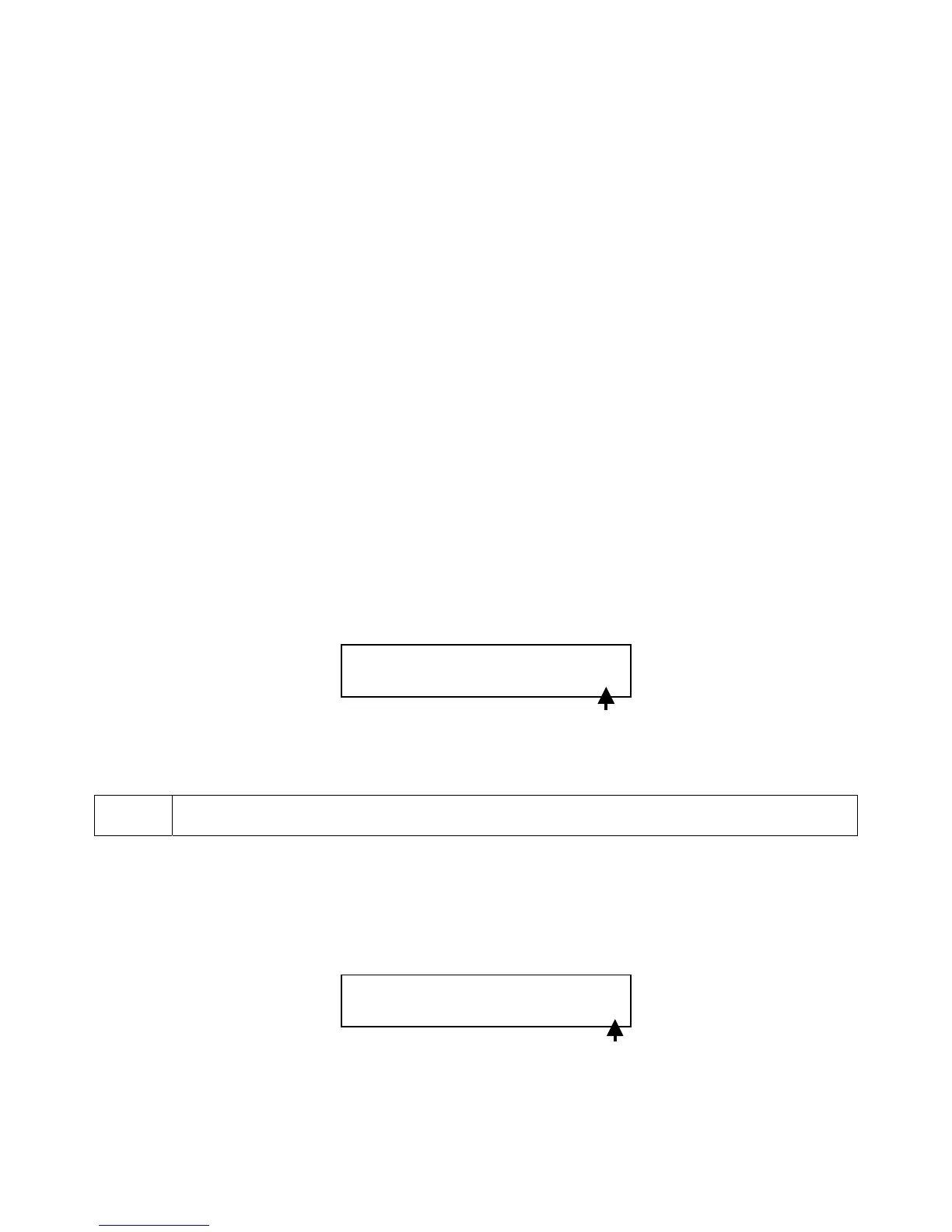
that represents the desired insertion point. Insertion will always occur between the last two characters of the
2X5 matrix display. Access the insertion point by keying in the macro table parameter number (if known)
and pressing [SELECT]. You can also use the right and left cursor arrows on the front panel keypad to
scroll forward and backward through the macro table to the desired location.
Insert characters by keying them in and pressing [ENTER]. Alpha characters may be entered through the
front panel as described in the Key-In Value Parameters section.
Selecting P19999 as shown in the example – Inserting Characters in a Macro Table will always
access the end-of-table parameter directly, regardless of the macro size.
DELETING CHARACTERS IN A MACRO TABLE
Before deleting characters in a macro table, you must access the macro table character that represents the
desired deletion point. The last character of the 2X5 matrix display will be cleared each time [CLR] is
pressed.
1000@
Mc 6
†††1%
Insertion Point
P1000@
Mc 6
†††1%
Deletion Point



 To Next Page