Application Setup
Chapter 3
3-4
F2 – GSE C
USTOM
APW L
OOKUP
The APW LOOKUP offers the flexibility of storing and recalling part numbers. The average piece weight and
part description will be stored and recalled with the part number.
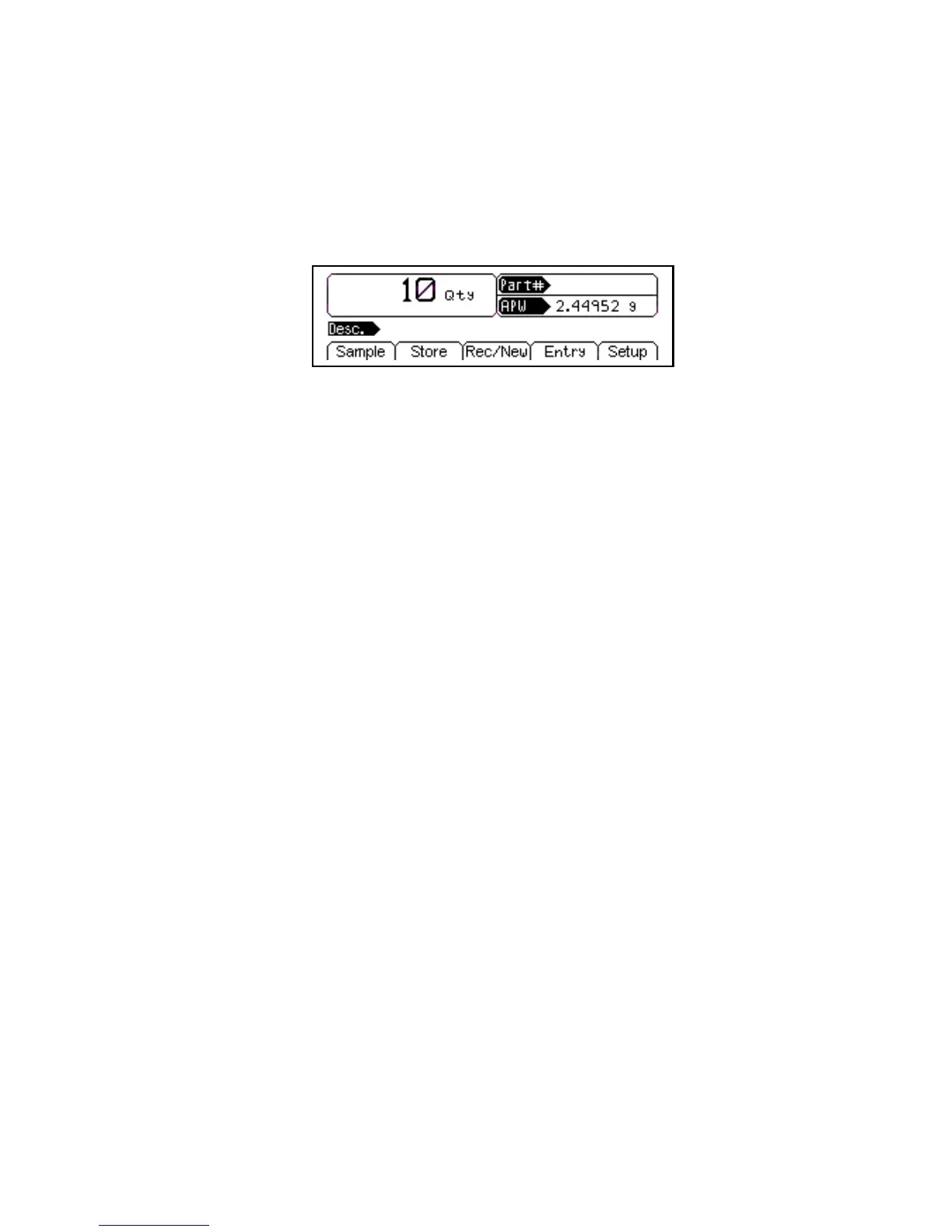
Figure 3-3: Model 672 APW Lookup Screen
Sample
Uses default sample size and prompts user to add that many pieces.
Store
Store a part number with average piece weight and description.
Rec/New
Add a new part number or recall a part number from the database.
Entry
This only appears when a part number is entered. Key in a part number and press
[F3]. Press [F4] to access the Description, Lot #, Bin # and APW fields.
Setup
Access setup menus, see page 43 for further details.
SAMPLE ()
Press [F1] and add pieces to be counted. See page 4-4 for more details on counting and sampling. The
default sample size is used.
STORE ()
Press [F2] to store the entered or scanned piece weight, description, part number, bin number, lot number
or any combination of these fields to the database. The display will update and the scale will beep. See page
4-5 for more details.
REC/NEW ()
Press [F3] to recall or add a new part number. See page 4-6 for more details.
ENTRY ()
This only appears when a part number has been entered. Press [F4] to access the description, lot#, bin#
and APW fields. Press [F1] to view and enter a Description, [F2] to view and enter a Lot #, [F3] to view and
enter a Bin # and [F4] to view and enter an Average Piece Weight.



 To Next Page