10
2.3 Setting screen
z Full screen mode
- Press button. Whenever pressing button, screen will go to next screen.
- Press desired numeric button of remote controller.
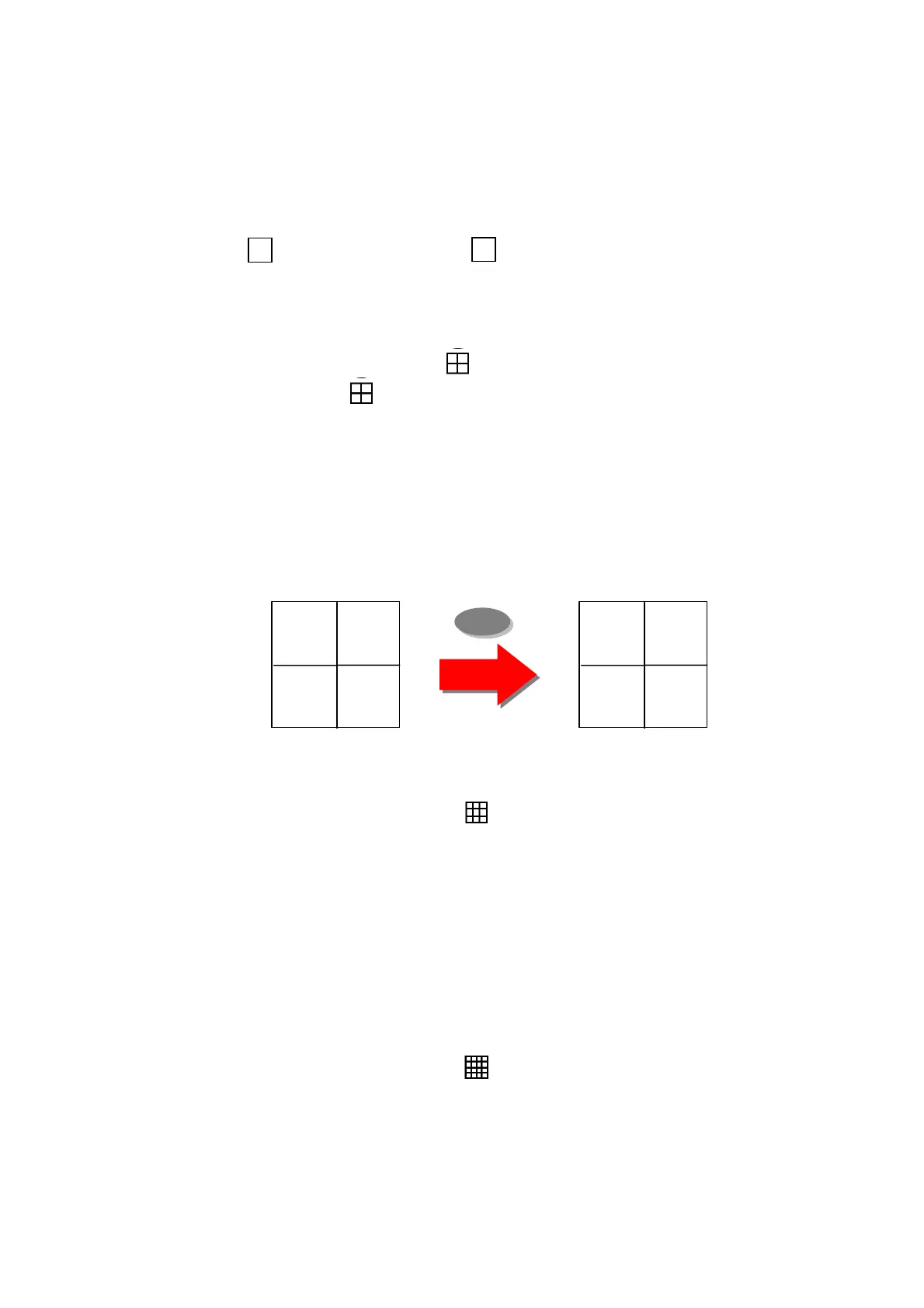
z Quad screen mode
- To see quad screen mode, press button.
- Whenever pressing button, screens will go to next quad screens.
- If you press a numeric key of remote controller which is inside current display range,
selected channel is displayed as full screen mode.
- If you press a numeric key of remote controller which is outside of current display
range, the quad containing selected numeric will be displayed.
E.g. you press 6 while current screen shows CH1~Ch4, CH5~CH8 will be displayed.
z 9ch display mode
- To see cameras by 9ch mode, press button.
* In case of 16channel DVR
- If you press a numeric key of remote controller which is inside current display range,
selected channel is displayed as full screen mode.
- If you press a numeric key of remote controller which is outside of current display
range, the nine screens containing selected numeric will be displayed.
z 16ch display mode – 16channel DVR
- To see camera by 16ch mode, press button.
1 CAM01 2 CAM02
3 CAM03 4 CAM04
5 CAM05 6 CAM07
7 CAM07 8 CAM08
6



 To Next Page