x.Spot™ User Manual Fixture Operation 3-9
3
MODE MENU, the operator can access the 16 scenes for that user mode. For more
information, see “Select User Mode” on page 3-20.
Editing Scene Parameters by Slot
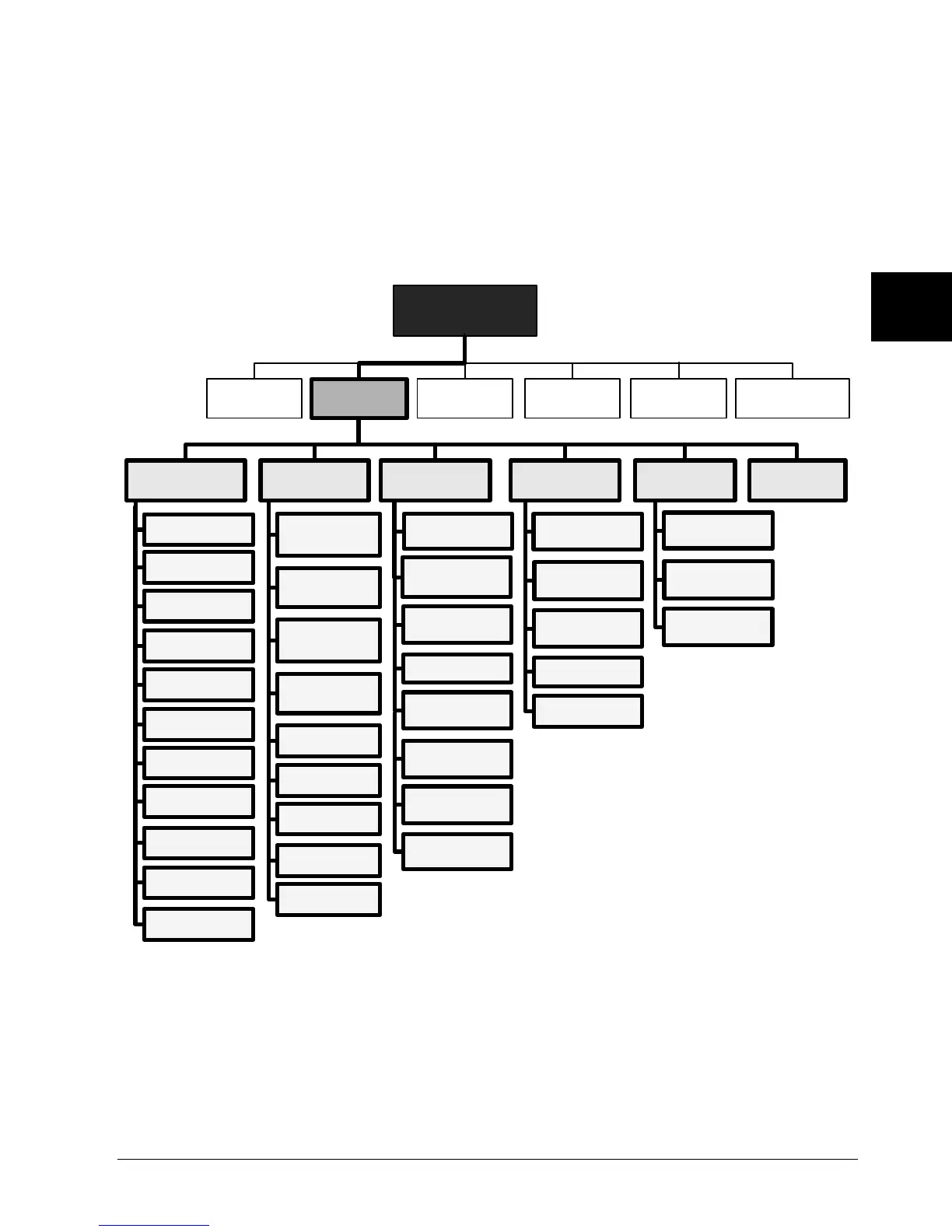
The x.Spot fixture parameters are associated with the chassis or the module they
control, and appear as level 3 menu items in the Onboard Preset Menu. Figure 3-3
shows the functions controlled in the Edit Scene menu.
Figure 3-3 Edit Scene Menu Options in Standard x.Spot
When a scene is edited, the new values become part of the currently programmed
sequence. Exit the ONBOARD PRESETS MENU with Playback ON, to view the
programmed sequence with the modified scene values.
The following SCENE EDIT example describes steps to create a tricolor rotating
tunnel with a ramping size change. All module parameters and values are for a
Standard Configuration x.Spot fixture, see “Standard Configuration” on page 1-1.
ONBOARD PRESET
MENU
PLAYBACK EDIT SCENE #
CAPTURE DMX
TO SCENE
DEFAULT
SCENE
SEND SCENE TO
OTHER FIXTURES
COPY SCENE
MENU
TIMING ZERO SCENE
PAN
TILT
FROST
FOCUS FUNCTION
FOCUS POSITION
ZOOM
M-SPEED
MACRO
SHUTTER
DIM
LAMP FUNCTION
CHASSIS
STATIC COLOR
FUNCTION
CYAN
MAGENTA
YELLOW
CTO
CTB
STATIC COLOR
MIX COLOR
FUNCTION
MIX COLOR
SLOT 1 SLOT 2
IRIS
GOBO 2
FUNCTION
GOBO 2 ROTATE
FUNCTION
GOBO 2
POSITION
GOBO 2 ROTATE
SLOT 3
GOBO 1
FUNCTION
GOBO 1 ROTATE
FUNCTION
GOBO 1
POSITION
GOBO 1 ROTATE
EFFECT
FUNCTION
EFFECT ROTATE
FUNCTION
EFFECT POSITION
EFFECT ROTATE
X-FADE TIME
TIMEBASE
DELAY TIME


 To Next Page