6.10 When SEM operation program does not start up
6-6
6.10 When SEM operation program does not start up
Check the followings if the SEM operation program does not start up (the progress bar does
not extend to the end after log in) after activating and logging in the program.
(1) Confirm if the [EVAC POWER] switch is ON.
(2) Confirm if the STAGE breaker at rear side of the main unit is ON.
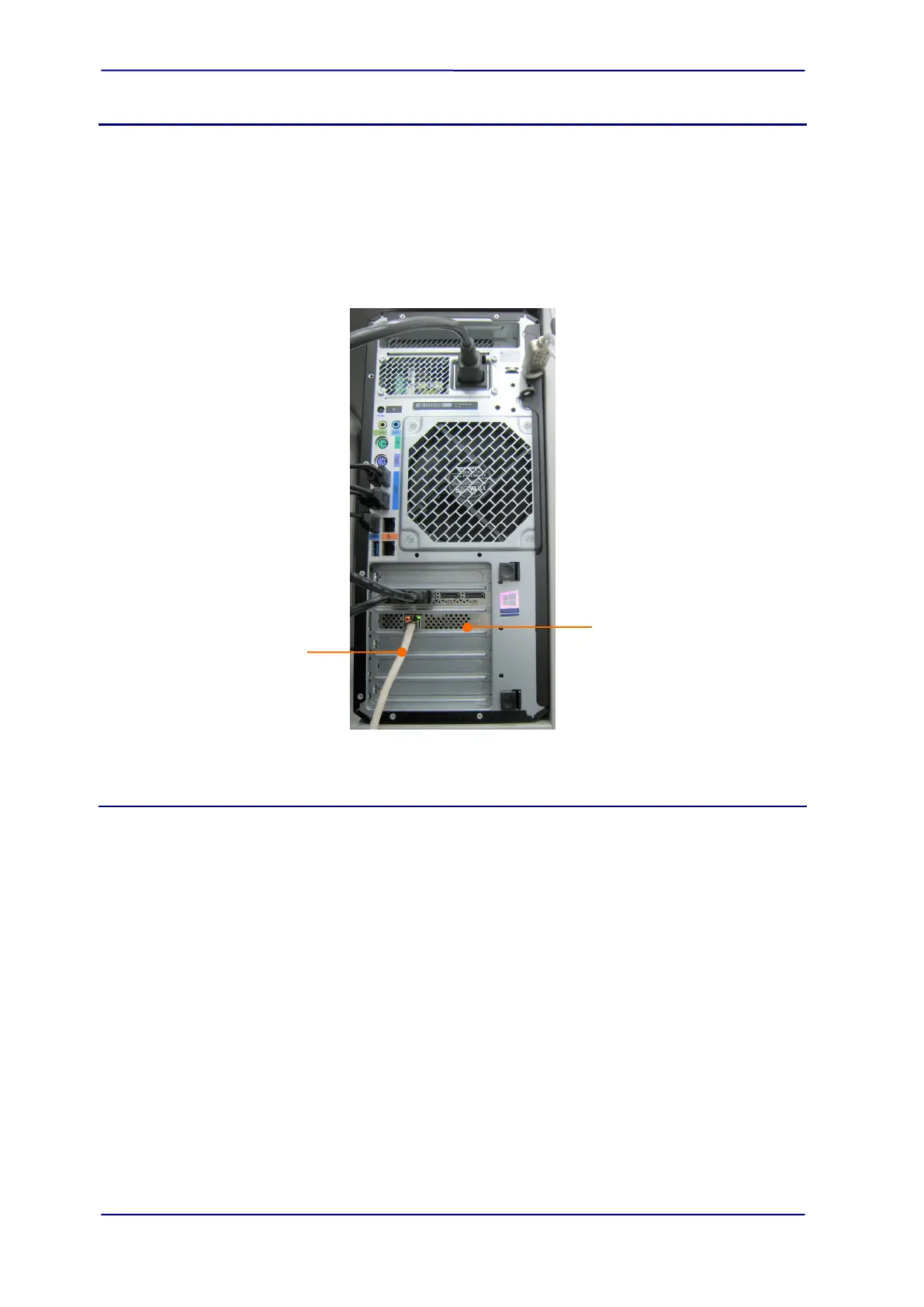
(3) Confirm that the LAN cable is properly connected to the PC (whether the LAN cable is
connected to the port at the expansion slot side) as shown in the figure below.
6.11 When the PC has frozen
If the PC has frozen during operation, shut down Windows, then restart the PC. When
applications other than the SEM operation program are activated, save the important data if it
is possible and then perform the shutdown procedure.
(1) Click the Shut down for the Windows.
(2) Wait until the computer is shut down. If the PC will not shut down for a long period, press
and hold the PC power button to turn OFF the PC power.
(3) Turn OFF the [EOC POWER] switch at front of main unit.
(4) Wait about one minute or so and turn ON the [EOC POWER] switch (Power ON the PC
unless the PC is started up automatically upon powering on the EOC unit).
If Windows could not be normally shut down at last time, the Windows Error Recovery
screen will be displayed. Select the [start windows normally] to start windows.
(5) Log in to the Windows and start up the SEM operation program.
(6) When the SEM operation program cannot shut down normally due to PC lockup, the
status of PC before shutting down may not be reproduced.
LAN cable
from the main unit



 To Next Page